
EquipmentShare ES E-Logs
Electronic Logging Device
DOT Reference
Card
Compliant with FMCSA regulation 49 CFR § 395.15 and 49 CFR § 395.20
© 2026 EquipmentShare.com Inc. All rights reserved. Subject to change without notice.
v4
*Compliant with FMCSA regulation 49 CFR § 395.15 and 49 CFR § 395.20
DOT Reference Card for E-Logs Drivers
v4

EquipmentShare's T3 technology platform features a certified Electronic Logging Device (ELD) solution that automatically records Hours of Service (HOS) and creates Records of Duty Status (RODS). Use this reference card during a roadside inspection or when an ELD malfunction or diagnostic alert occurs.

1
Roadside Inspections

To access your logs during a roadside inspection:

  1. 1
    Open the ES E-Logs mobile app.
  2. 2
    Tap Inspect at the bottom of the screen.
  3. 3
    Choose how the officer would like to receive or review your logs.
Send Logs Using Web Service

Web Service is the preferred method for electronically transferring logs.

  1. 1
    From Inspect, tap Web Service.
  2. 2
    Enter the Output File Comment provided by the officer, if applicable.
  3. 3
    Tap Submit.
The current 24-hour period and previous seven days are included in the submission.
Send Logs Using Email

If Web Service is unavailable, select Email from the Inspect screen to electronically transfer the ELD output file.

Show Logs on Your Device

If the officer wants to review your logs directly on your mobile device:
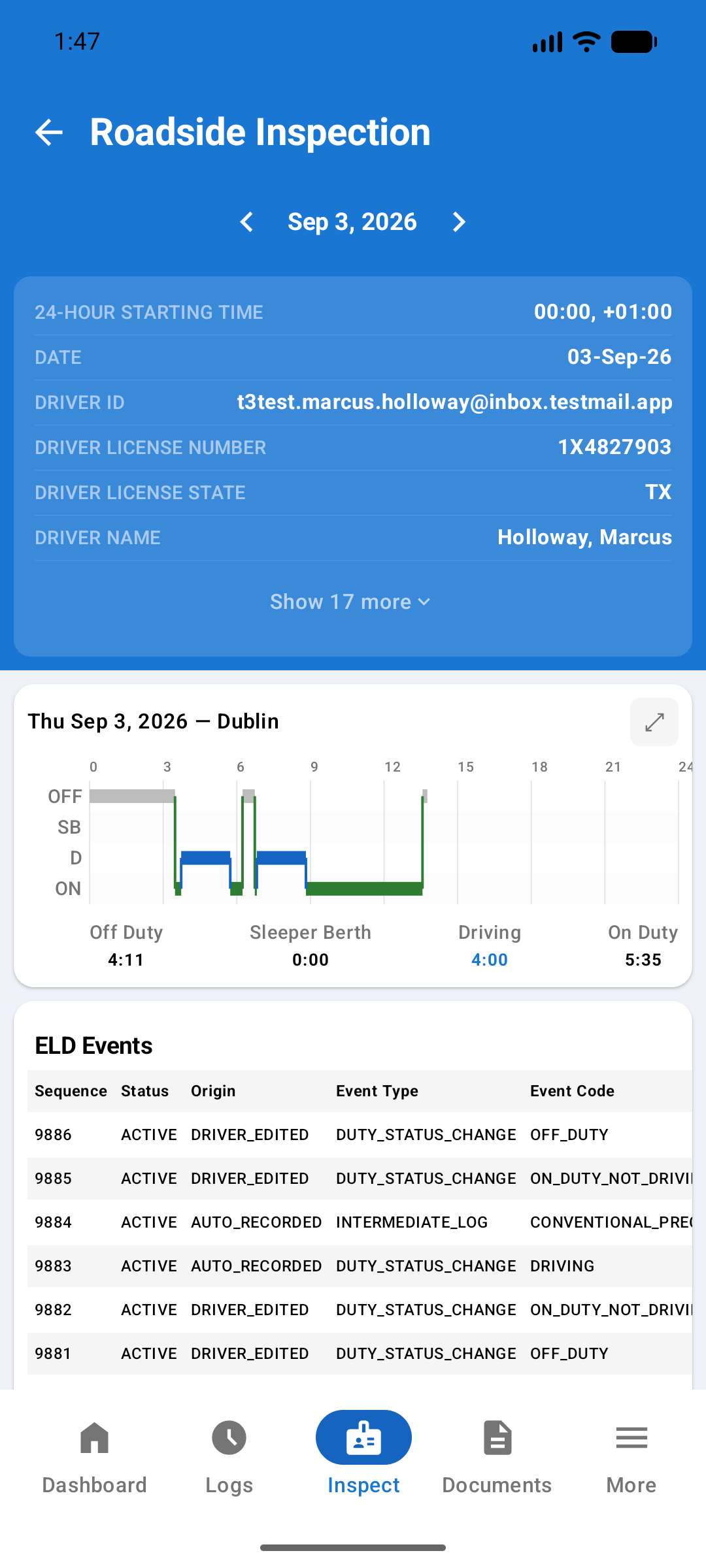
  1. 1
    From Inspect, tap Roadside Display.
  2. 2
    Hand the device to the officer.
  3. 3
    The officer can review the HOS chart, ELD events, certifications, and other required information.
Roadside Display does not require an internet connection. At least the current day and previous seven days of logs are stored on the device and available for inspection.
Roadside Inspection screen showing the driver and record header, the 24-hour chart, and the ELD Events table
Roadside Display
2
ELD Malfunctions and Data Diagnostics
ELD Malfunctions

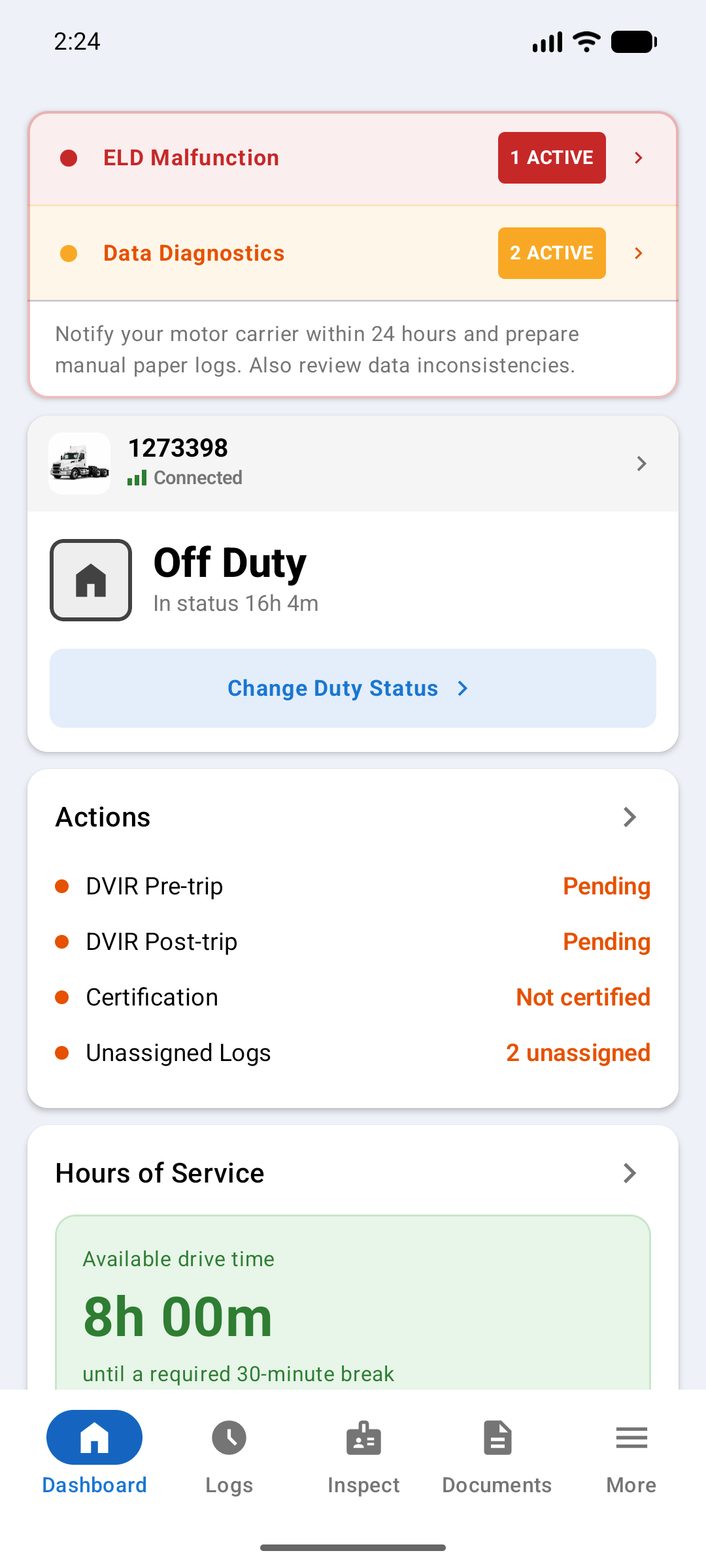
A red ELD Malfunction alert means the ELD cannot reliably record required data and requires immediate attention. If an ELD malfunction occurs:
  1. 1
    Notify your motor carrier in writing within 24 hours of discovering the malfunction.
  2. 2
    Reconstruct your duty status on paper for the current 24-hour period and previous seven days if the records are not otherwise available.
  3. 3
    Continue using paper logs until the ELD is repaired and compliant.
  4. 4
    Resume using ES E-Logs when the malfunction is resolved and make sure any missing records are accounted for.
Drivers should keep paper log supplies available in the vehicle in case an ELD malfunction prevents required information from being recorded.
ELD Malfunctions List
  • Data Recording Compliance (R)
  • Power Compliance (P)
  • Positioning (L)
  • Timing (T)
  • Engine Synchronization (E)
  • Data Transfer Compliance (S)
  • Other Malfunction (O)
See the Malfunctions & Diagnostics section of the ES E-Logs Driver User Manual for a full description of each malfunction and diagnostic.
Dashboard with a red ELD Malfunction row reading 1 active above an amber Data Diagnostics row reading 2 active, and a note to notify your motor carrier within 24 hours and prepare paper logs
Data Diagnostics

An amber Data Diagnostics alert indicates an issue that needs to be reviewed but does not necessarily require the driver to switch to paper logs. Common diagnostics are:

Data Diagnostics List
  • Power Data Diagnostic (Code 1)
  • Engine Synchronization Diagnostic (Code 2)
  • Missing Required Data (Code 3)
  • Data Transfer Diagnostic (Code 4)
  • Unidentified Driving Records (Code 5)
  • Other Diagnostic (Code 6)

For unidentified driving records, go to:

Logs > Unassigned Logs
Review each pending event and select Claim if it belongs to you or Reject if it does not.