
ES E-Logs is EquipmentShare's Electronic Logging Device (ELD) app for FMCSA Hours of Service (HOS) compliance. It automatically records your driving time, tracks your remaining hours, and generates the daily log required by federal law.
This app replaces paper log books. As long as you keep the app signed in and the vehicle assigned, your driving time is recorded automatically. No manual entry is required during driving.
If an ELD malfunction stops the app from recording, you keep paper logs instead. See Section 17, Paper Logs.
Use your EquipmentShare T3 account credentials to sign in. These are the same credentials you use for the T3 platform and other EquipmentShare apps.
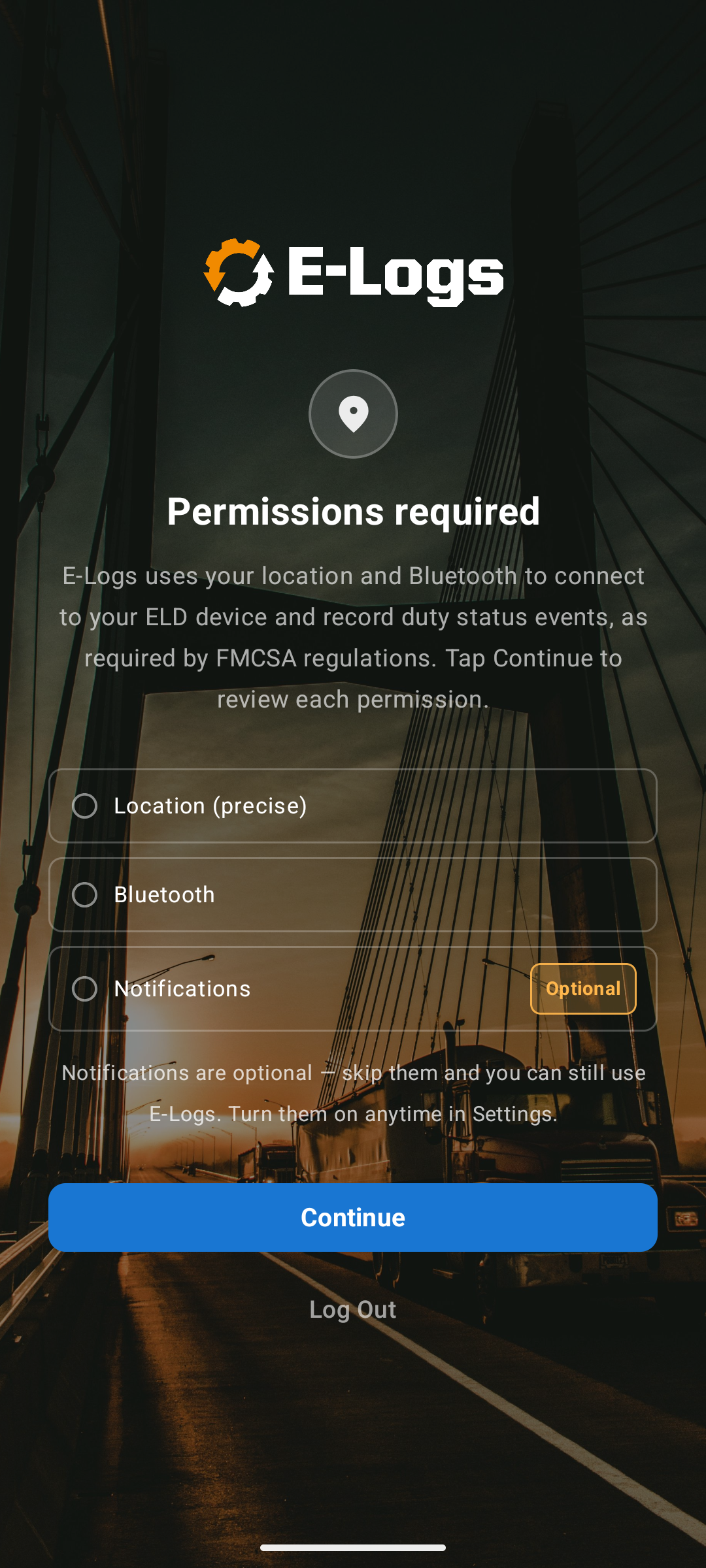
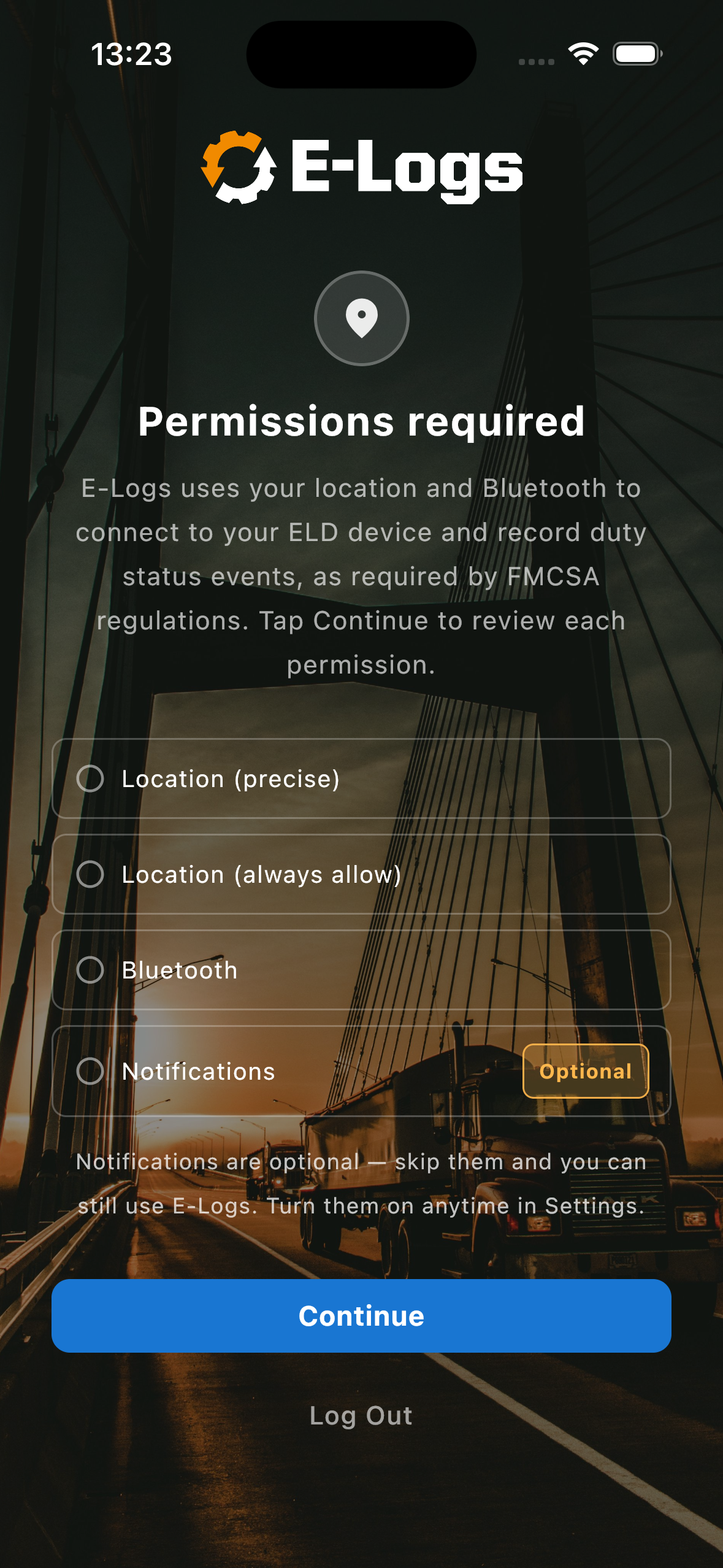
The first time you sign in, the app shows a Permissions required screen. Tap Continue and accept each prompt. Federal rules need these to record your log.
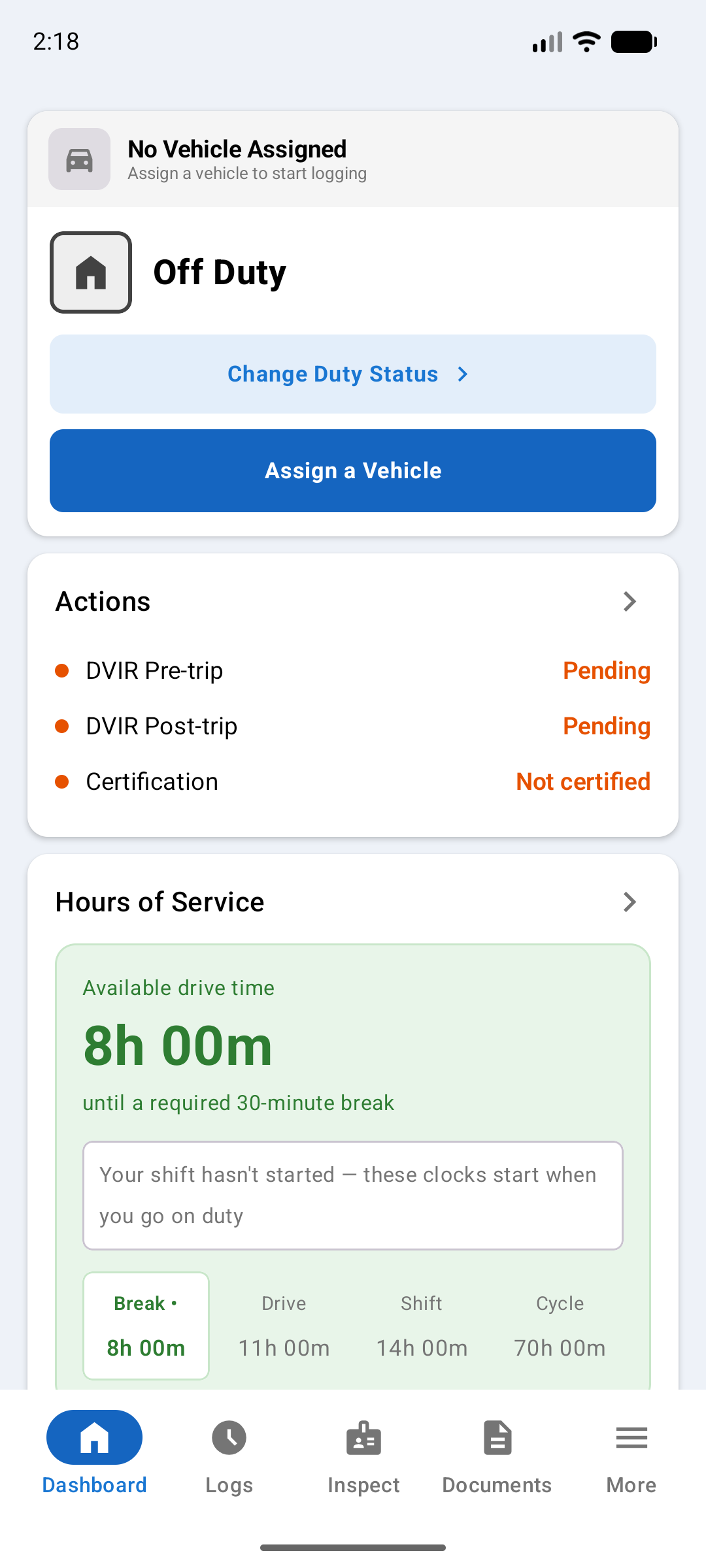
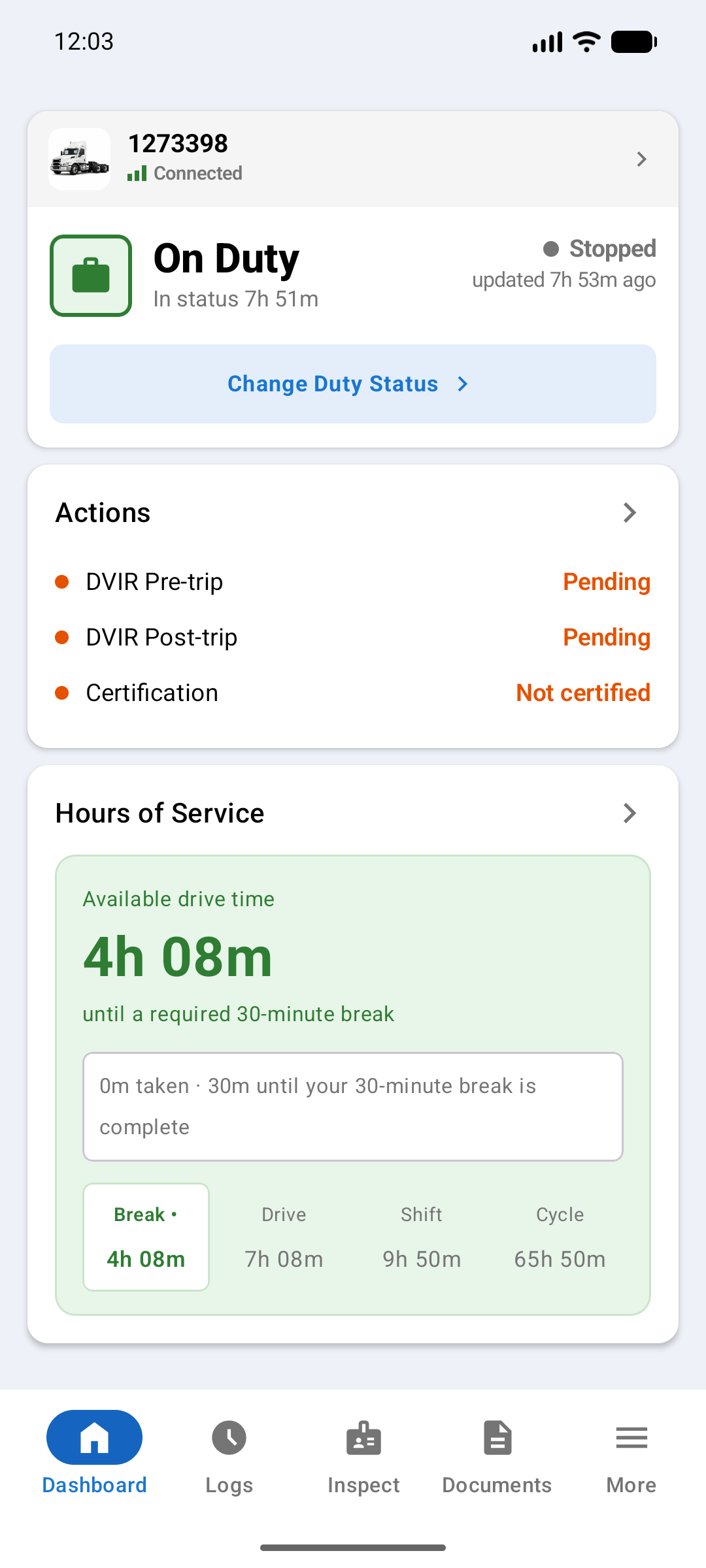
The Dashboard is the first screen you see after signing in. It shows what you need for your shift at a glance.
The top card shows your assigned vehicle's name and connection status. A green signal icon means the app is connected to the tracker. Tap the card to see connection details or unassign the vehicle.
Your active duty status appears with a colored icon and how long you have been in it. Tap Change Duty Status to switch. At 5+ mph the status changes to Driving by itself, and the button stays disabled until you stop.
The Actions card lists items that need your attention: uncertified logs, pending DVIRs, and certifications. Tap a row or the arrow to open the full Actions screen for today.
The Hours of Service card summarises your four timers. Each row shows remaining time and a progress bar that fills as time is used.
Tap the card to open the HOS Details screen, which shows each timer's remaining, used, and total times. See Hours of Service (Section 12) for each timer's limit, your cycle rule, and what resets each clock.
You must be assigned to a vehicle before driving. The app connects to the ELD tracker installed in your vehicle, which automatically records speed, location, and engine data.
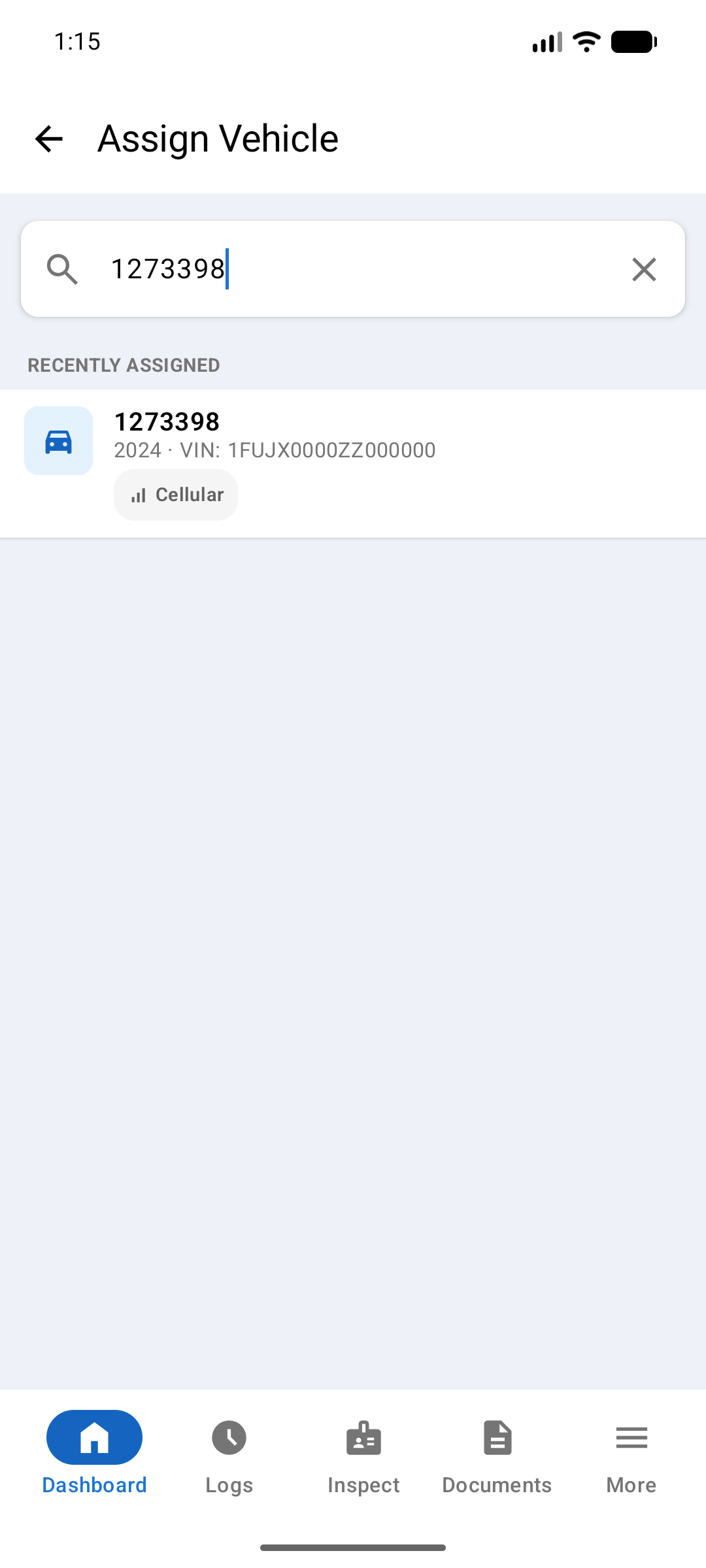
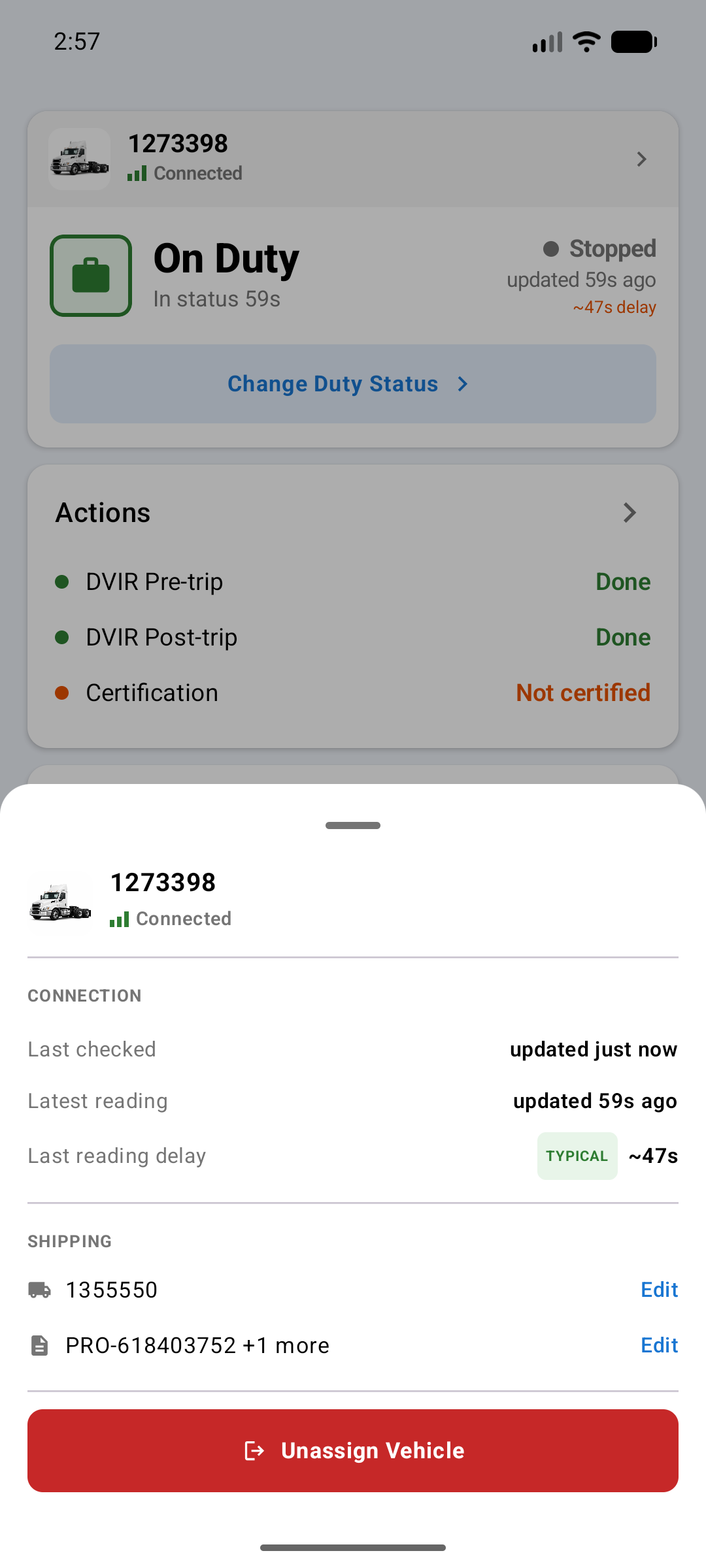
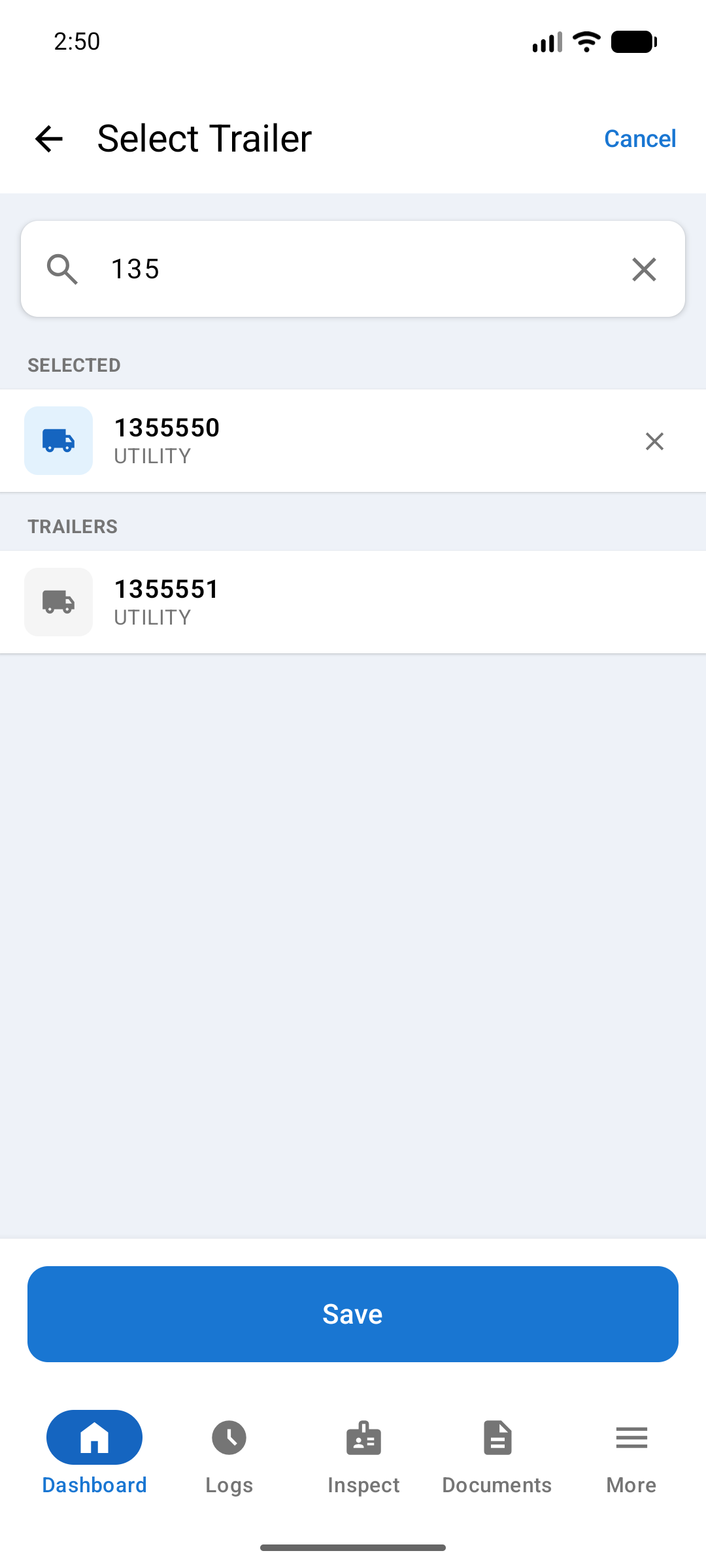
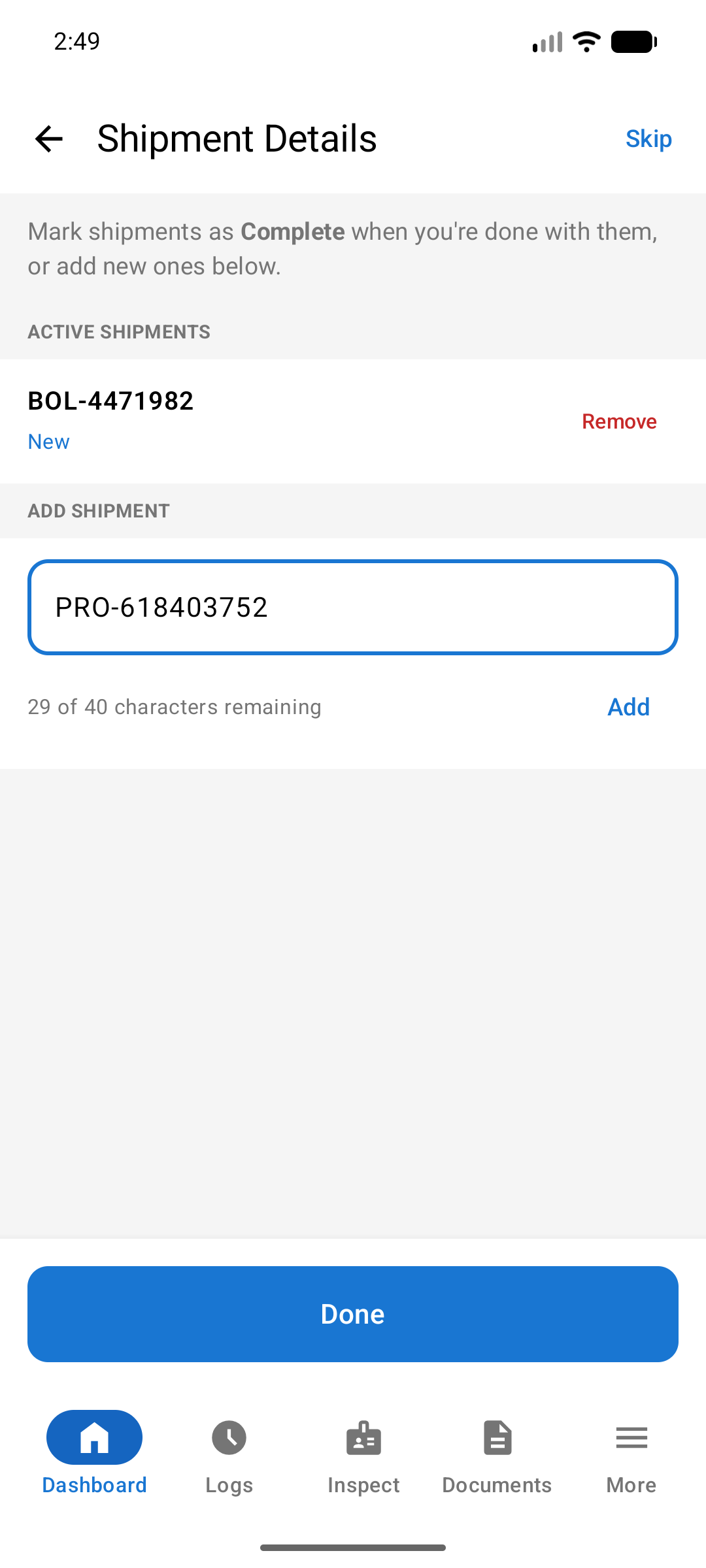
While assigning a vehicle, add a trailer and enter shipment information after selecting the vehicle. This information attaches to your daily log and is visible to your carrier. You can also tap the vehicle card on the Dashboard later to add or change trailer and shipment information at any time.
Your vehicle's ELD tracker communicates with the app in one of two ways, depending on which device is installed. Your fleet administrator determines which type is in each vehicle.
| Device | Communication Protocol |
|---|---|
| MC-4+ | Cellular |
| MC-5 | Cellular |
| MCX 101 | Cellular |
| LMU 3030 | Cellular |
| PT40 | Bluetooth |
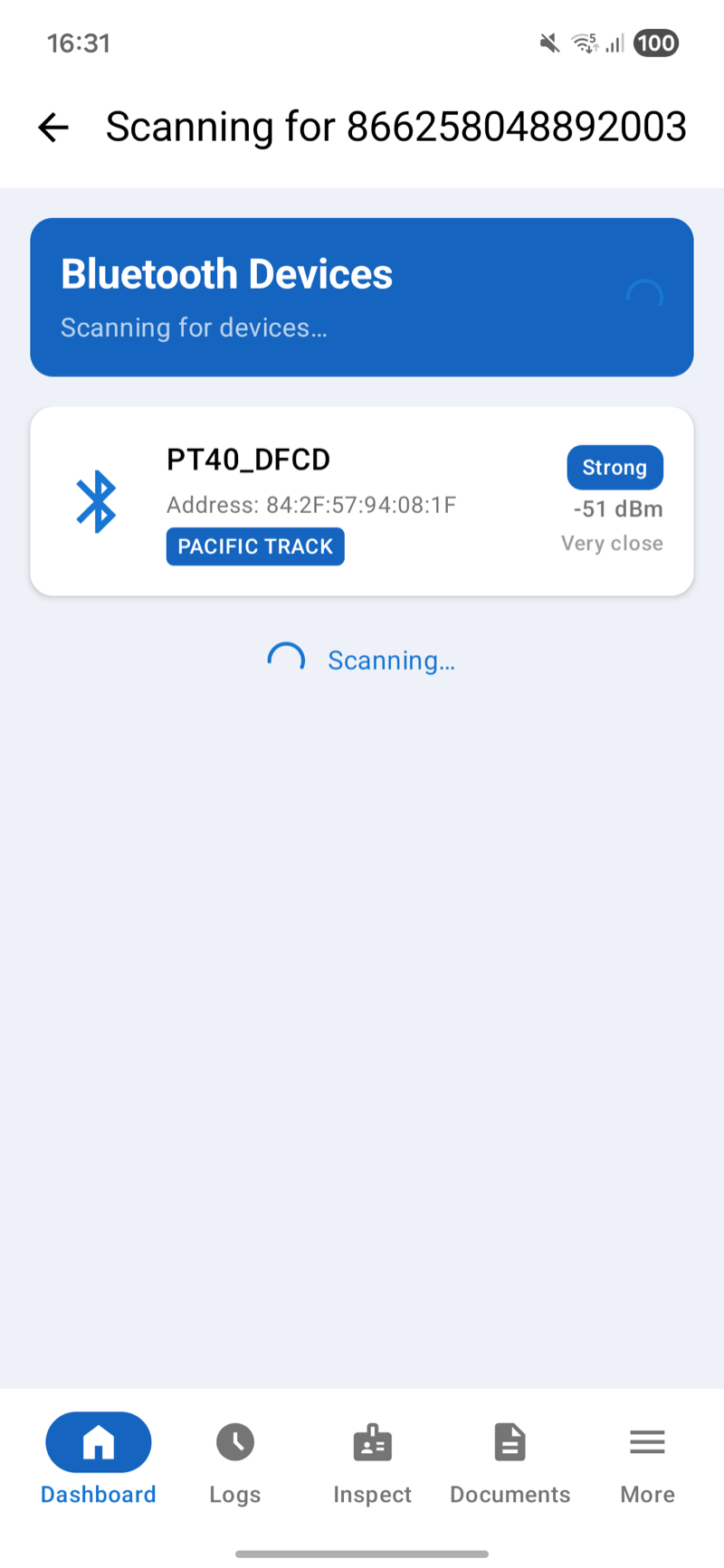
Once a vehicle with a Bluetooth tracker is assigned to you, its dashboard card shows a Connect to Tracker button. Tap it to start the BLE connection.
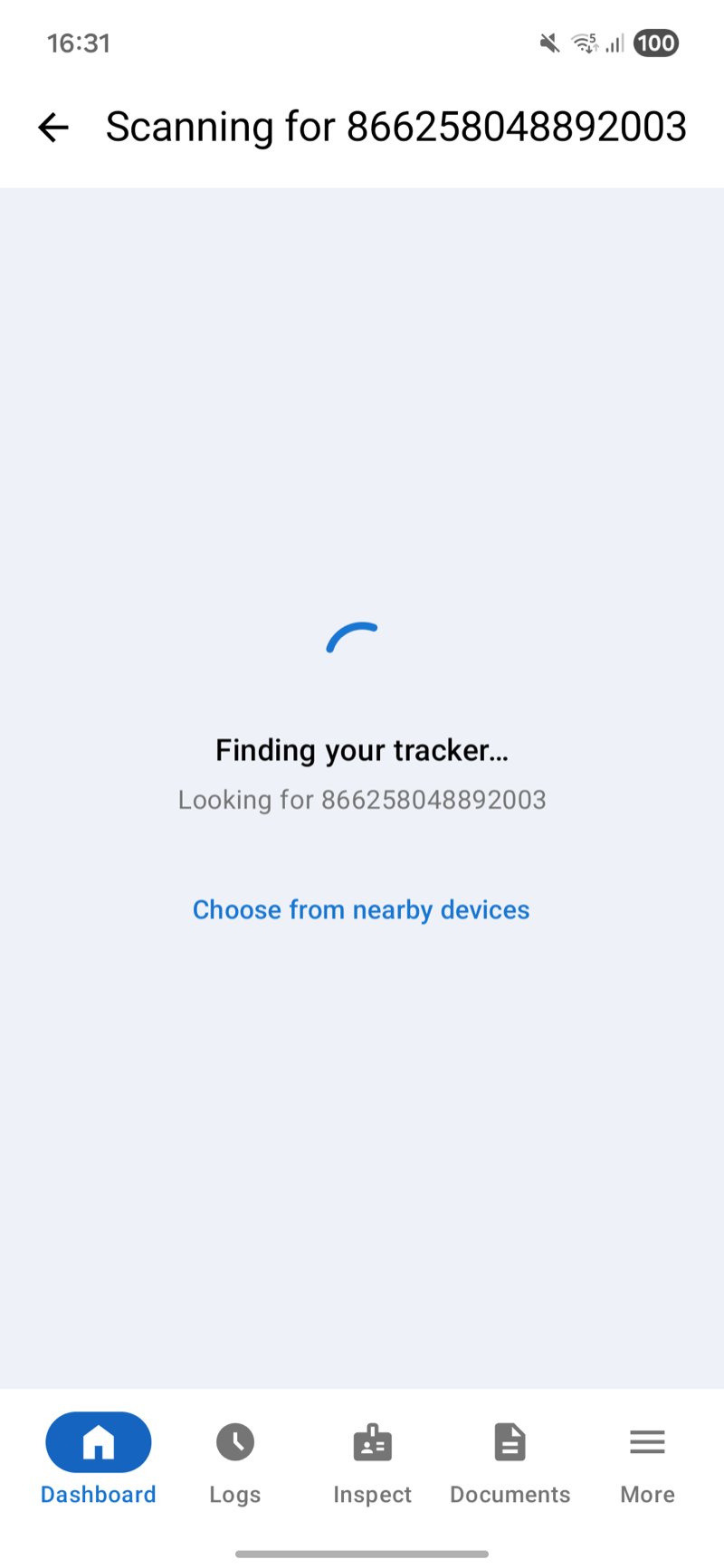
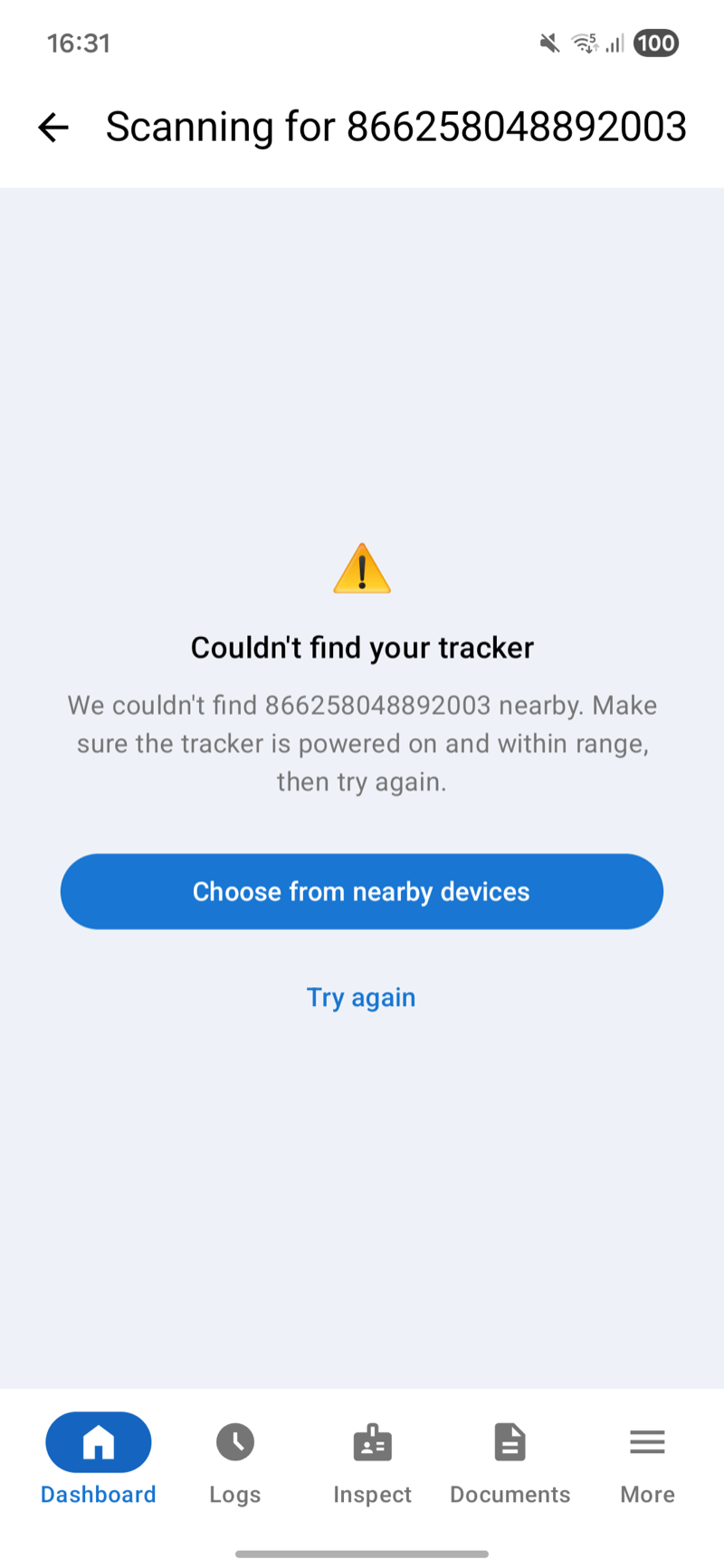
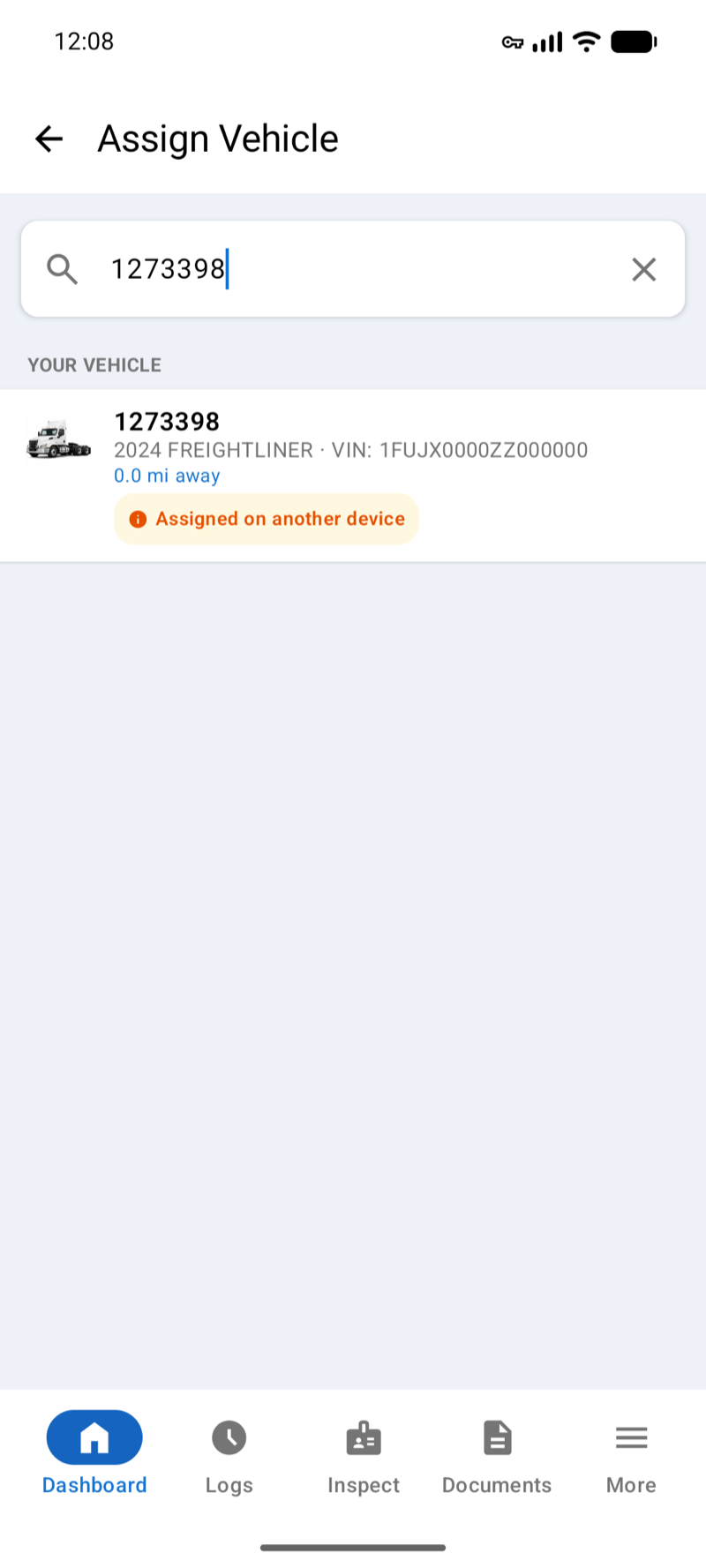
You can sign in to the app on more than one phone or tablet. Only one of them records driving for a vehicle at a time.
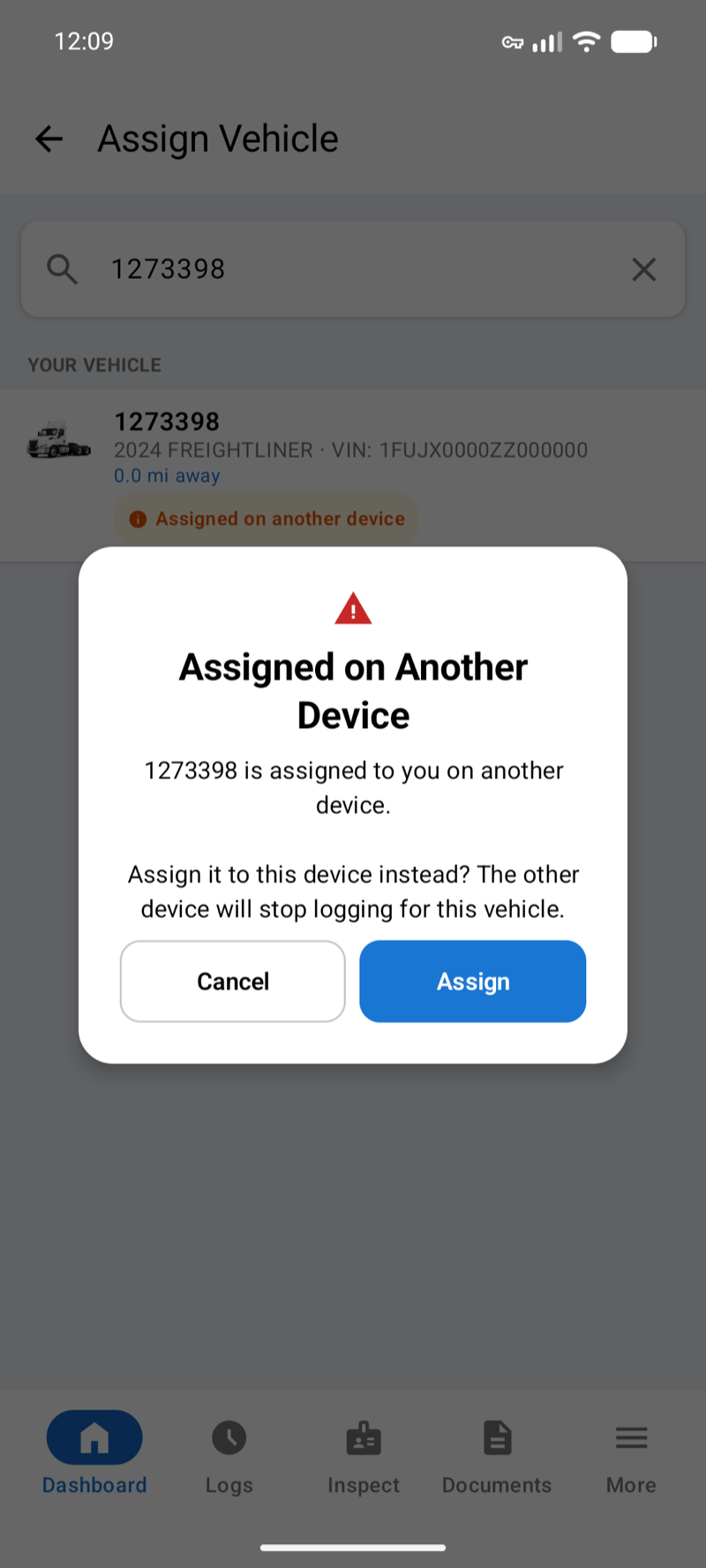
A Vehicle Already Assigned message is different. It means another driver has the vehicle.
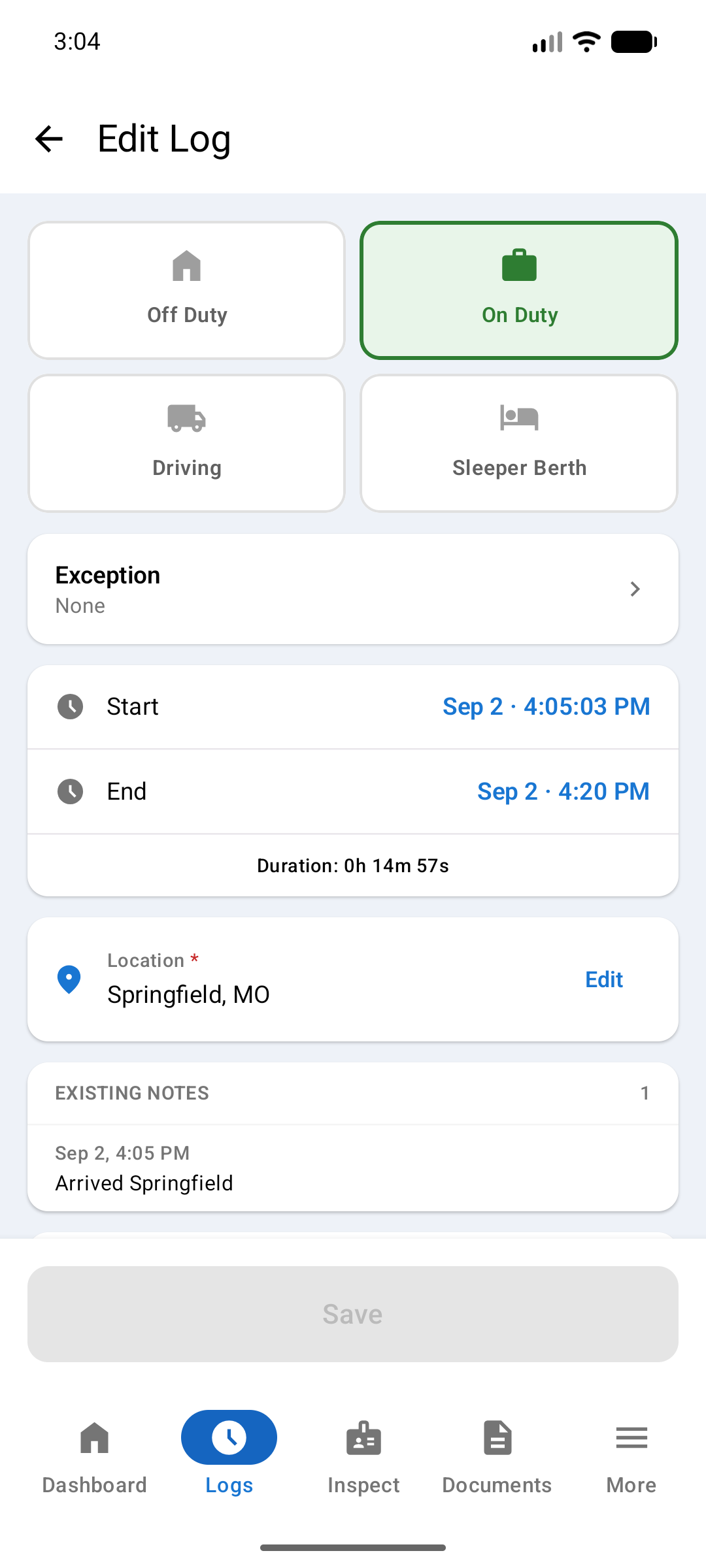
Tap Change Duty Status on the Dashboard to open the status selector. Select the appropriate status, then tap Save.
With no vehicle assigned you get only Off Duty, On Duty and Sleeper Berth. The other three need the movement and engine data an assigned vehicle supplies.
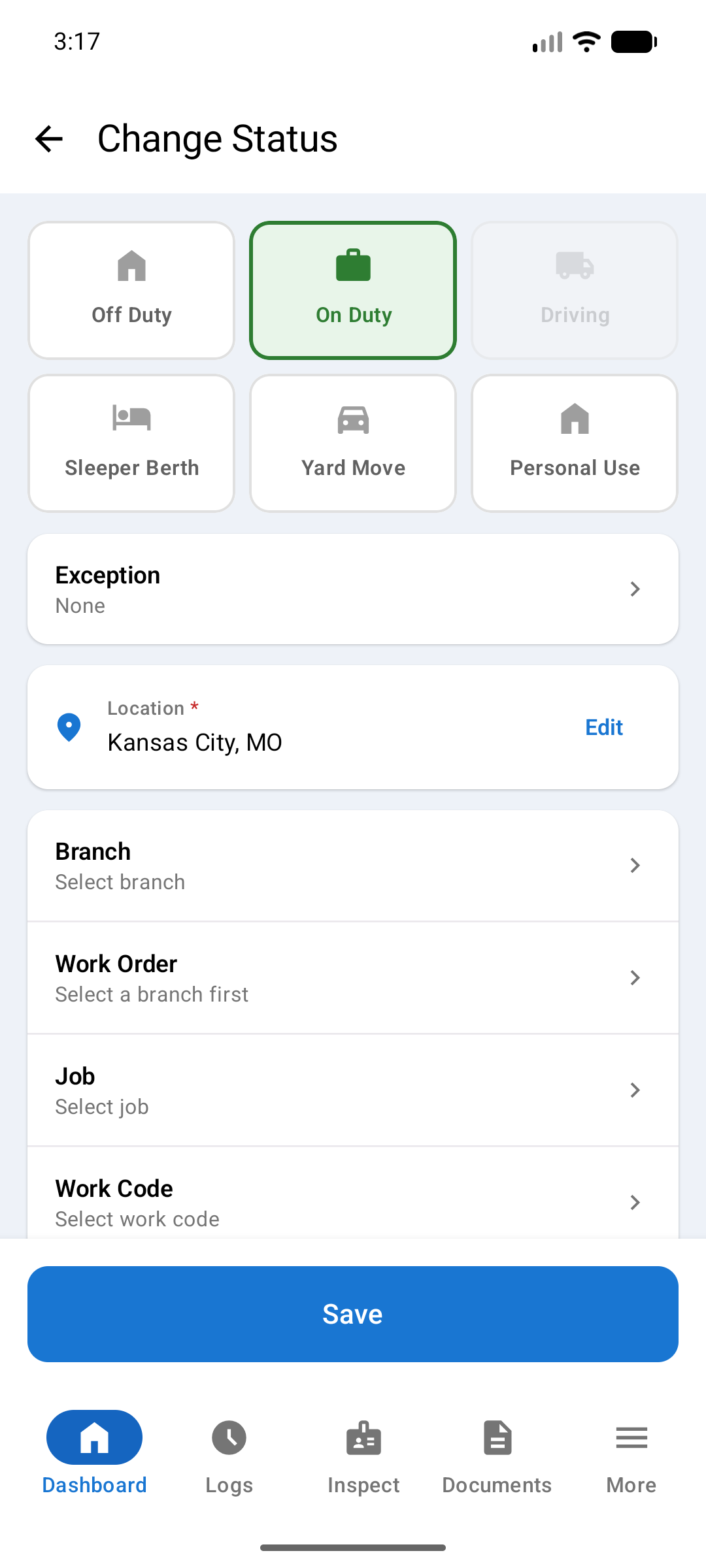
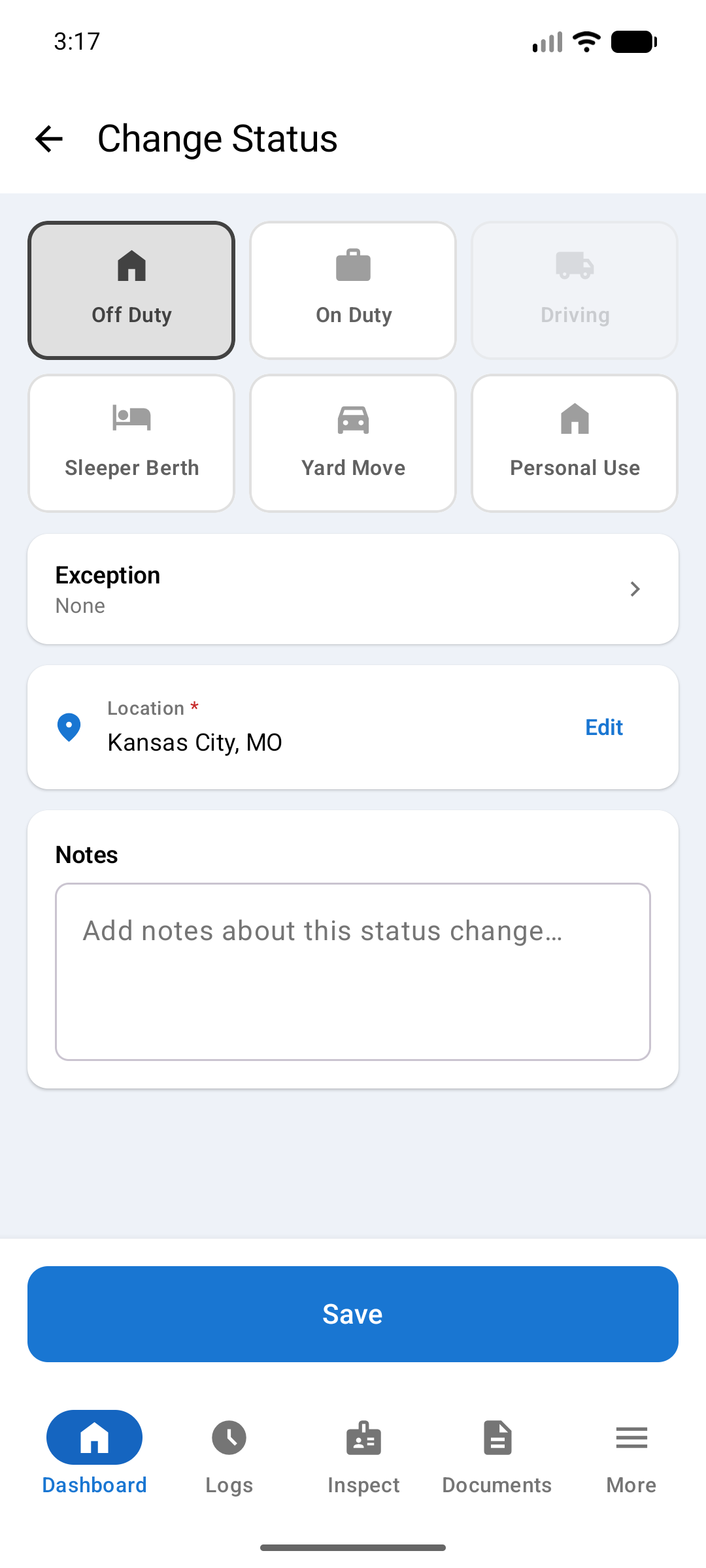
Yard Move and Personal Use suppress driving time. Movement does not count toward your HOS driving limits.
Tap Exception to claim a regulatory exception, or leave the row as None. See Hours of Service (Section 12) for what each one allows.
Location comes from GPS. If GPS is unavailable, tap Enter manually and type your city and state.
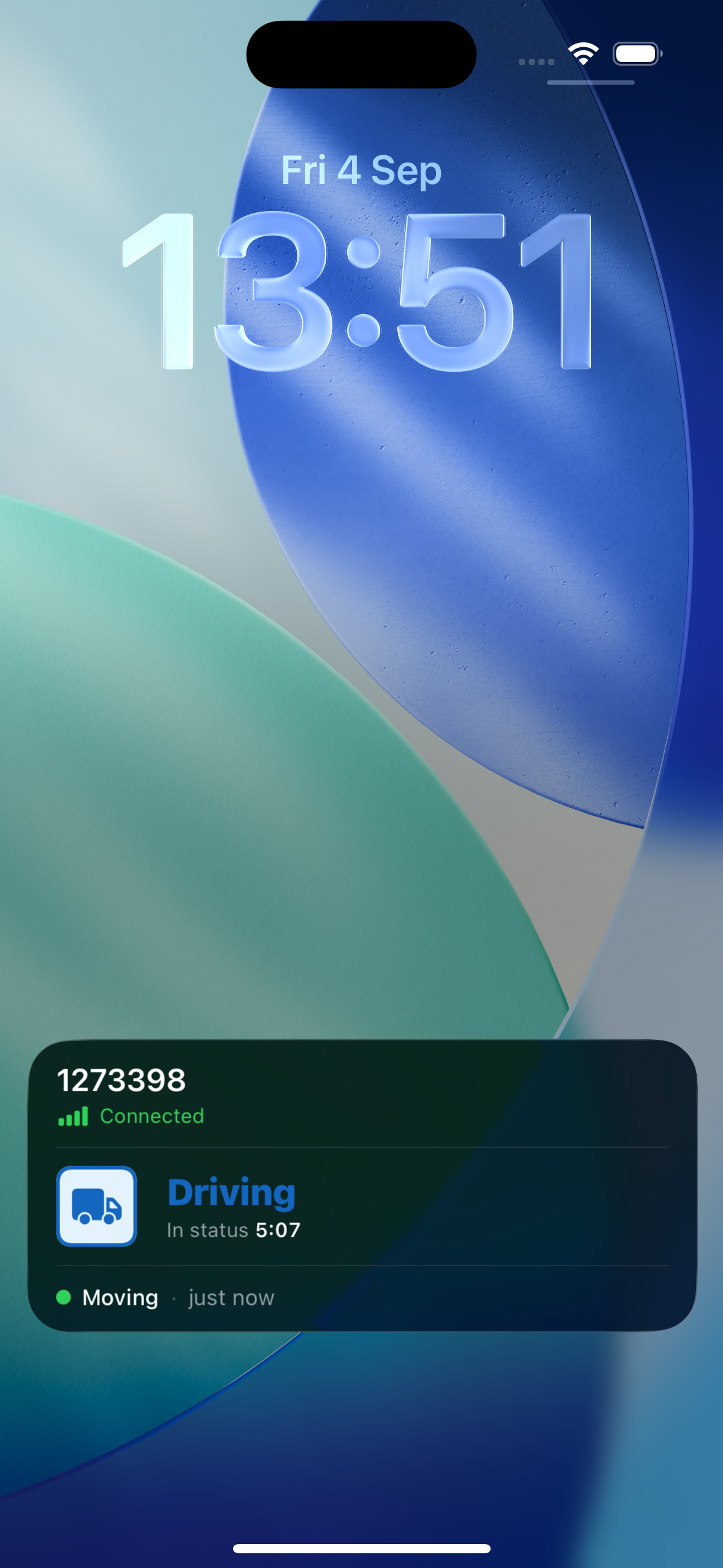
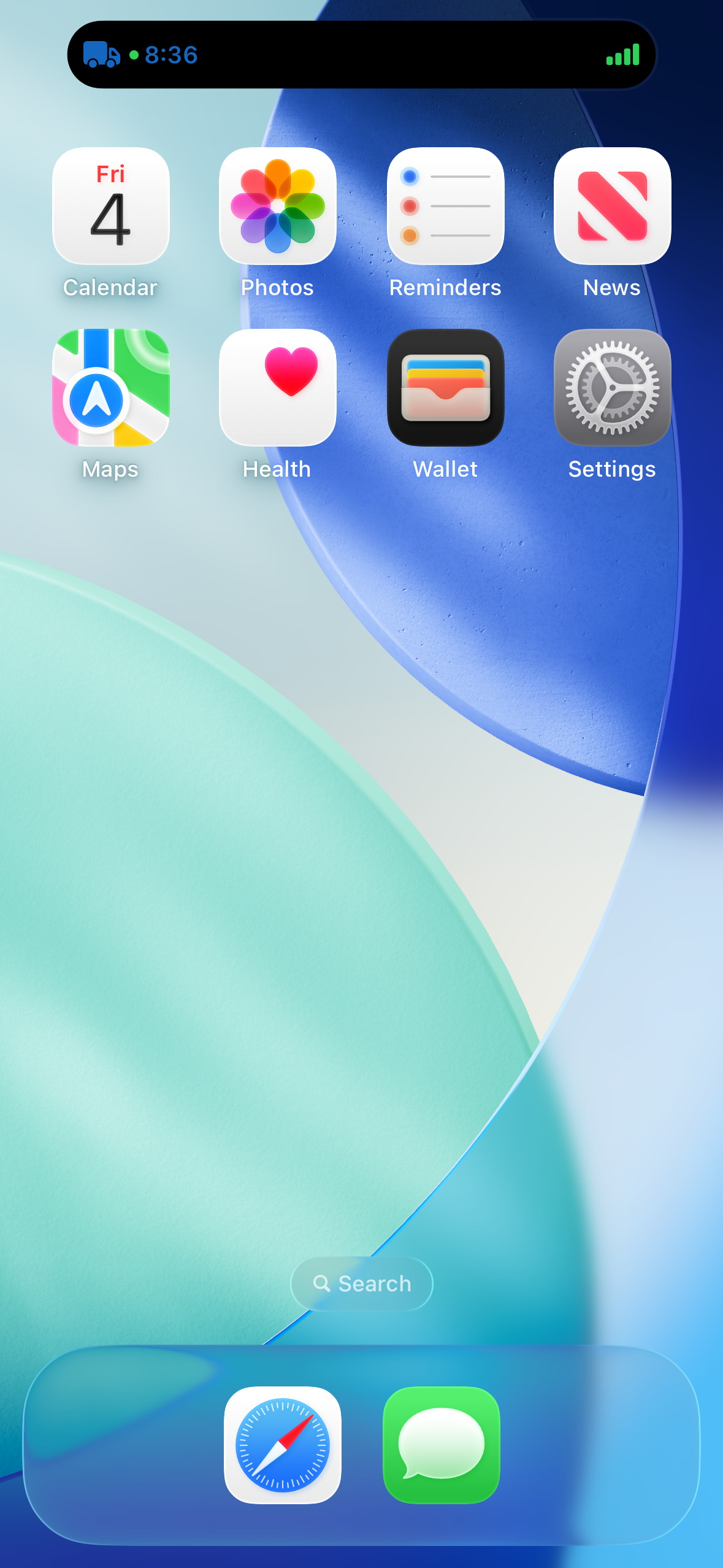
On iOS your status also shows on the lock screen, so you can check it without opening the app. It gives the vehicle and its tracker connection, your duty status and how long you have held it, and whether the vehicle is moving.
Four extra rows appear when you pick On Duty, Yard Move, or Driving. They feed your hours into T3 Time Cards, so your office can see what job your time was spent on. They do not affect your HOS timers. Off Duty, Sleeper Berth, and Personal Use do not show these rows.
Fill them in top to bottom. Each row narrows the choices in the row below it.
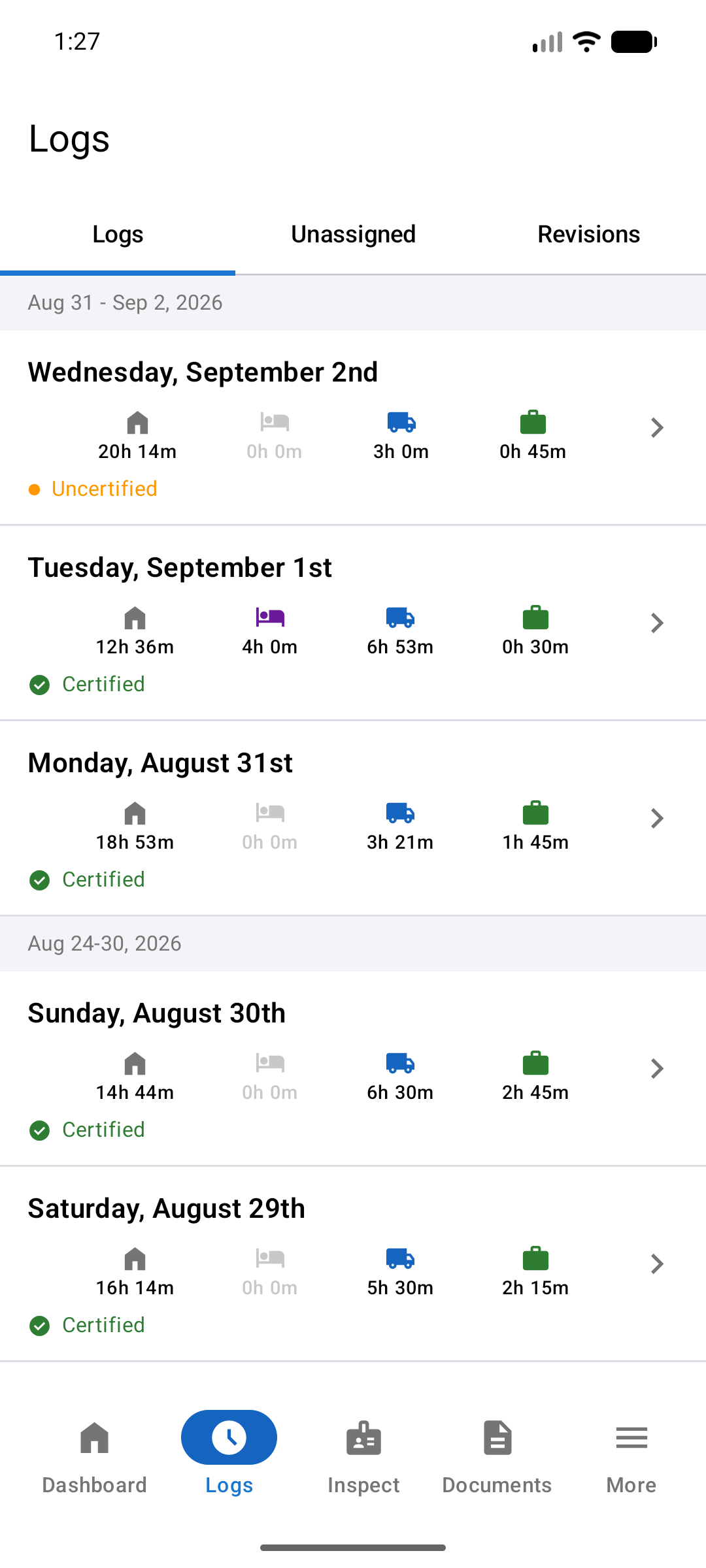
Tap Logs in the bottom tab bar to view your log history. Each row represents one day, showing a summary of time in each duty status.
The four icons on each log row represent (left to right): Off Duty time, Sleeper Berth time, Driving time, and On Duty time. The hours shown are your totals for that day.
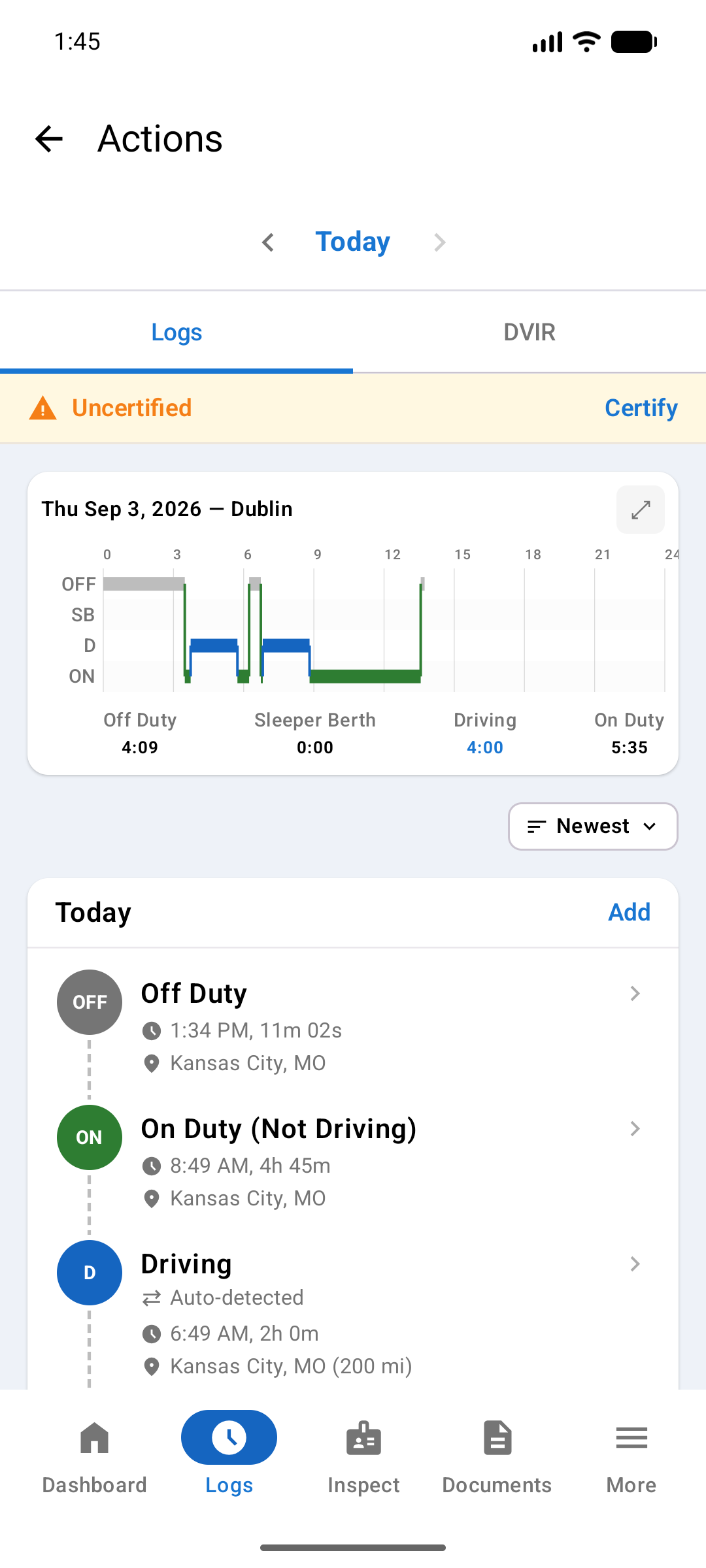
Tap any day to open the detail view. The 24-hour chart at the top shows your duty status changes. The timeline below lists each status event with time, location, and source.
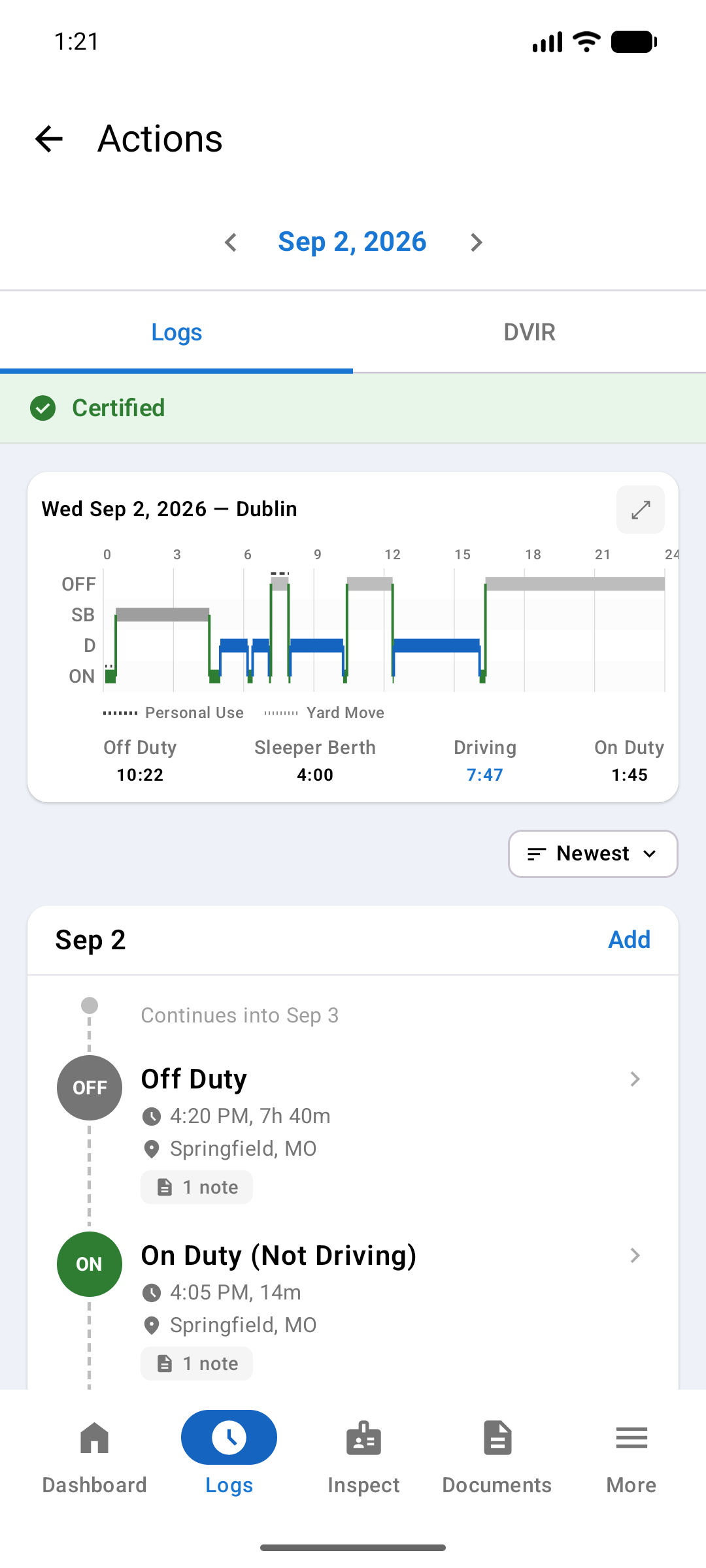
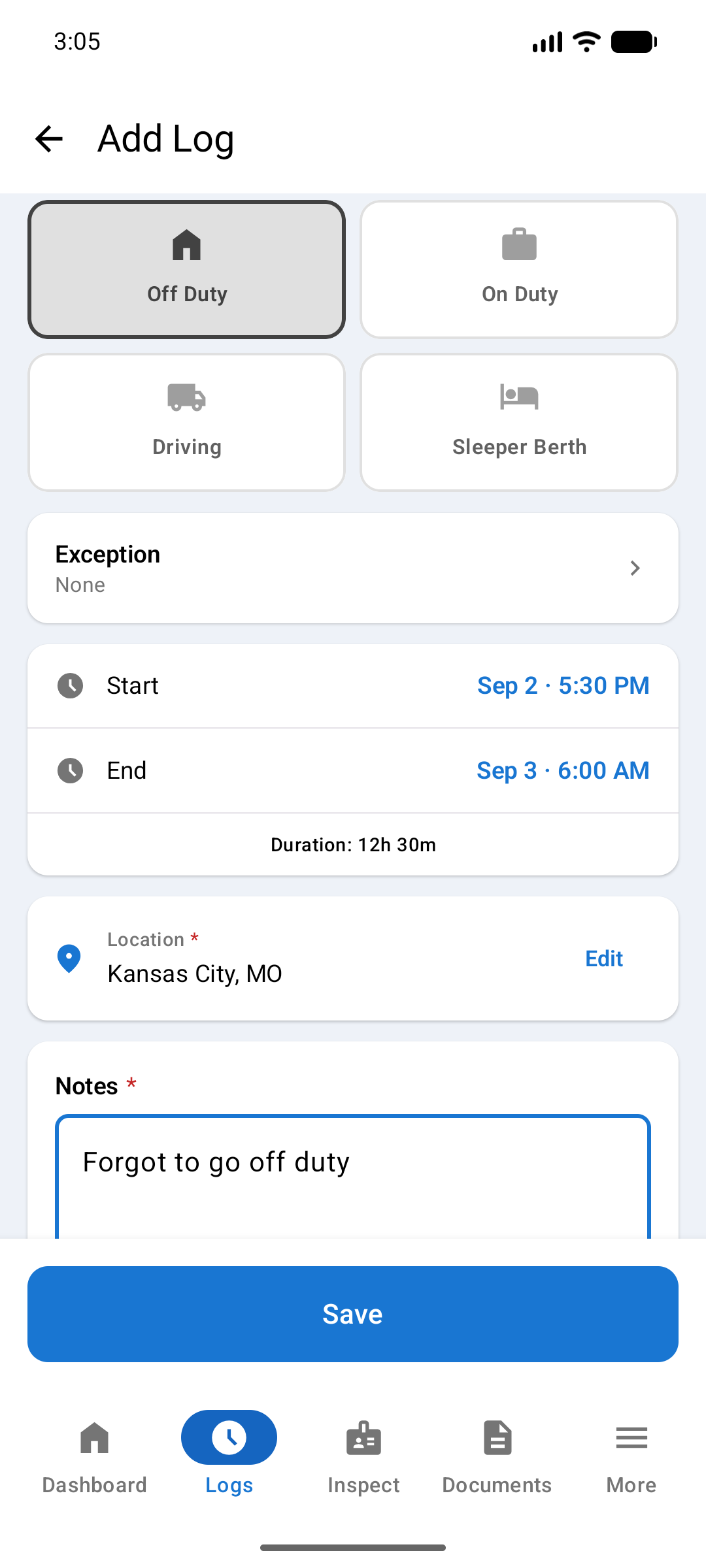
Tap the Add button in the log detail to insert a new duty status entry for that day. Enter the status, start time, end time, and location.
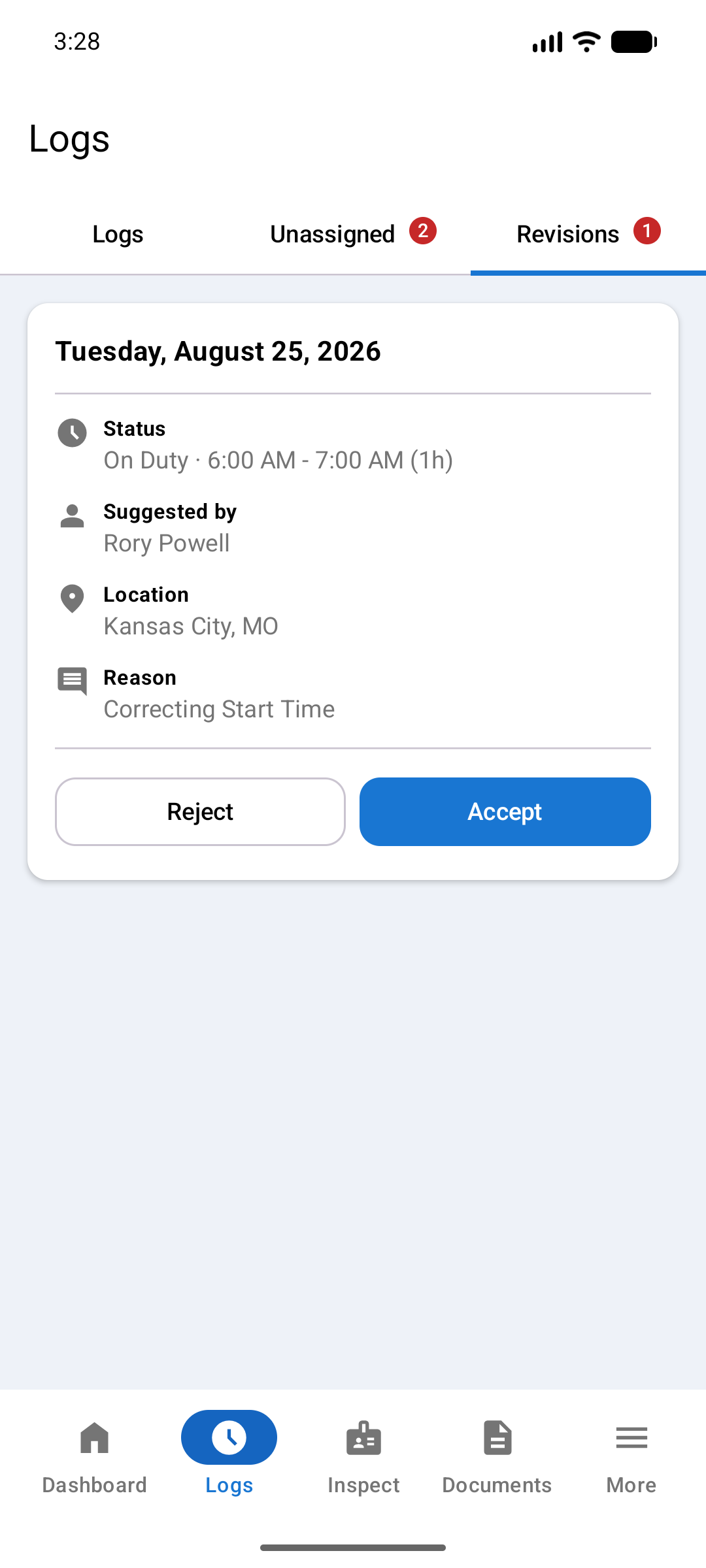
Your administrator can suggest a change to your log. Open the Logs tab and tap Revisions. Each card shows what changed, who suggested it, and why.
Tap Accept to apply it, or Reject to turn it down. The card then leaves the list. Only accept a change you agree with.
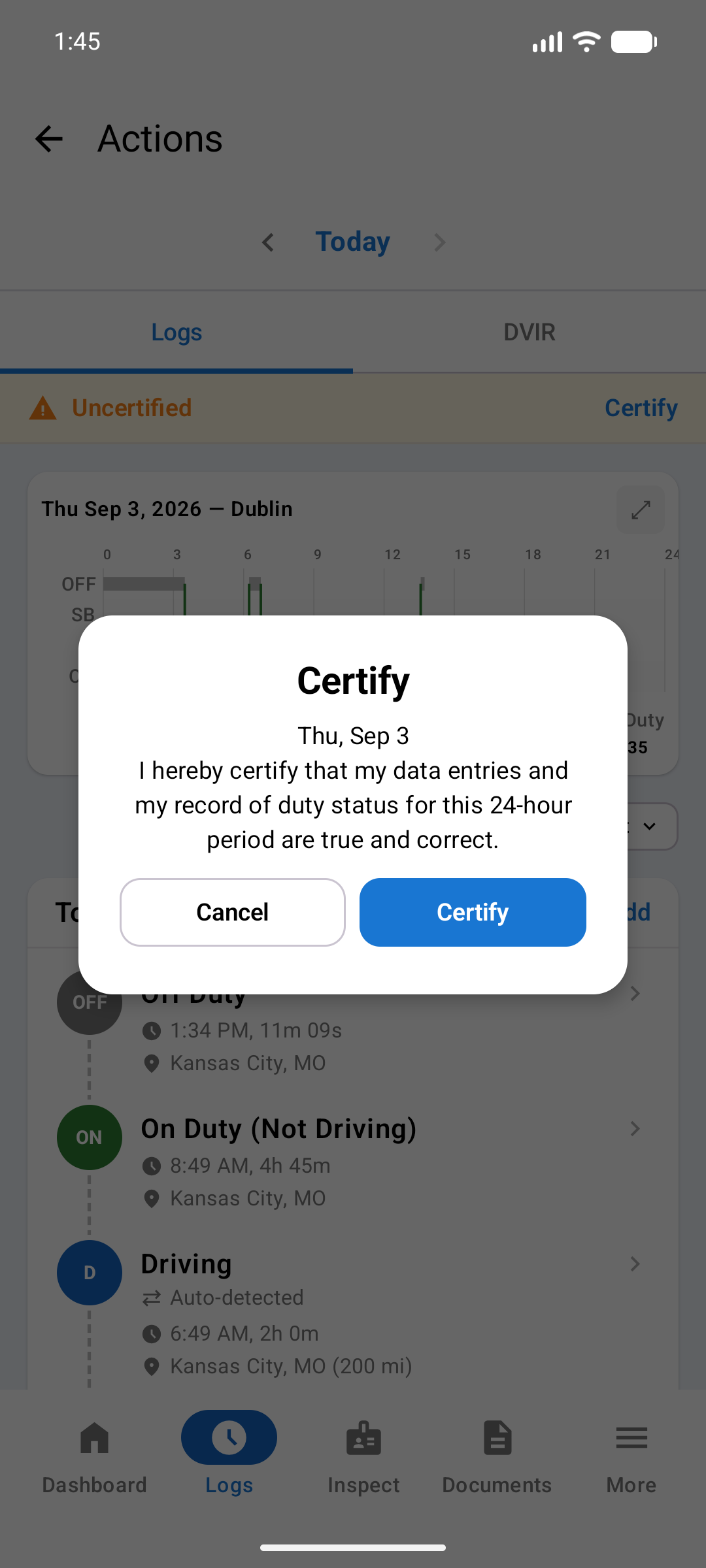
Certifying your daily log is the electronic equivalent of signing a paper log book. By certifying, you attest that your log is accurate and complete.
Certify each day's log at the end of your shift. Look for an Uncertified or Recertification required banner at the top of the log detail.
If a certified log is later changed (for example, by your administrator), you'll be prompted to recertify. The banner changes to Recertification required and must be resolved.
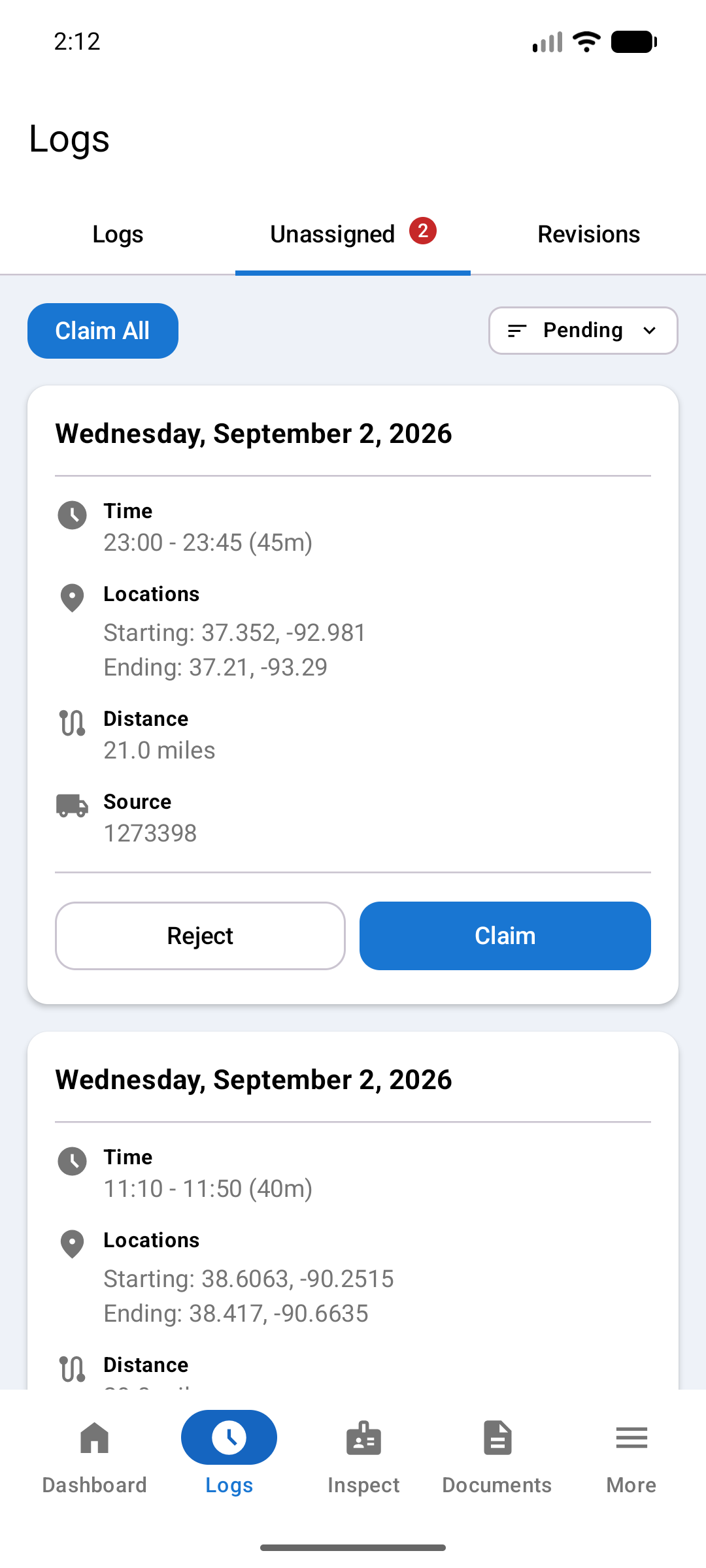
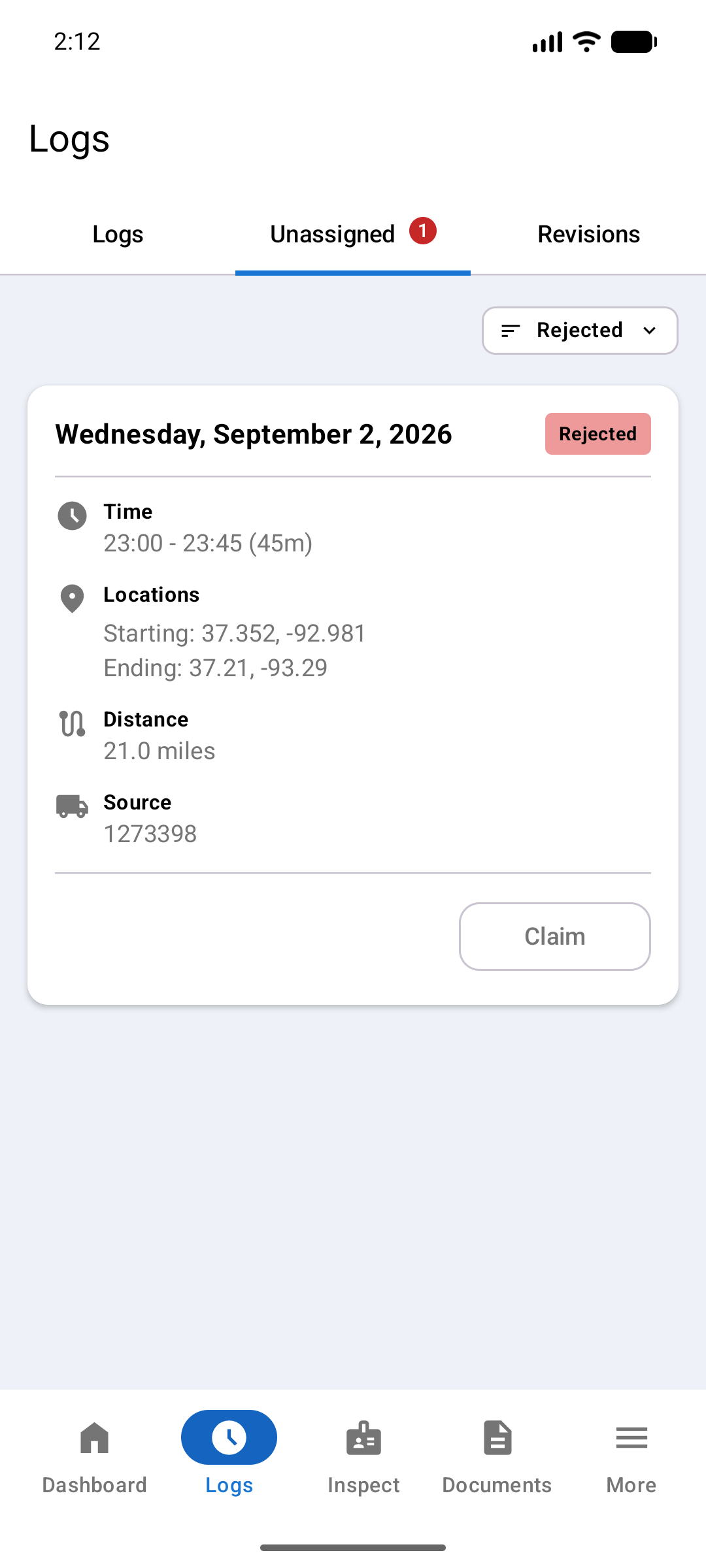
When the vehicle moves with no driver assigned, the ELD records an unassigned driving event. It appears in the Unassigned tab for the right driver to claim.
Each pending entry has two action buttons:
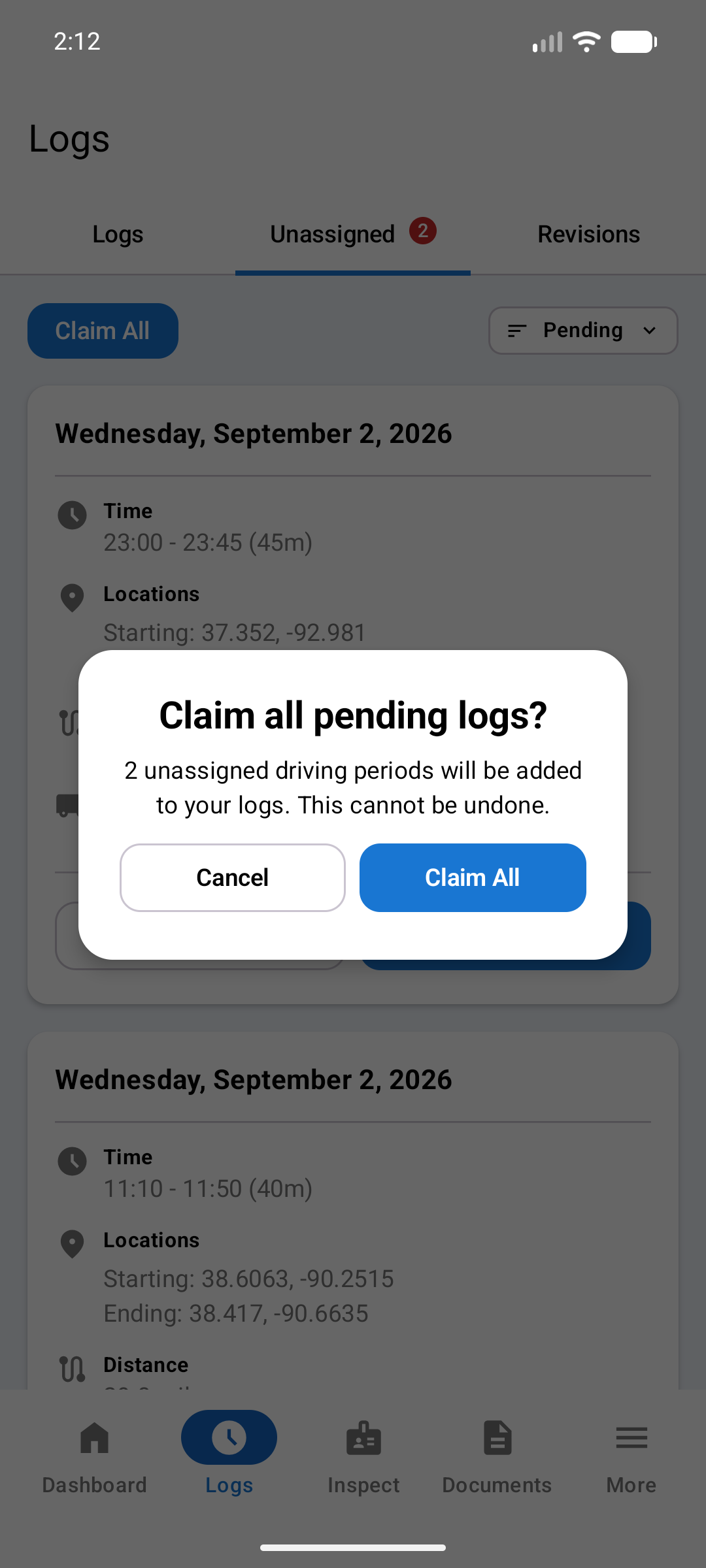
Tap Claim All in the top-right corner to claim every pending log at once. A confirmation dialog appears first.
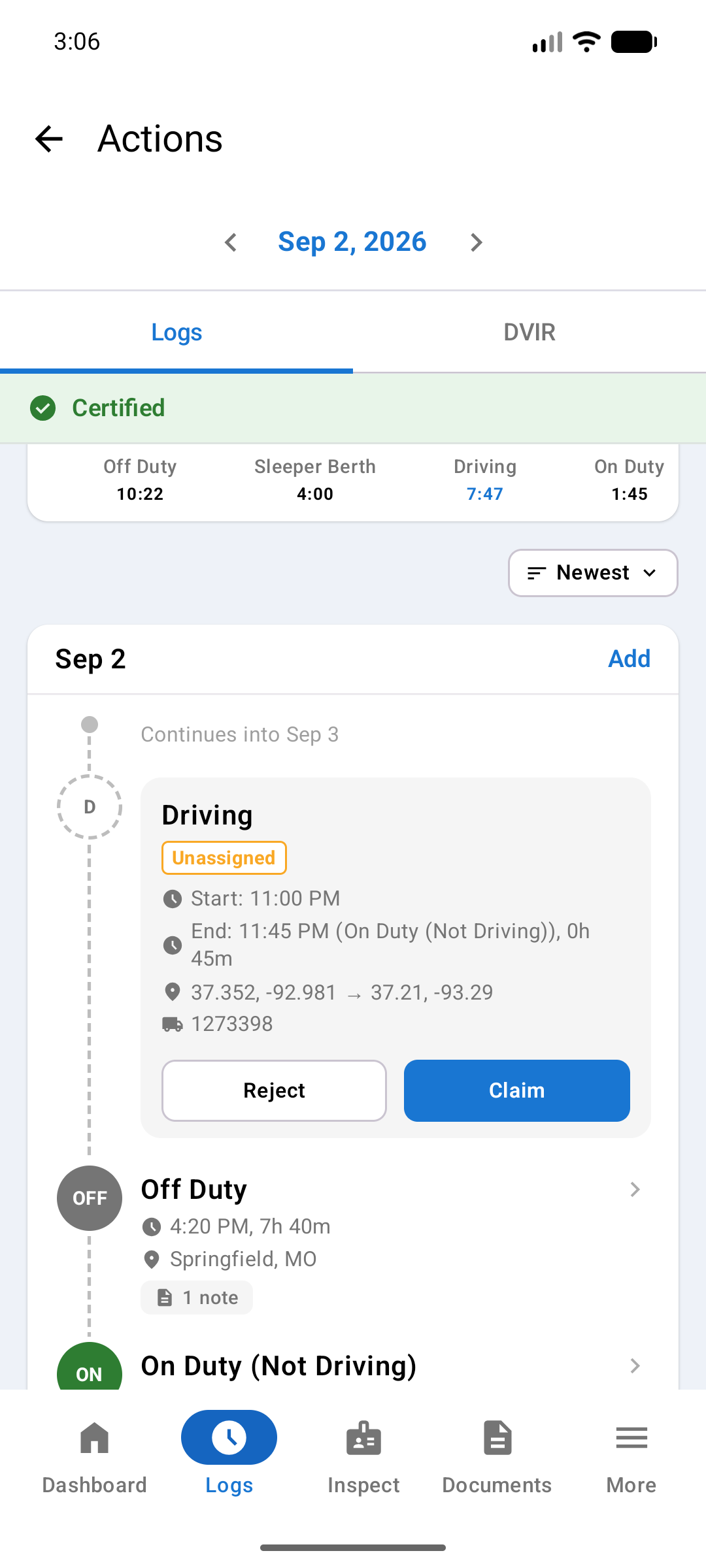
Unassigned periods also appear inline in your daily log timeline, labelled Unassigned with Claim and Reject buttons directly on the row.
After tapping Claim, the row updates to show a green Claimed badge, confirming the period has been added to your record.
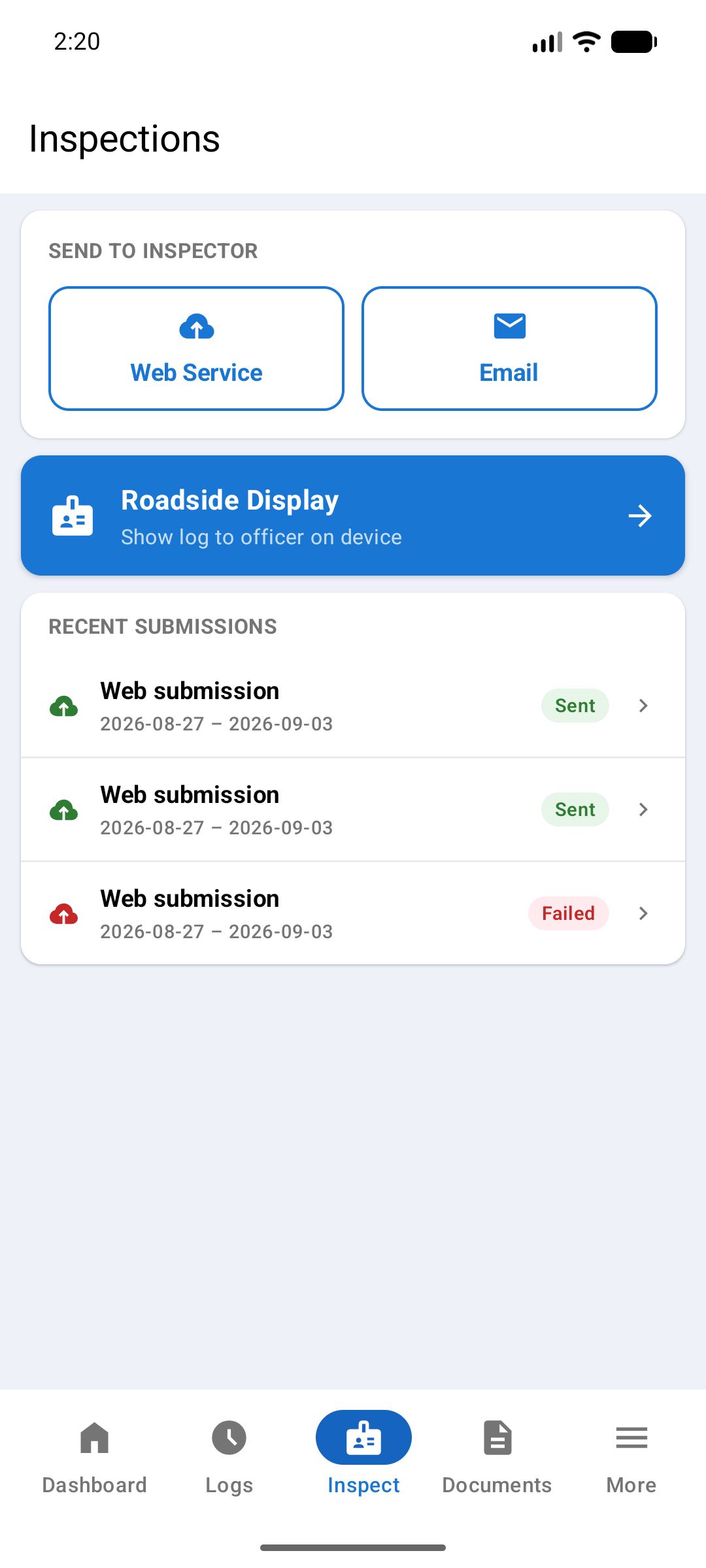
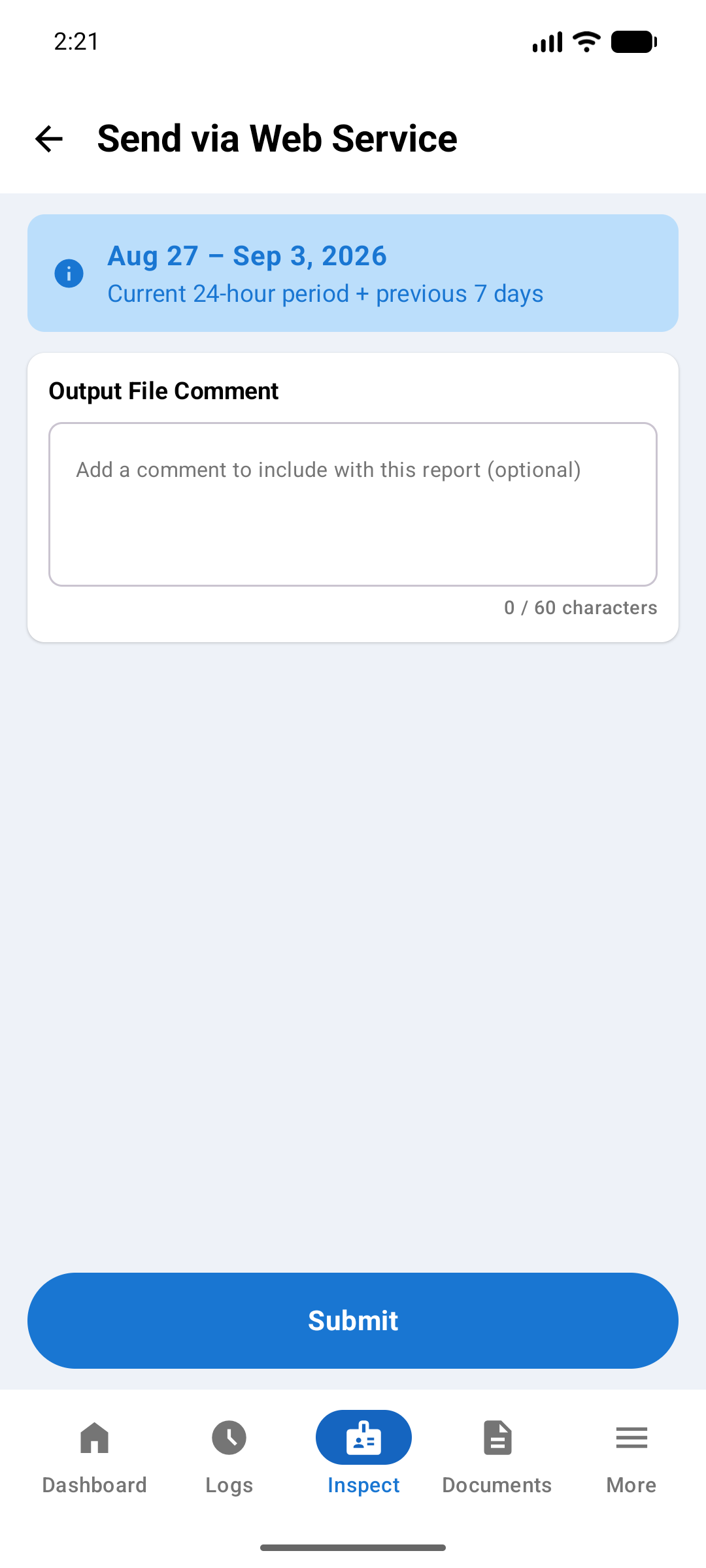
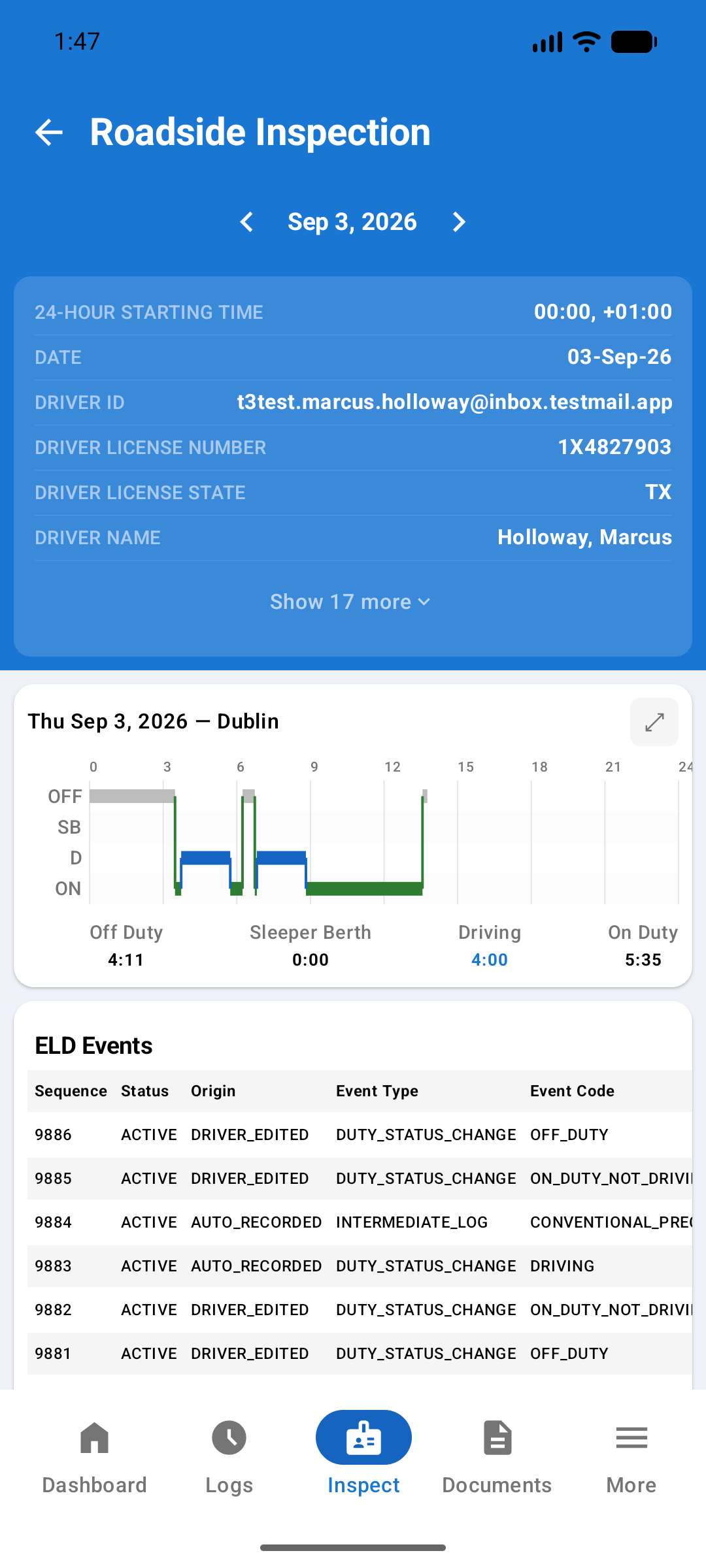
During a DOT roadside inspection, an officer may request your electronic logs. Tap the Inspect tab to choose how to provide them.
Tap Roadside Display to show your logs directly on the device screen. No internet connection is required. Hand the device to the officer; they can scroll through your 24-hour chart and full event list.
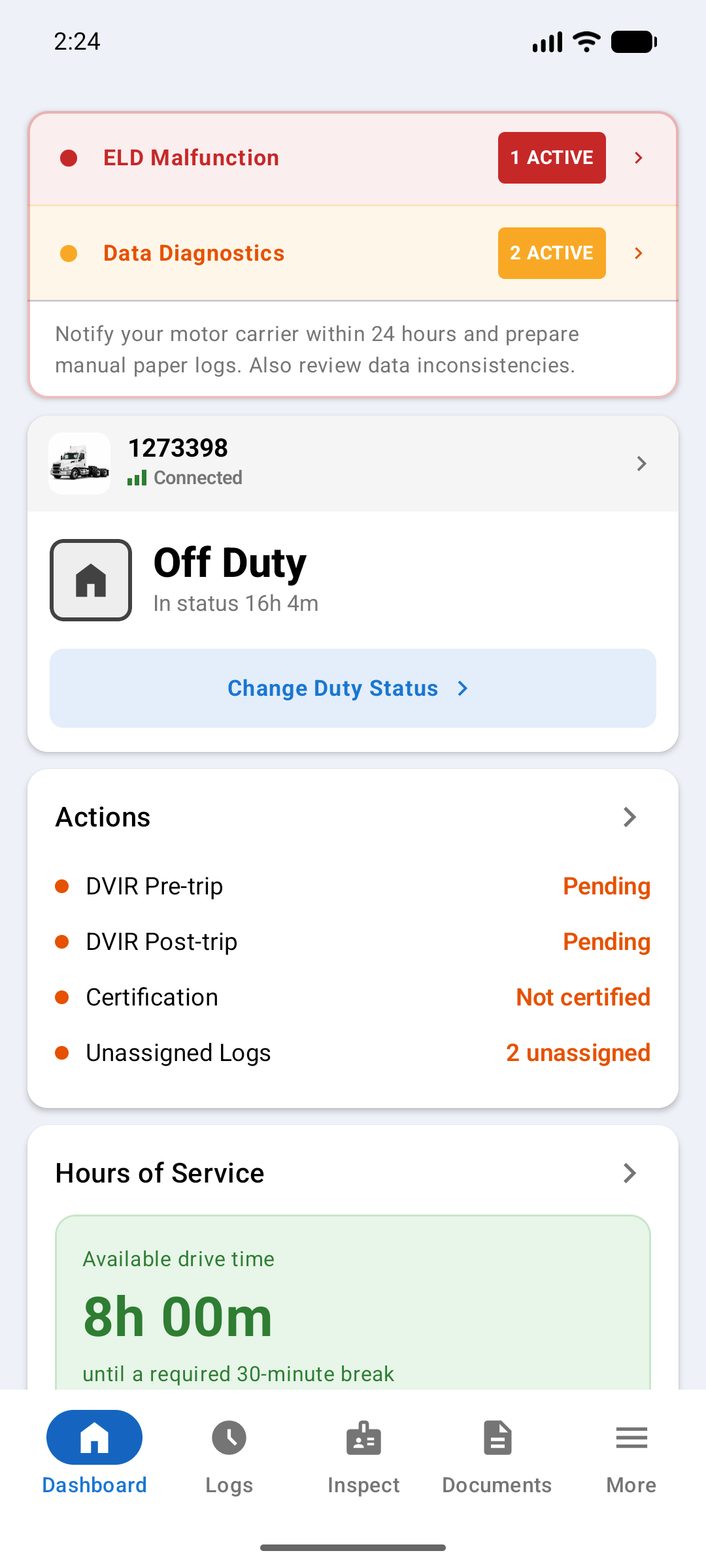
The ELD continuously monitors itself for technical issues. When a problem is detected, the app displays an alert card at the top of the Dashboard and logs an event in your record. Federal regulations require that you and your carrier are notified promptly.
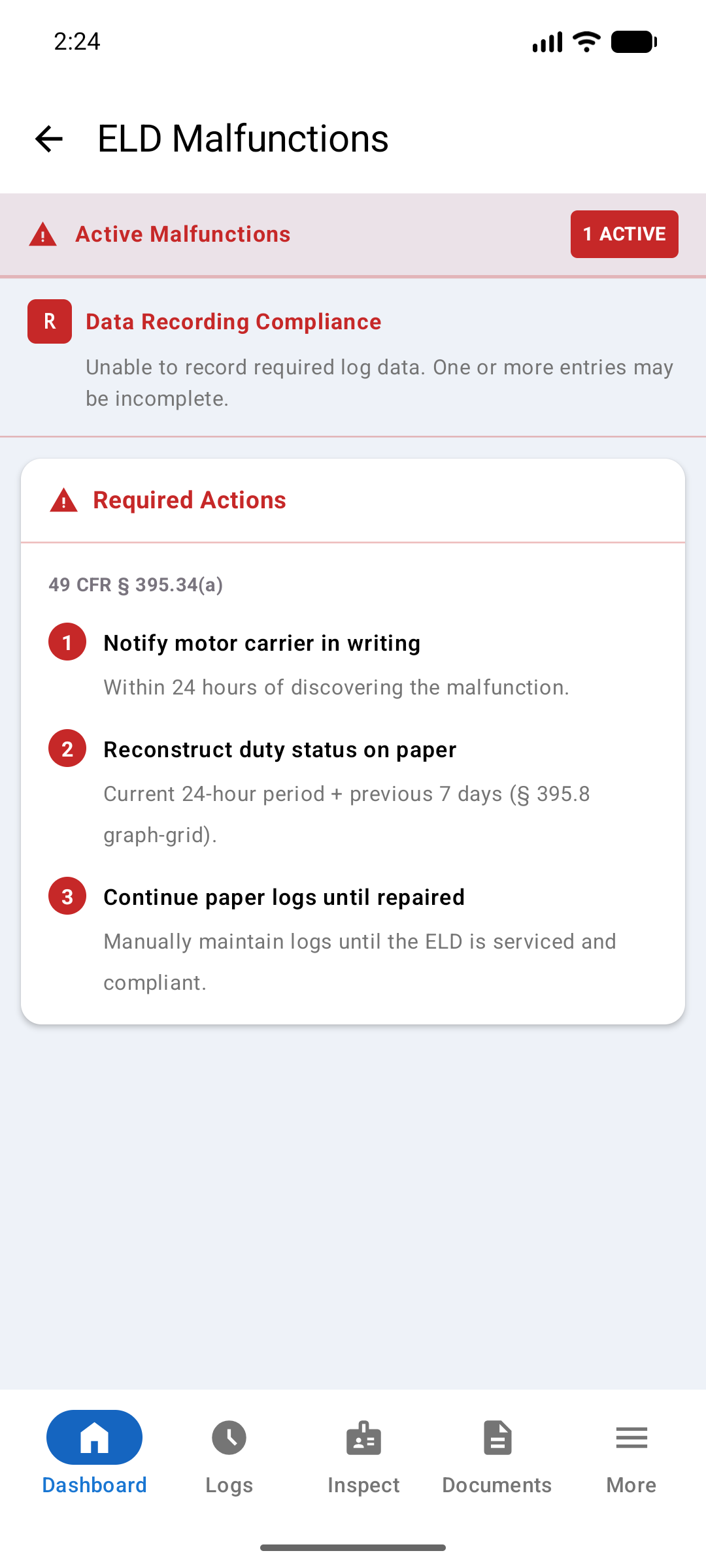
Tap the ELD Malfunction row on the Dashboard to see which malfunction is active and the exact actions required by federal regulation.
The app supports all seven malfunction codes required by federal rule.
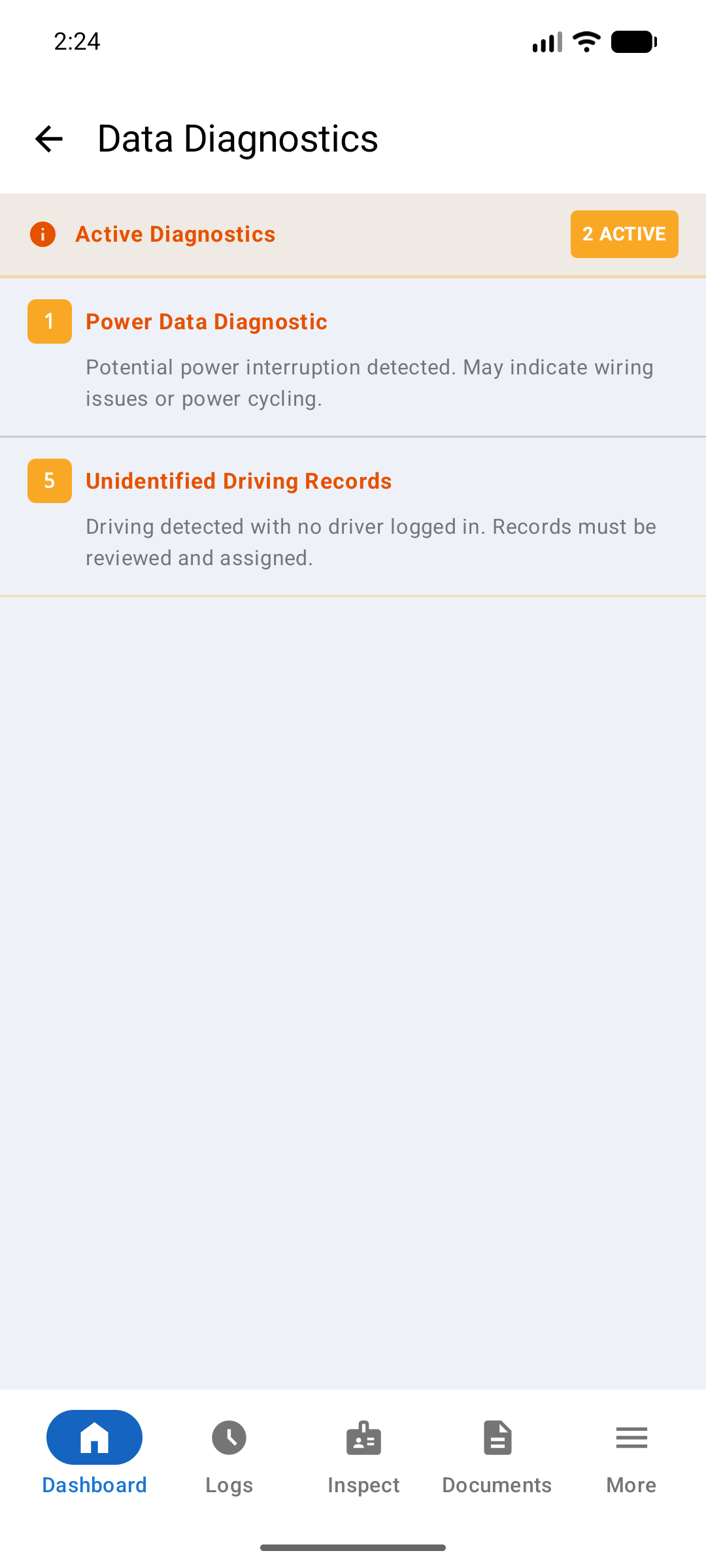
Tap Data Diagnostics to see active diagnostic codes. Diagnostics do not require paper logs but must be acknowledged and reported to your carrier.
The app supports all six data diagnostic codes required by federal rule.
The app tracks your Hours of Service automatically from your duty status events. You do not add up hours yourself. There are two places to see them:
Both screens update as your duty status changes. The detail screen is the one to open when you need to plan the rest of your day.
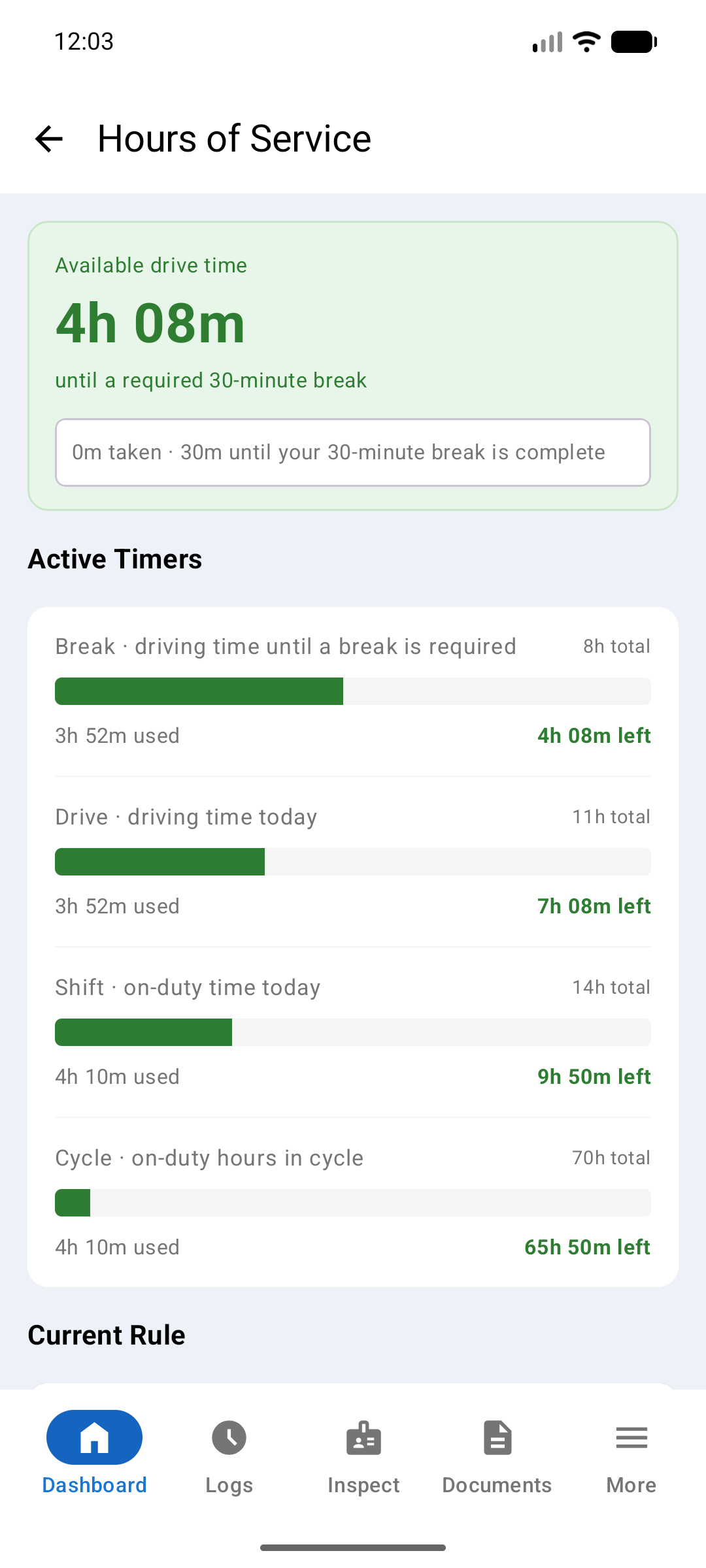
Under Active Timers the detail screen lists up to four clocks. Each one counts a different limit, and each one is reset by something different.
Every timer row reads the same way. The limit is on the right of the label. The bar shows how much is used. Below the bar, time used is on the left and time remaining is on the right. A row showing Exempt does not apply to you today.
The coloured banner always shows your most urgent limit: the one that will stop you first. Read the banner before you read the timers.
The matching timer row changes colour too. A red bar with limit reached tells you which clock triggered the banner.
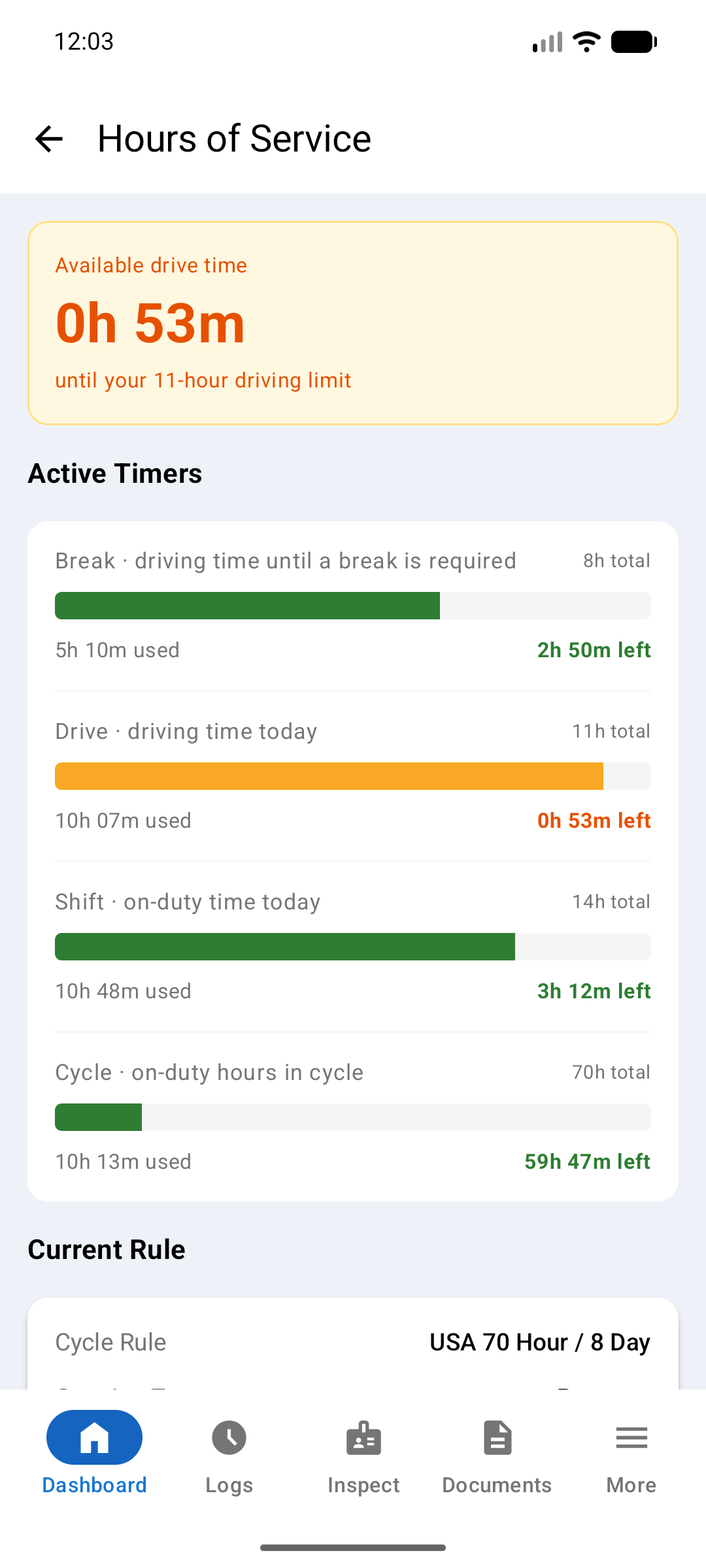
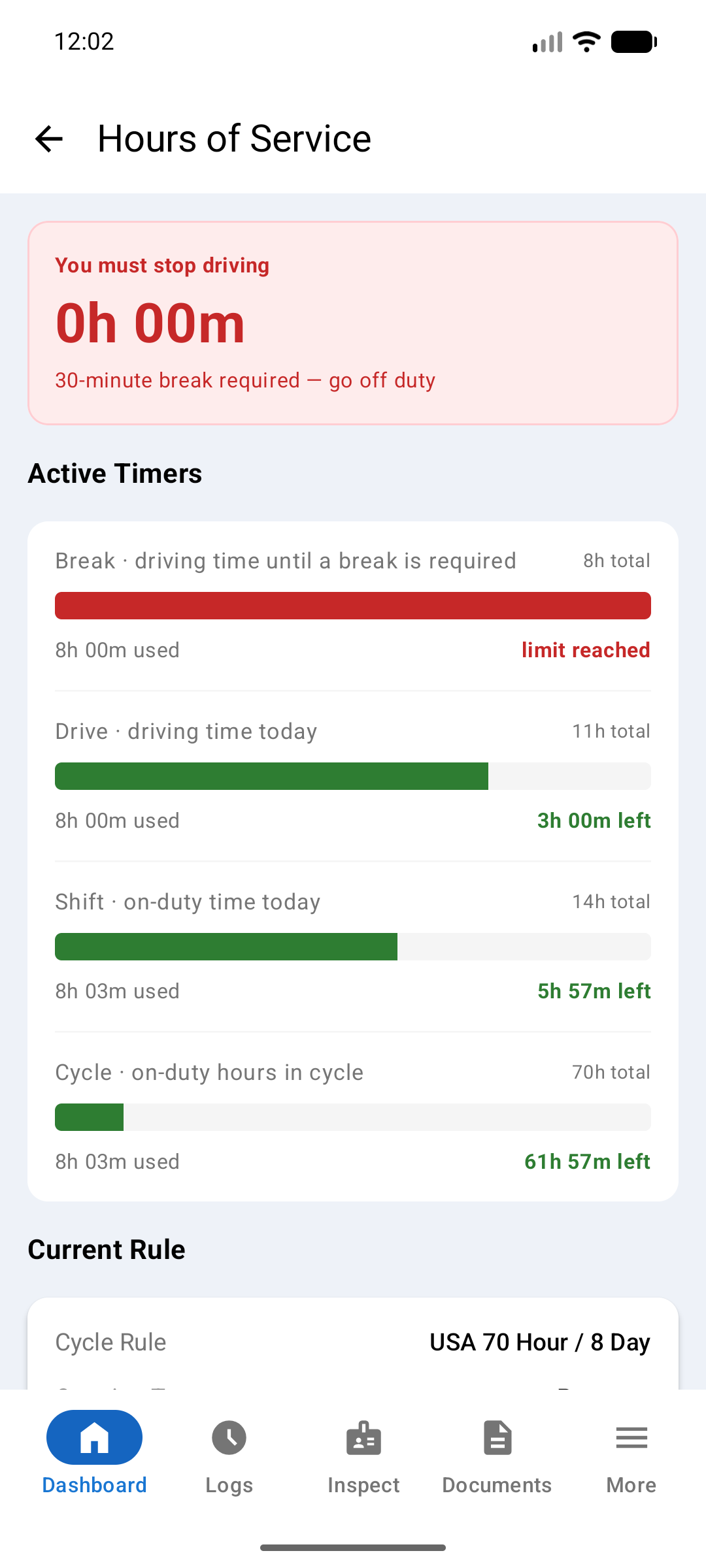
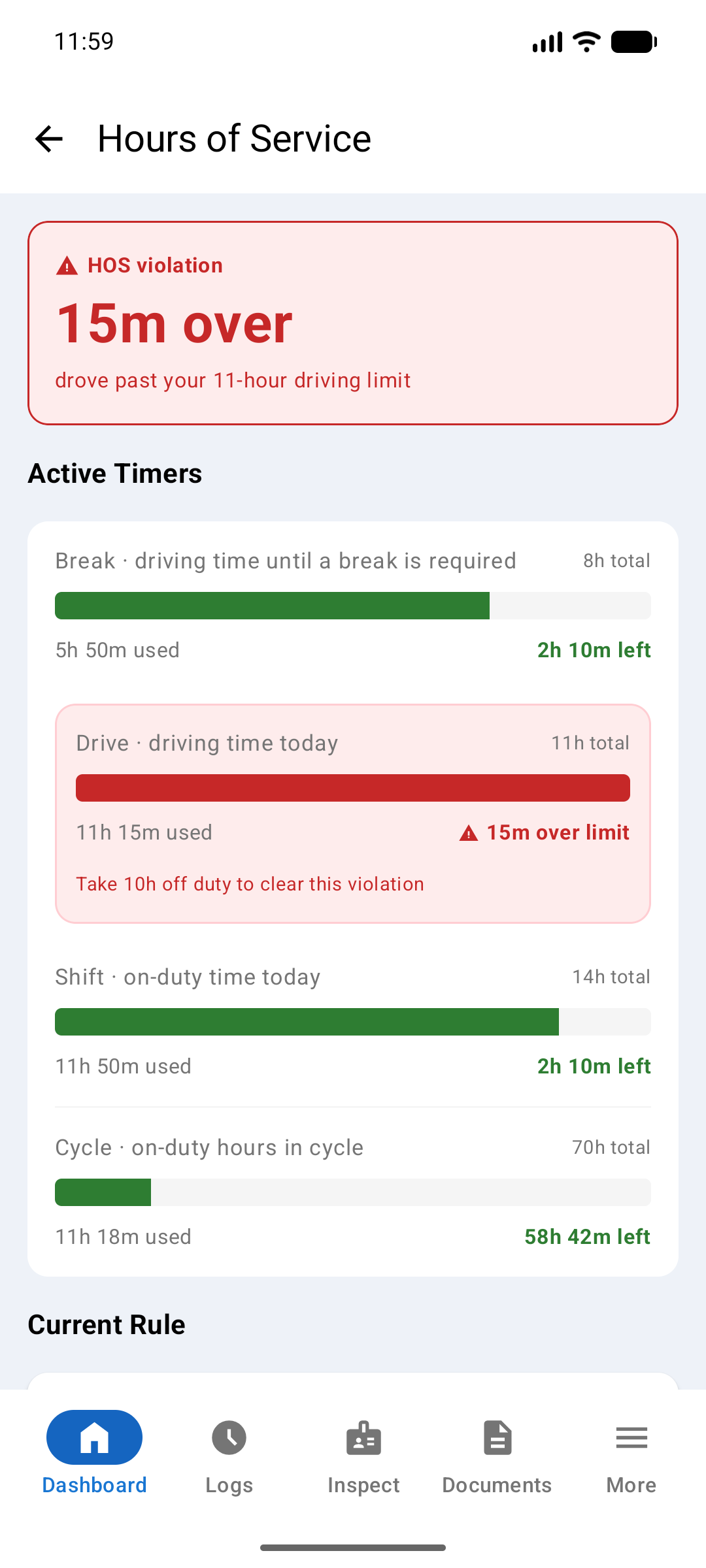
Passing a limit is recorded as a violation. The app does not block you from driving, but it does record what happened, and the record is part of your log.
The timer row that was broken is highlighted in red. It shows how far over the limit you went, and directly underneath it the app tells you how to clear the violation.
Timers that are still inside their limits stay green. In the violation screenshot, the driver is 15 minutes over the 11-hour driving limit, but the shift and cycle clocks still have time left.
You can set your cycle rule under More › Account › Cycle Rule. Pick your Carrier Type, Property or Passenger, then pick a rule and tap Save. Each rule shows its limits and the regulation it comes from.
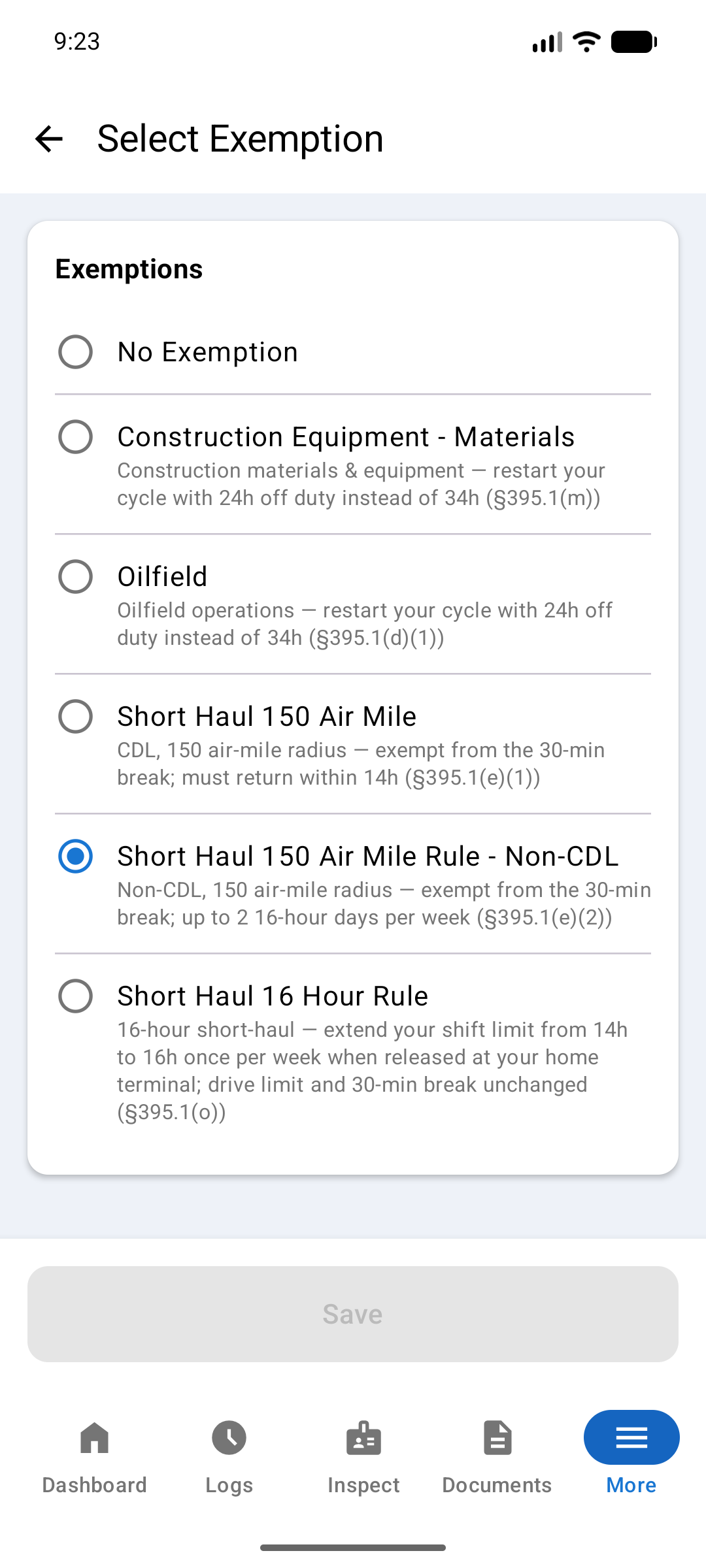
You can set your exemption under More › Account › Exemption. Pick one from the list and tap Save. You can hold one exemption at a time, so a new one replaces the old one.
Your limits are not the same for every driver. They come from your cycle rule, which is set on your account. The Current Rule card at the bottom of the Hours of Service detail screen shows which rule is in force, what you are carrying, and any exemption you have selected.
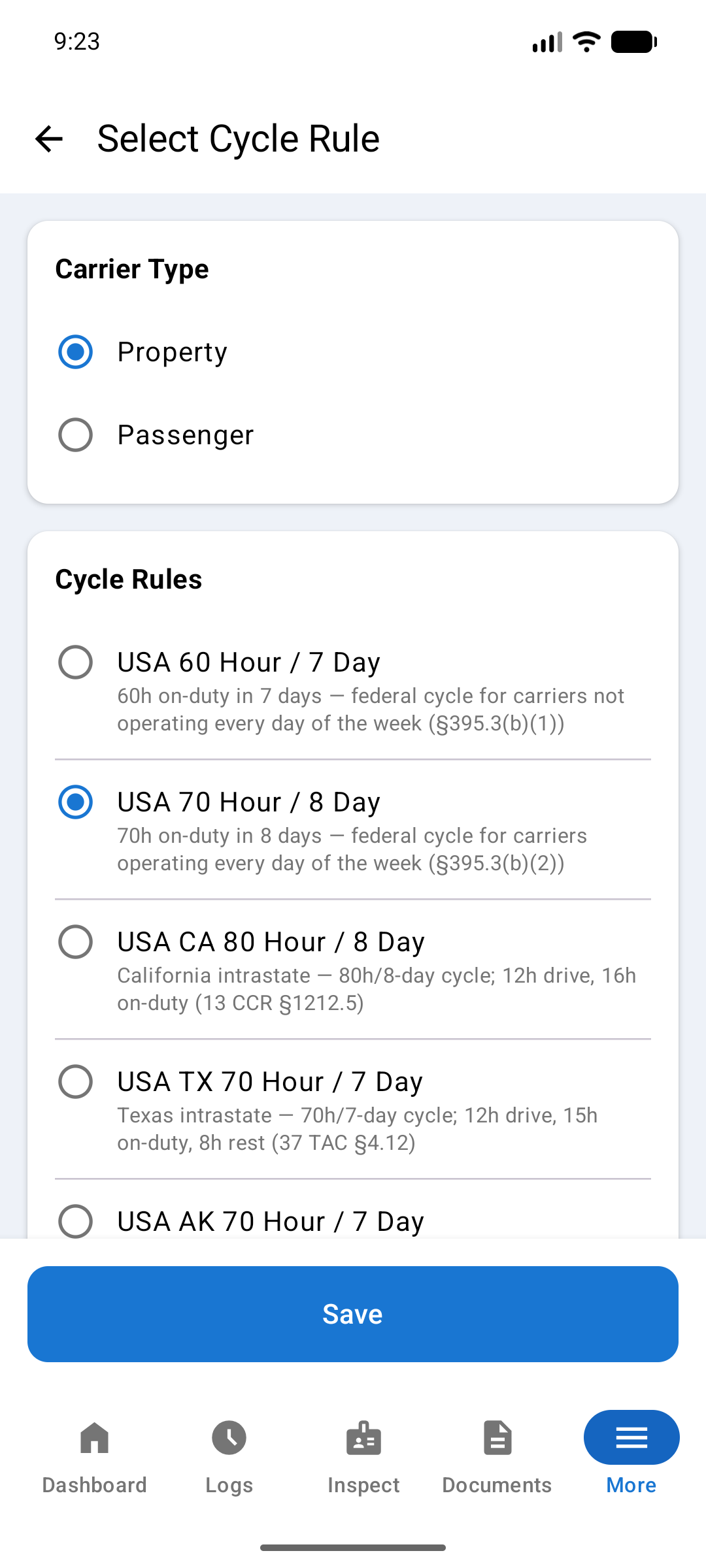
These are the limits the app applies for each rule. Numbers shown in your timers will match this table.
| Cycle rule | Carrying | Drive | Shift | Break after | Cycle |
|---|---|---|---|---|---|
| USA 60H / 7D | Property | 11h | 14h | 8h | 60H / 7D |
| USA 70H / 8D | Property | 11h | 14h | 8h | 70H / 8D |
| California 80H / 8D | Property | 12h | 16h | - | 80H / 8D |
| Texas 70H / 7D | Property | 12h | 15h | - | 70H / 7D |
| Florida 70H / 7D | Property | 12h | 16h | 8h | 70H / 7D |
| Florida 80H / 8D | Property | 12h | 16h | 8h | 80H / 8D |
| Alaska 70H / 7D | Property | 15h | 20h | - | 70H / 7D |
| Alaska 80H / 8D | Property | 15h | 20h | - | 80H / 8D |
| USA 70H / 8D | Passenger | 10h | 15h | - | 70H / 8D |
| California 80H / 8D | Passenger | 10h | 15h | - | 80H / 8D |
| Alaska 70H / 7D | Passenger | 15h | 20h | - | 70H / 7D |
An exemption changes your limits for the kind of work you are doing.
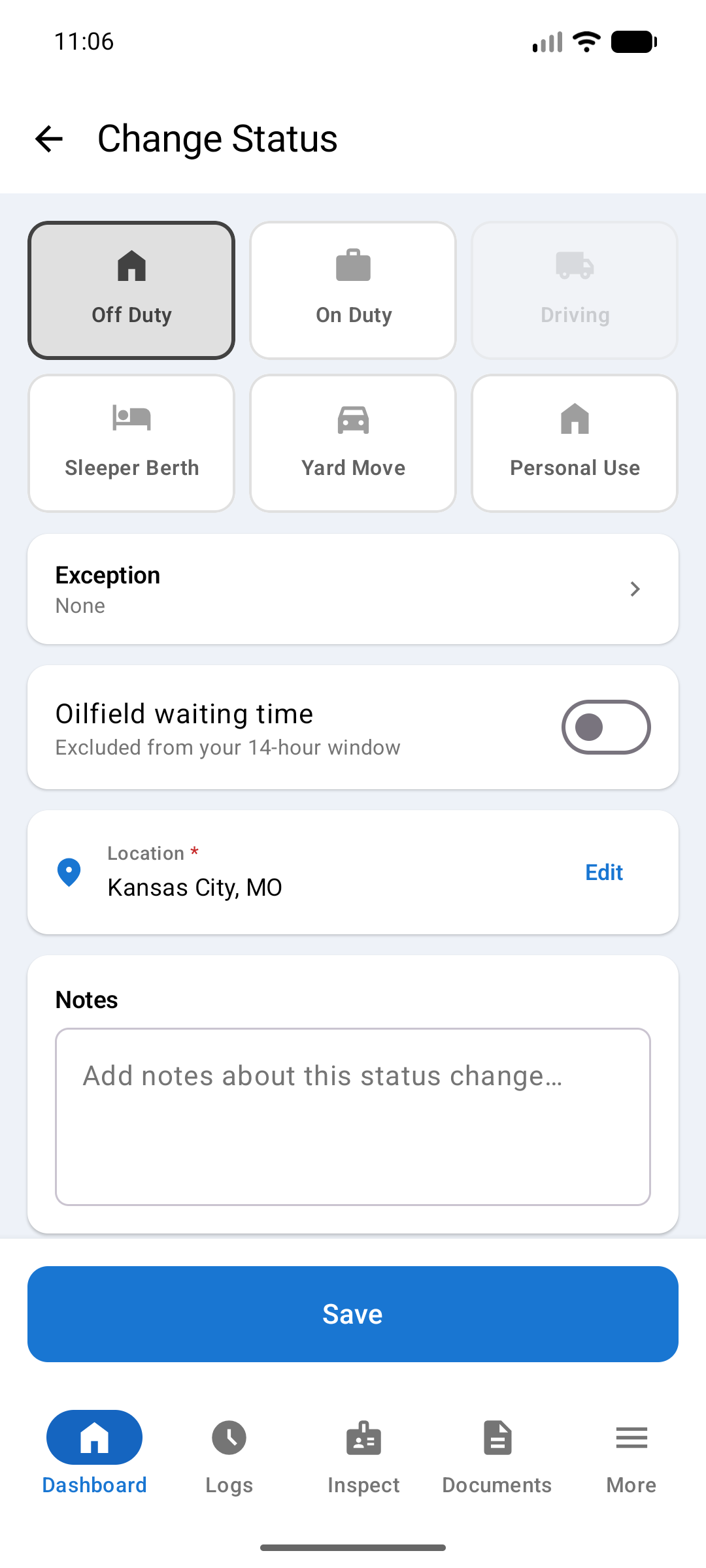
Waiting at a well site does not have to count against your 14-hour window, but the app does not decide that for you. You tell it:
That period is logged off duty, marked on your record as Oilfield waiting time, and left out of your 14-hour window. You can turn the switch off again the same way while still off duty. Only the time it was on is excluded. The switch appears only while you hold the Oilfield exemption and only on an Off Duty change.
A short-haul exemption is not guaranteed for the whole day. You must keep meeting its conditions. When one is selected, a status card above your timers shows one of three states. The Dashboard Hours of Service card shows the same states.
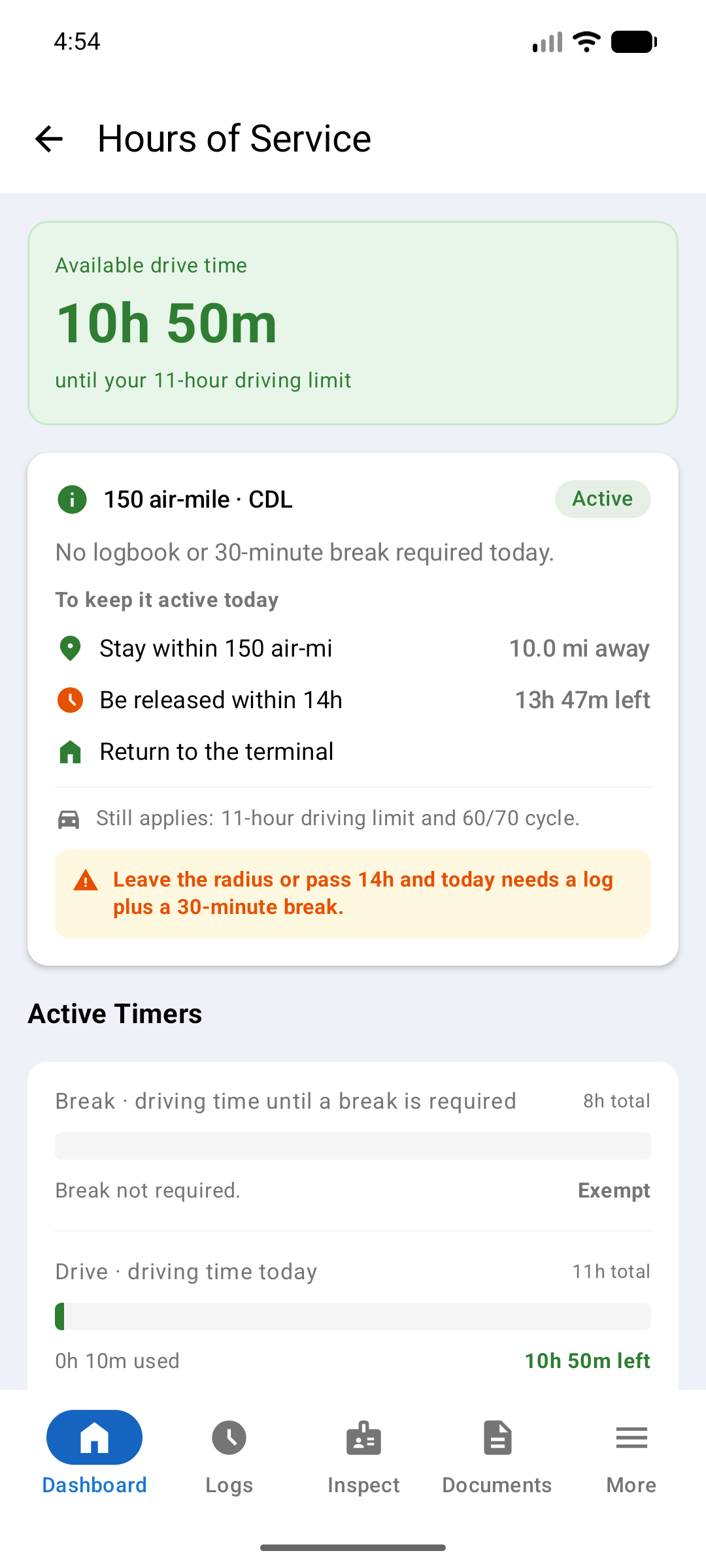
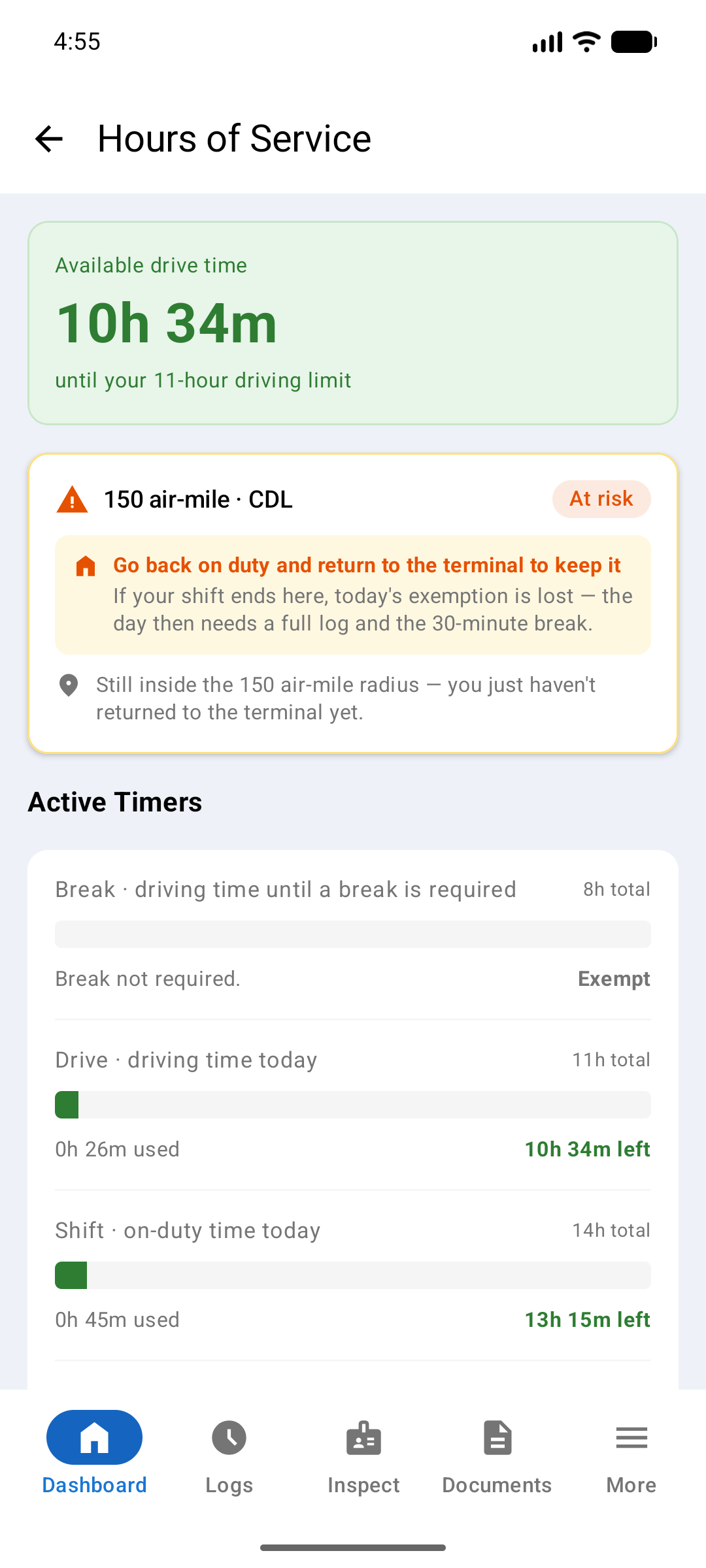
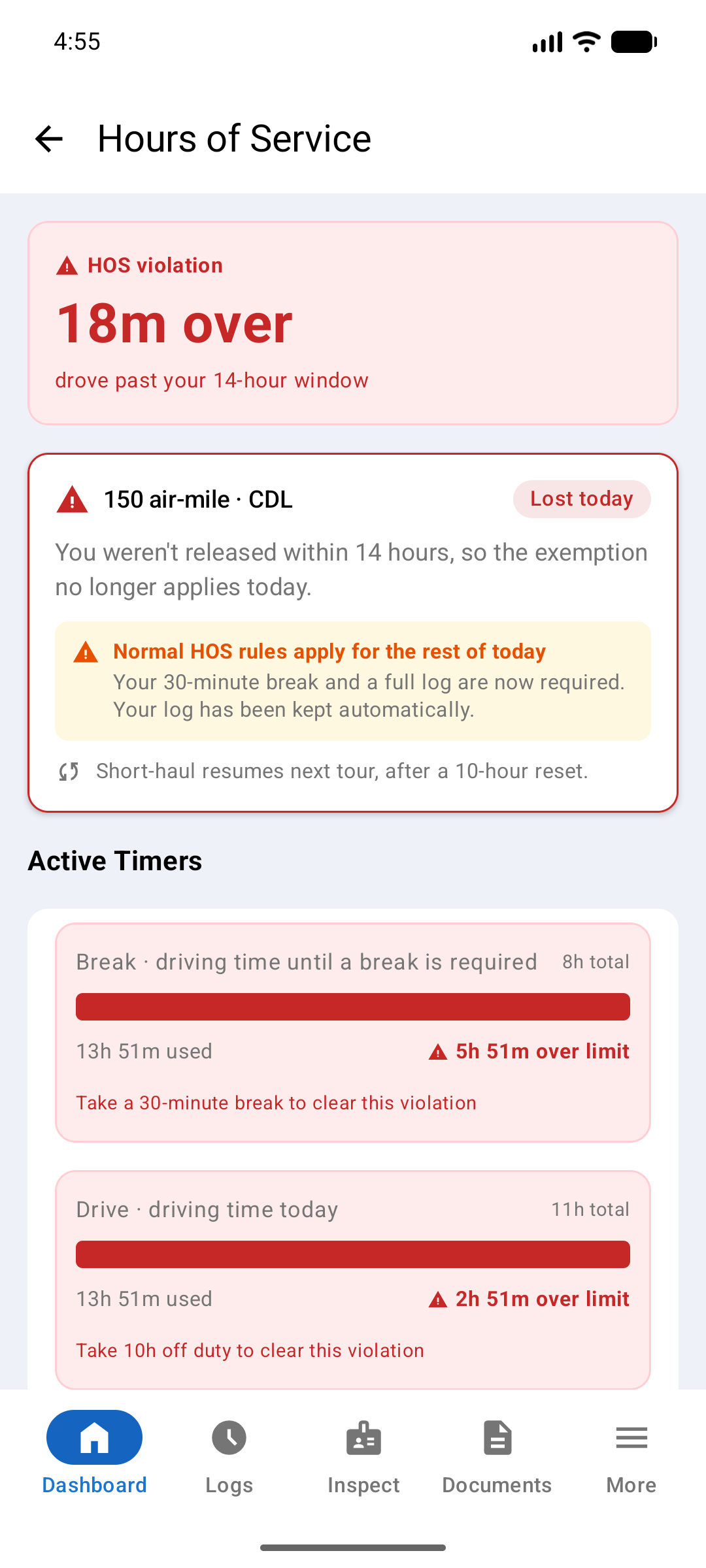
An exception is a one-off claim you make on the day, for a situation you could not plan for. It is recorded on that duty status event. An exemption is different: it is set once on your account and covers the kind of work you do.
To claim one, go to Change Duty Status, tap Exception, and pick from the list. There are two.
Pick None in the same list to clear an exception. While one is active, the Dashboard shows Active exception above your status.
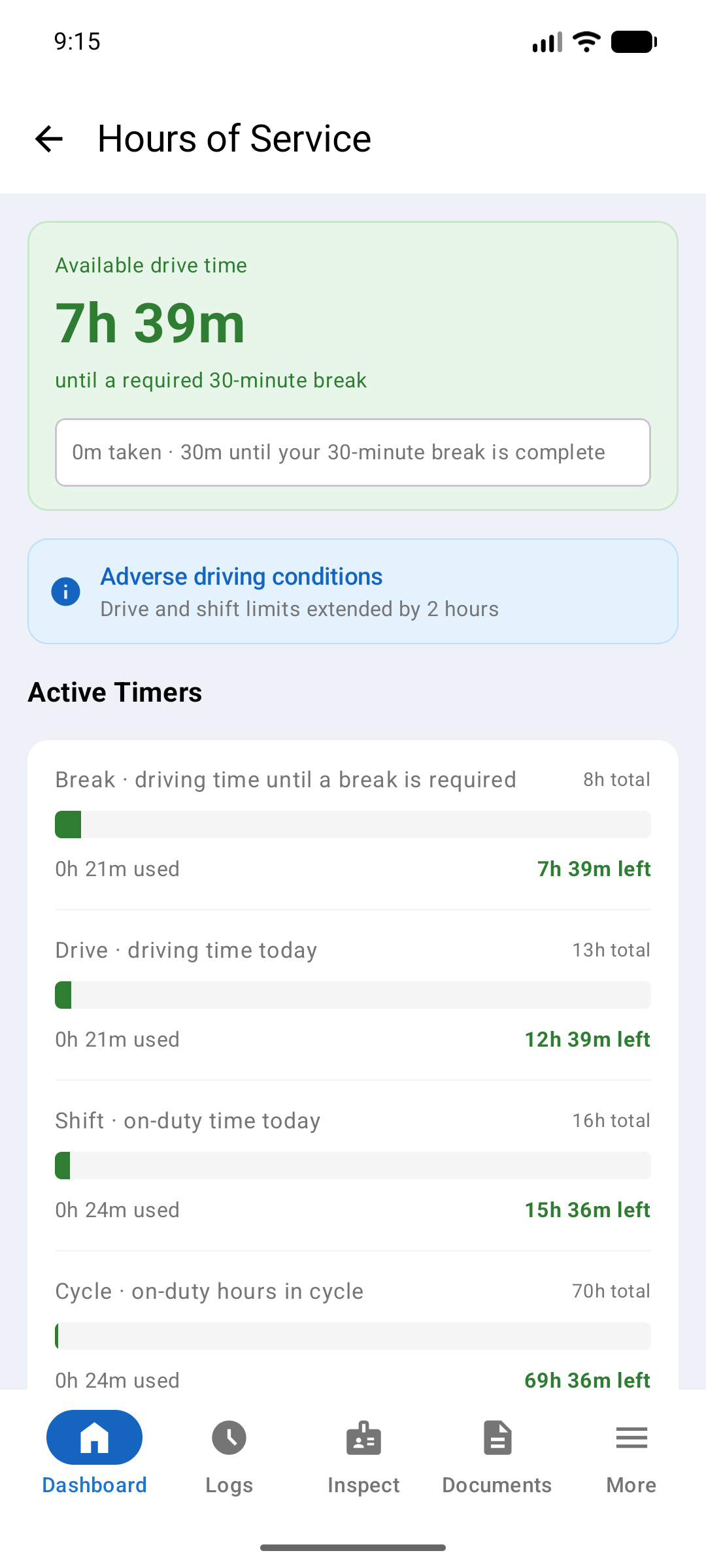
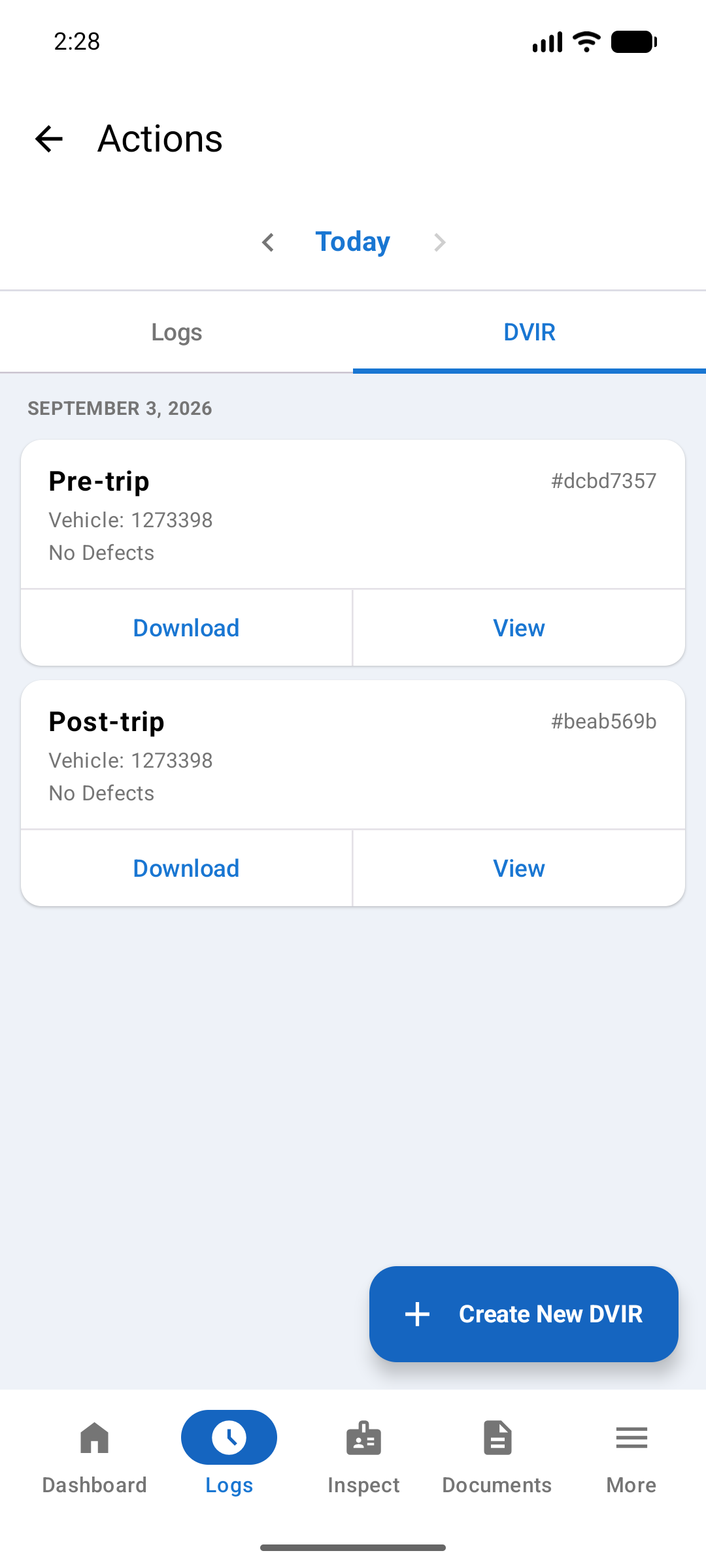
A DVIR is the electronic equivalent of the paper pre- and post-trip inspection form. Before and after each trip you must inspect your vehicle and report any defects. The app walks you through a step-by-step wizard to complete and certify each inspection.
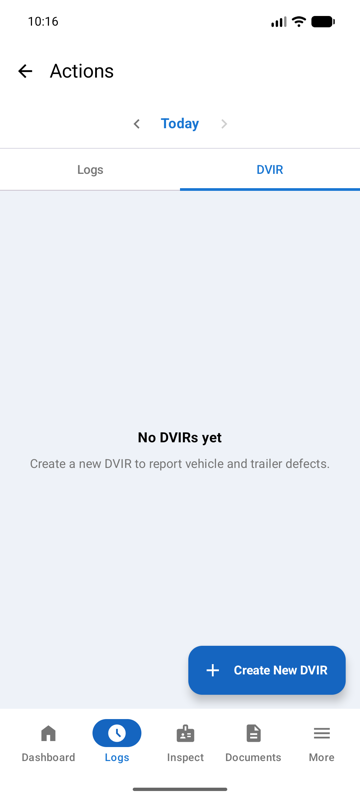
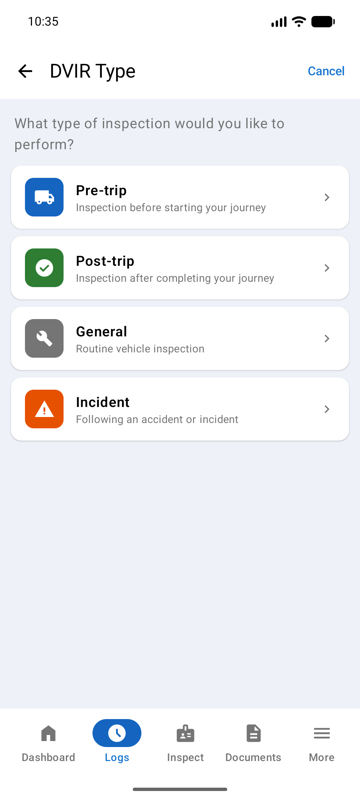
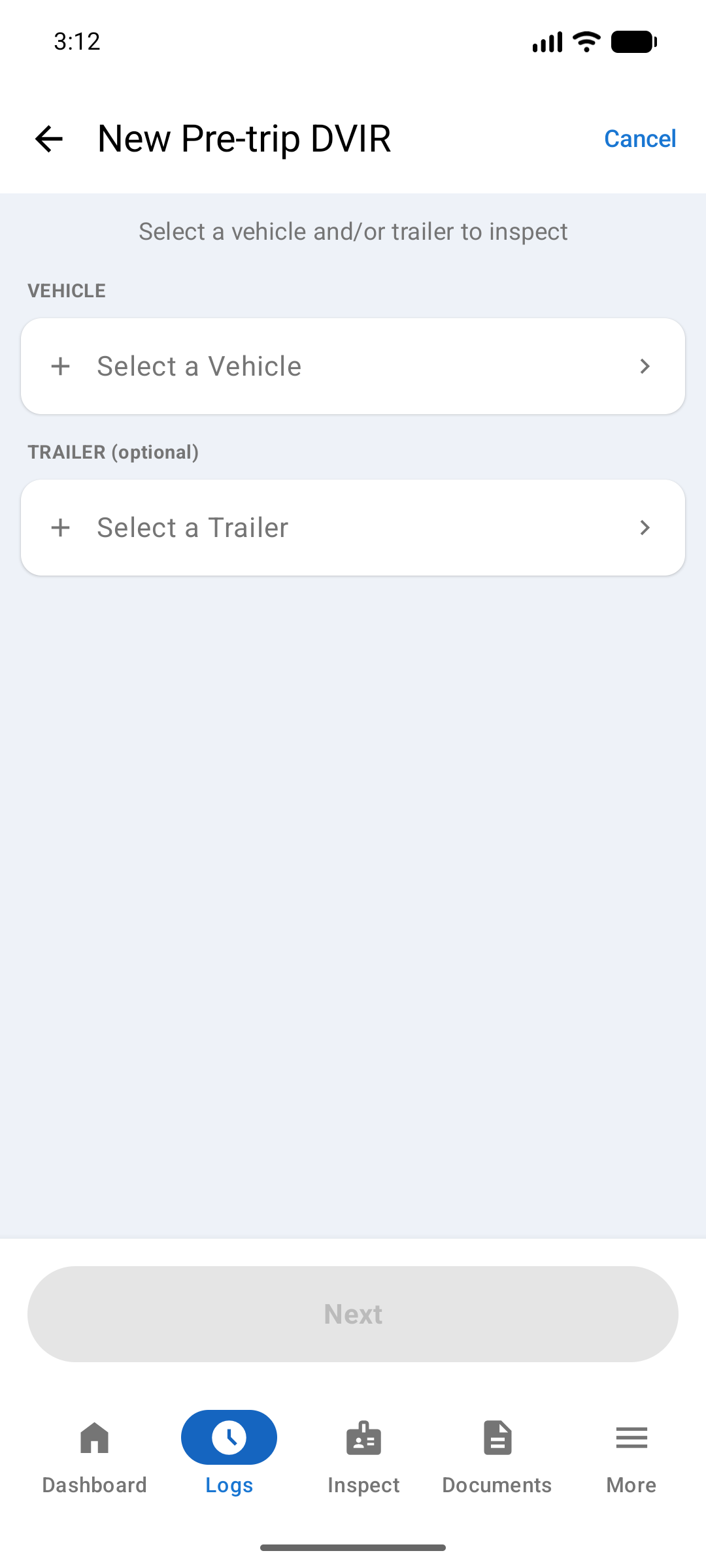
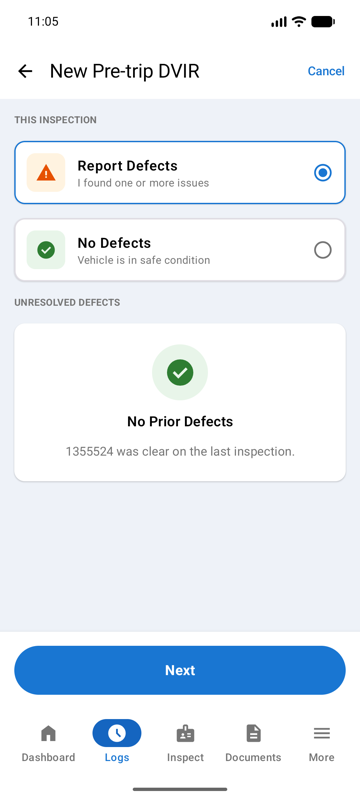
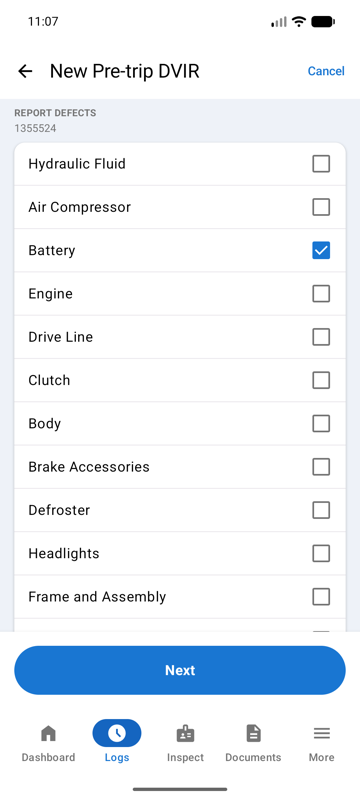
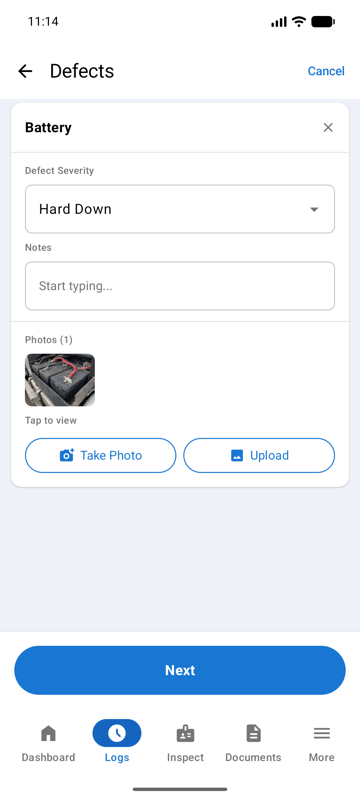
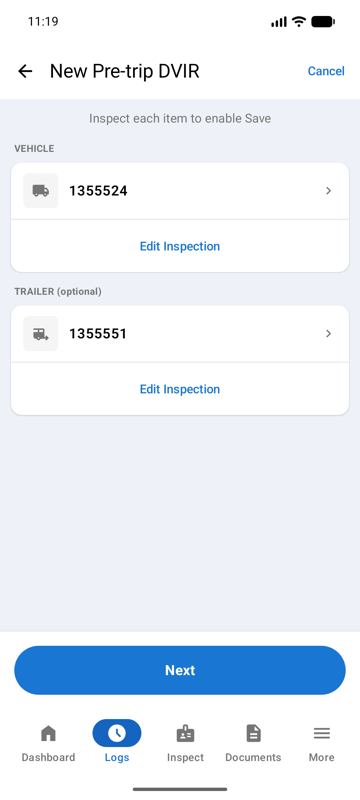
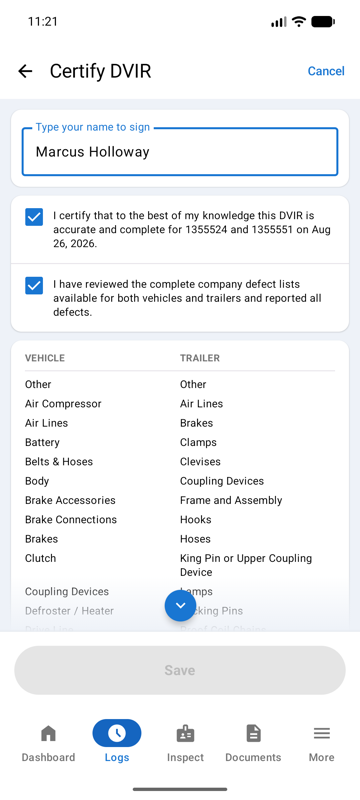
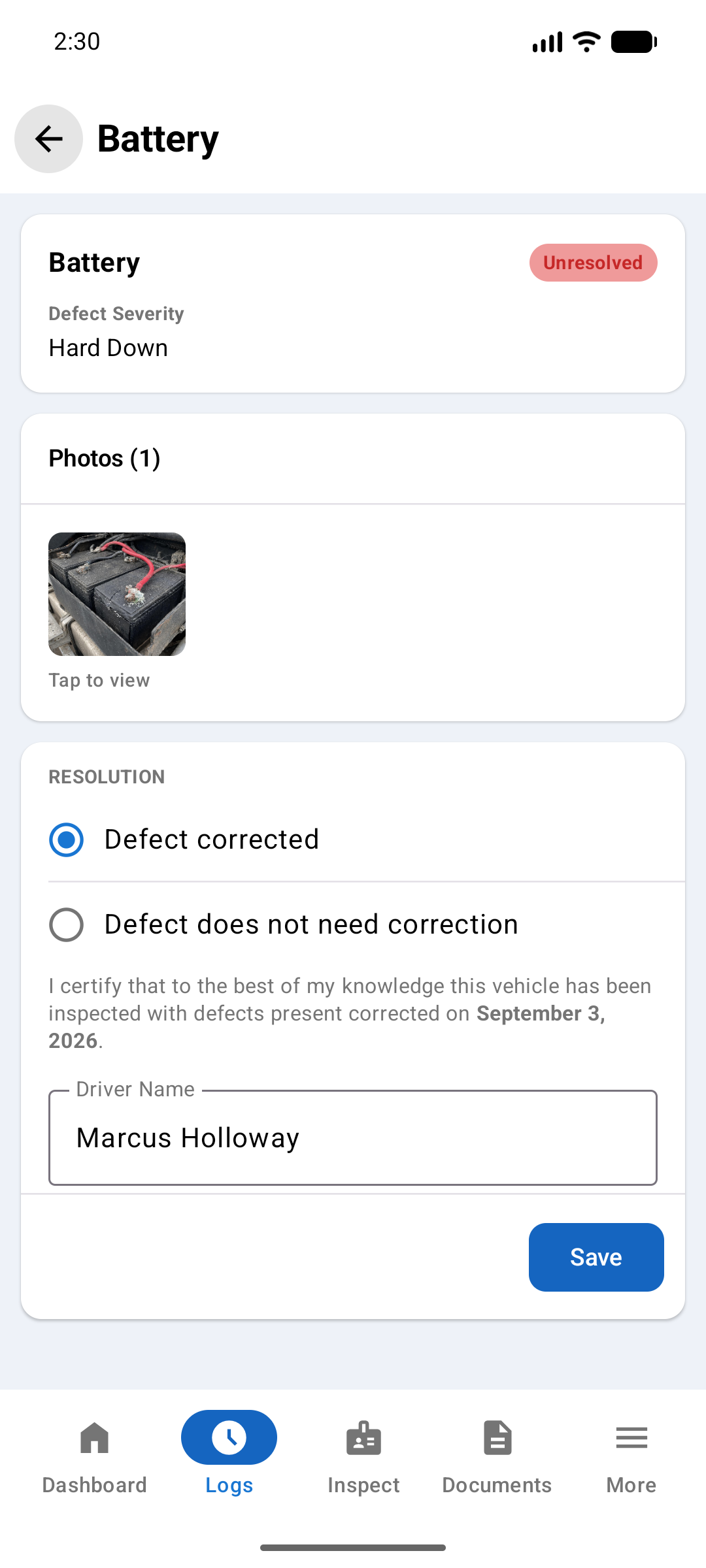
Completed DVIRs are listed under Logs → Daily Log → DVIR. Tap View to see the full report, or Download to generate a PDF. An unresolved defect can be resolved right from here. Open it, mark it corrected or does not need correction, and save.
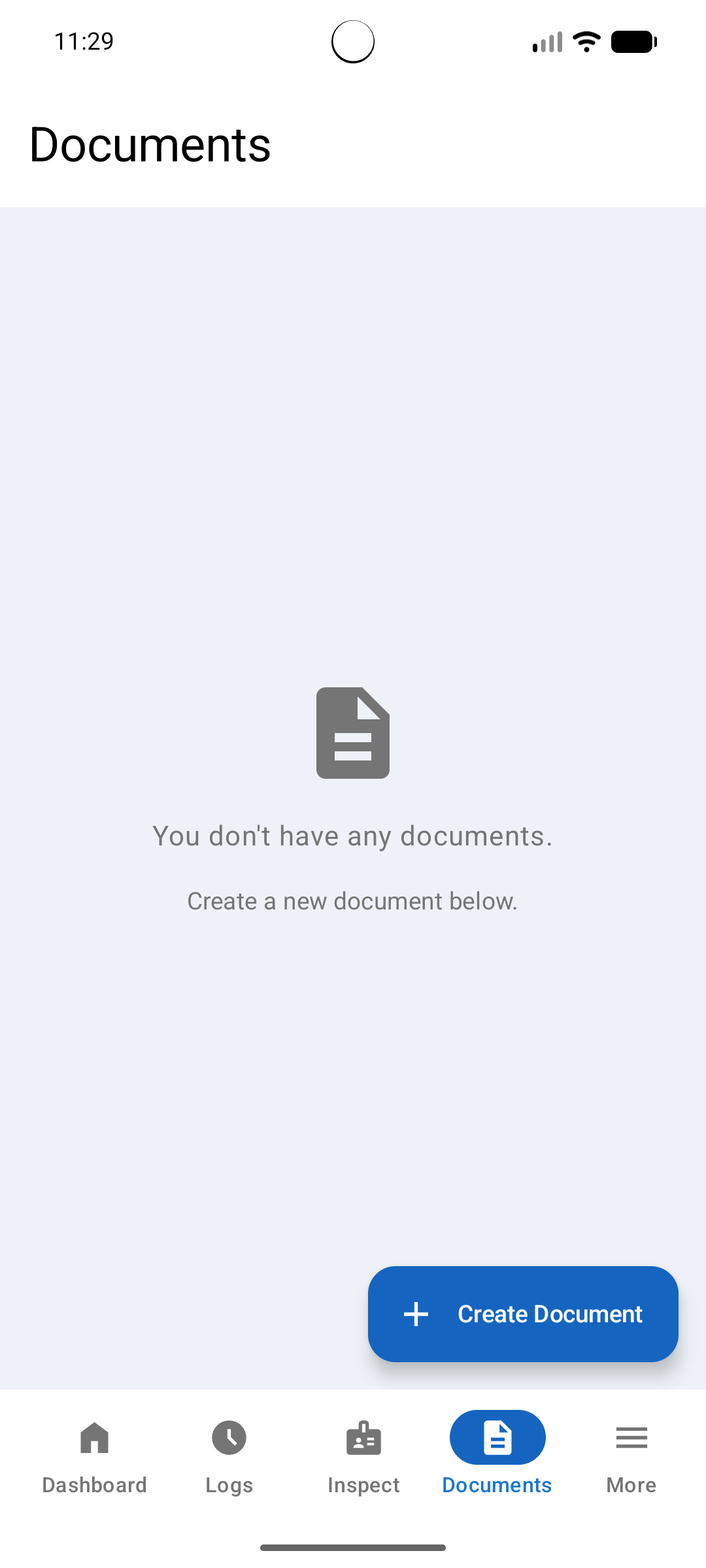
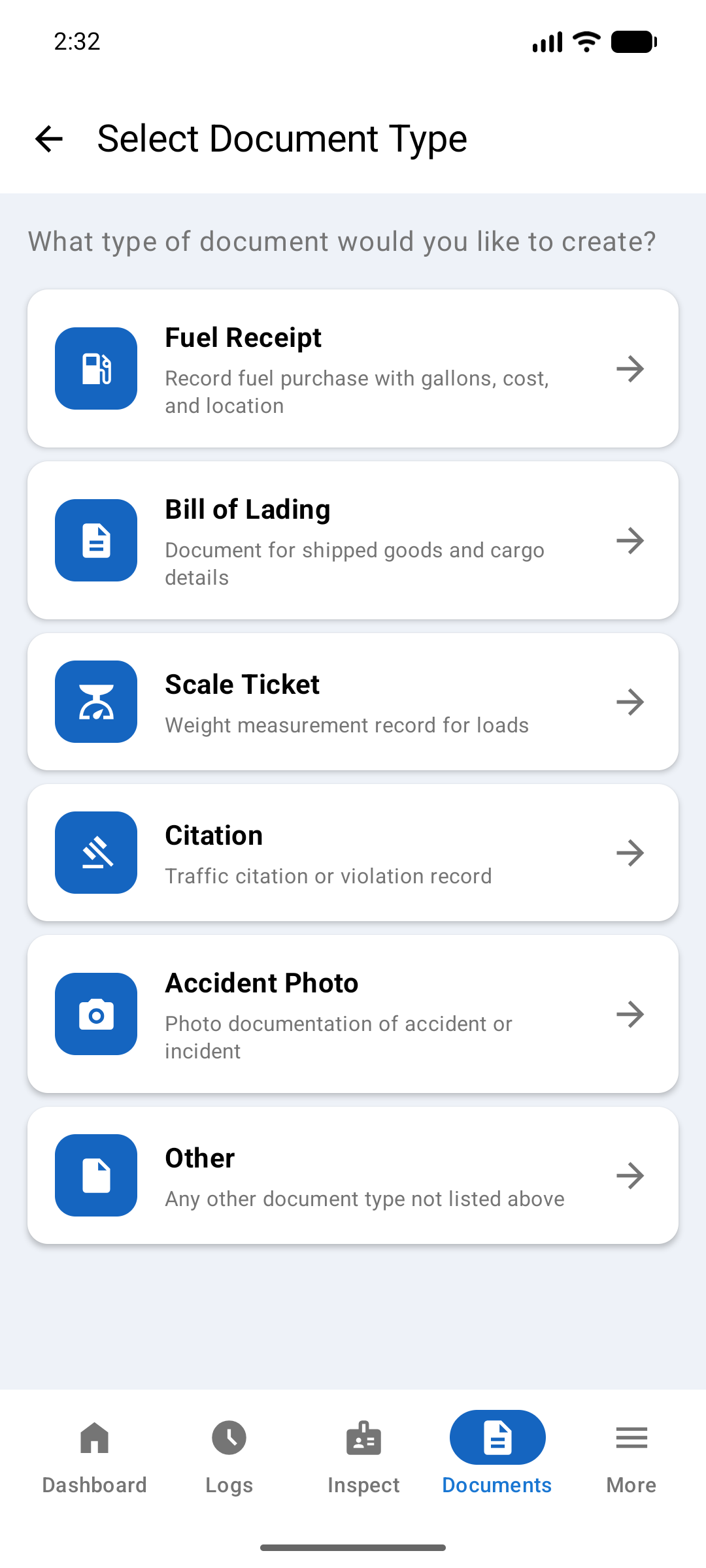
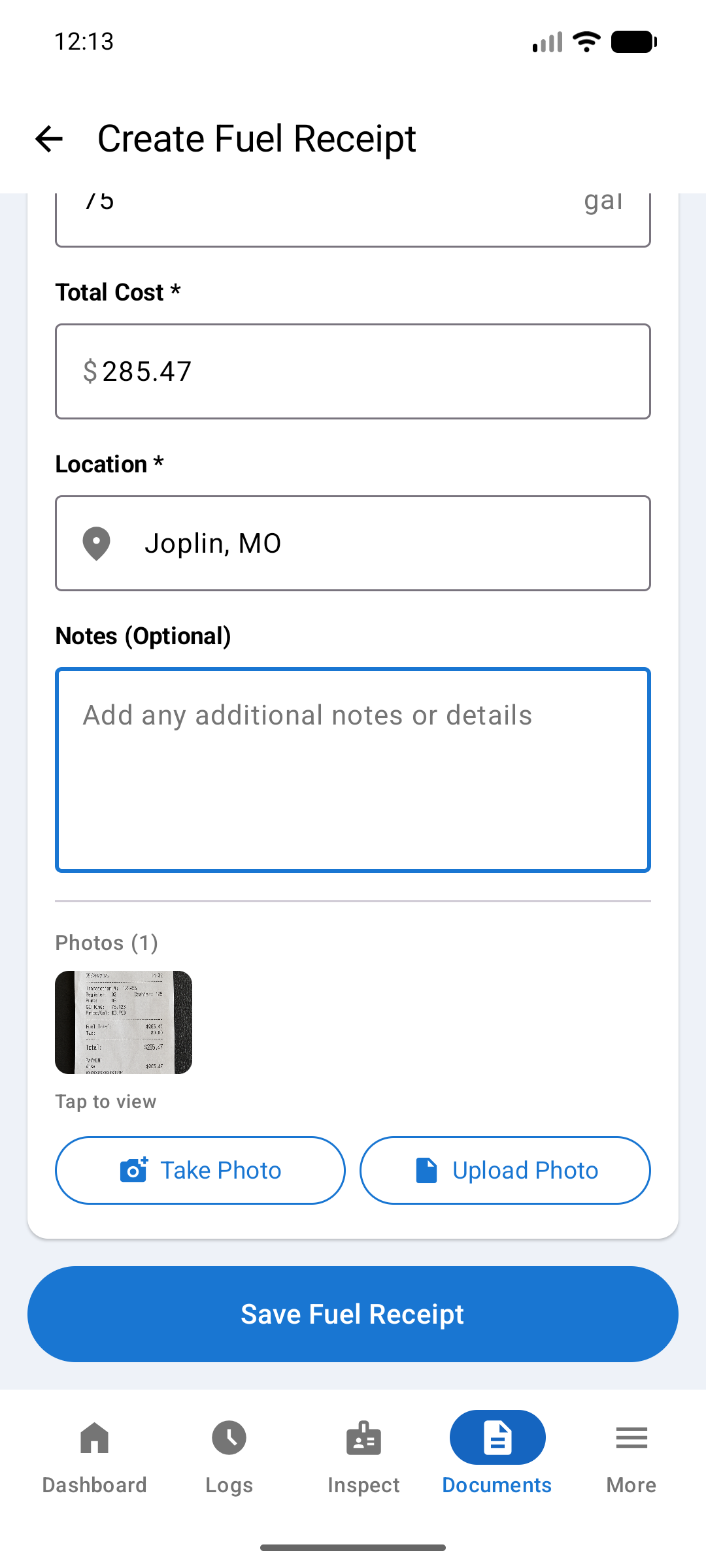
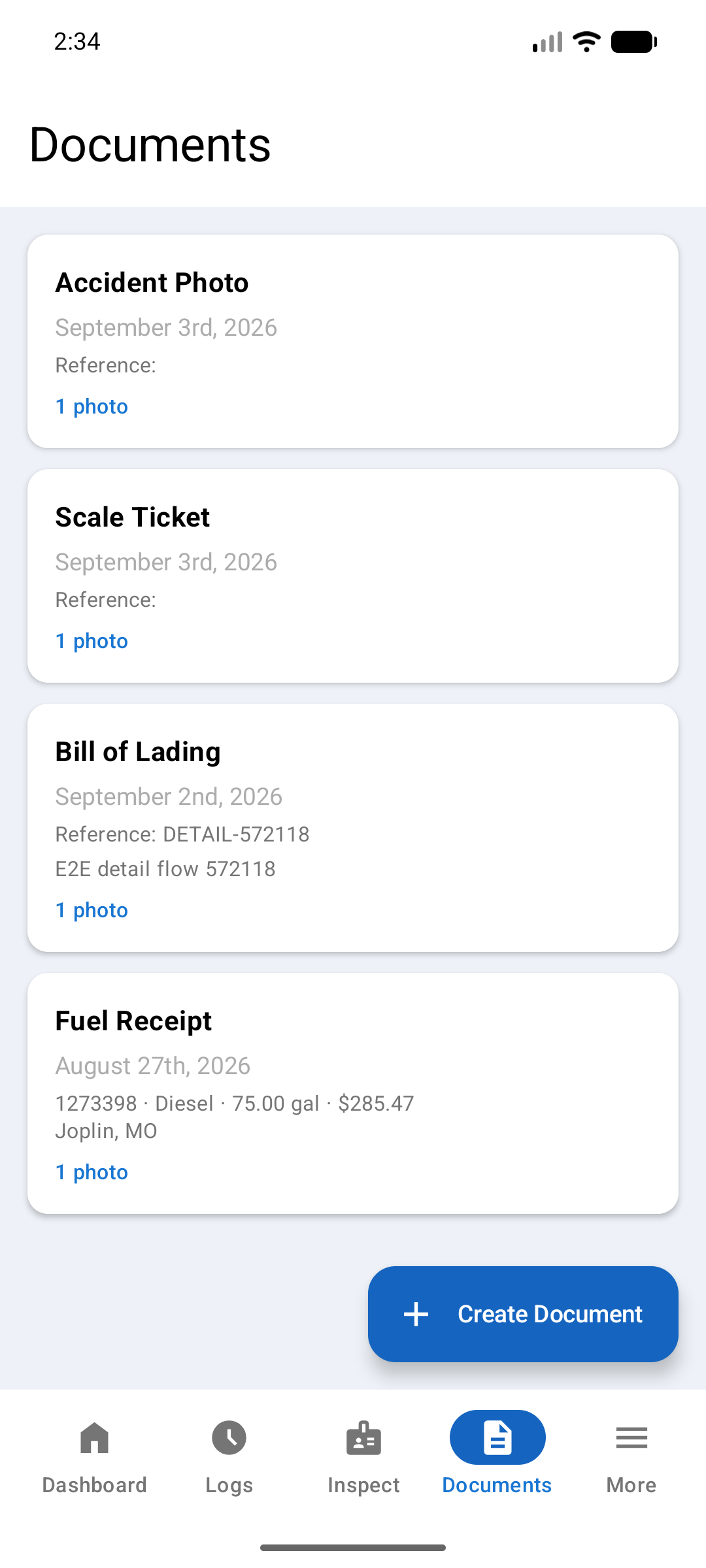
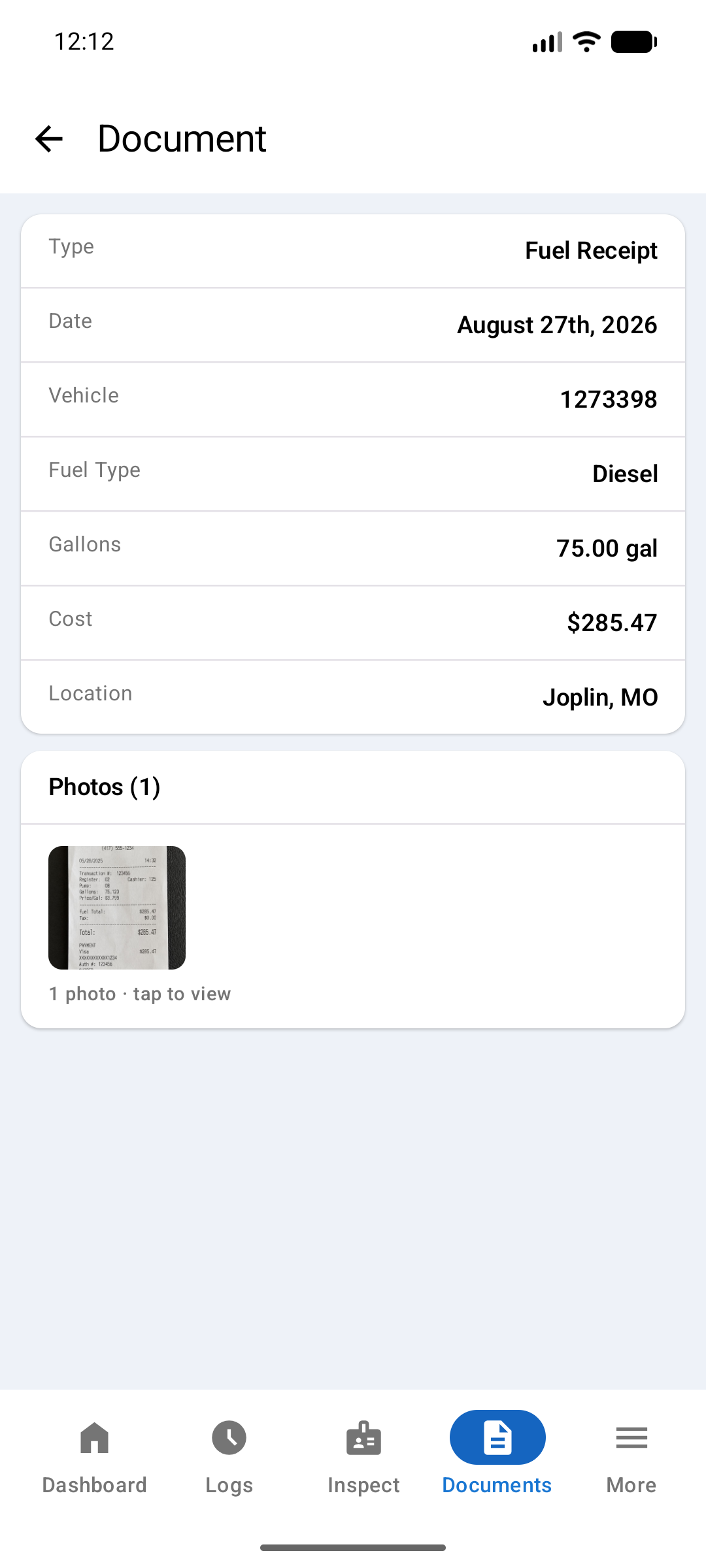
The Documents feature lets you capture and upload supporting records, such as fuel receipts, bills of lading, scale tickets, and more, directly from the app. Tap Documents in the bottom tab bar to open the document list.
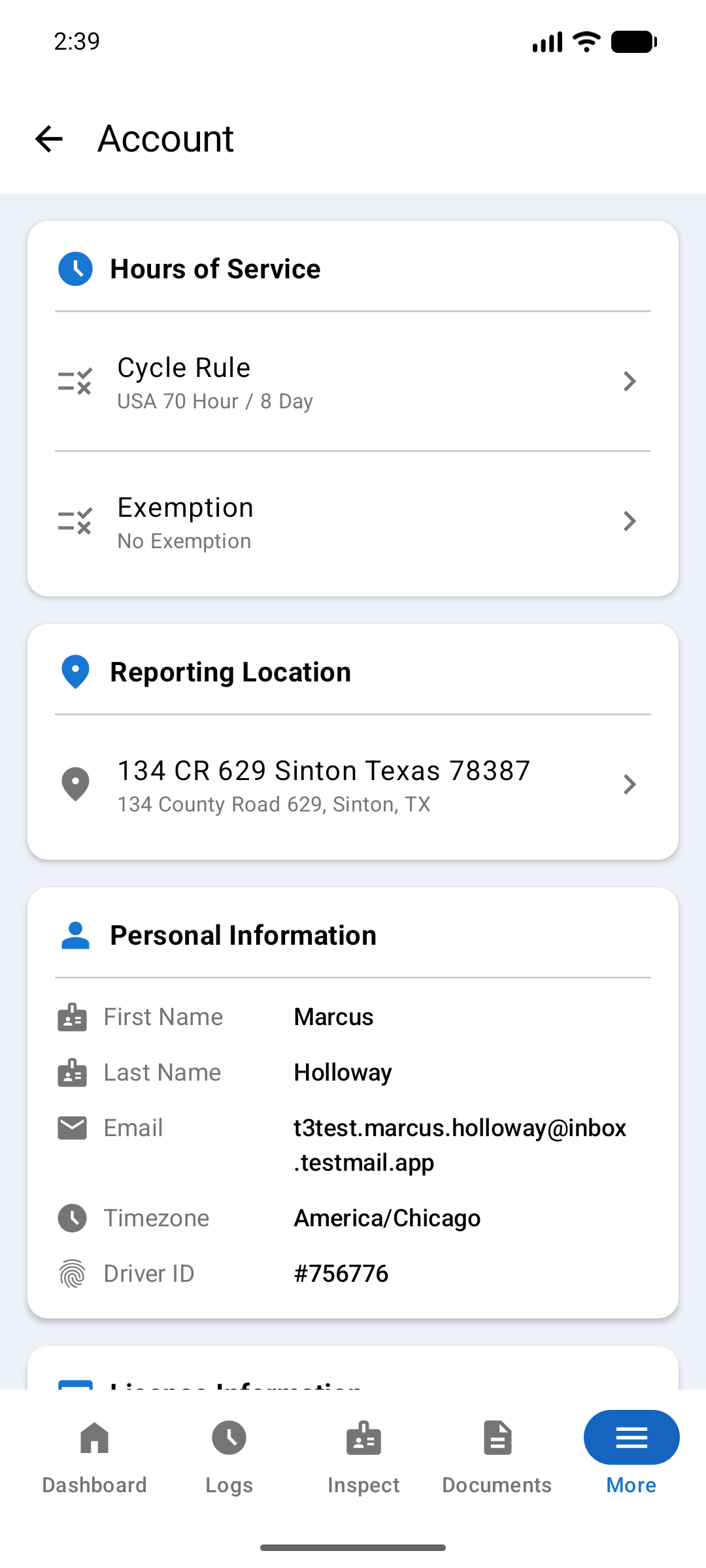
The Account screen (More → Account) holds your driver profile and HOS settings. Some fields are read-only, set by your carrier. Others you can change here.
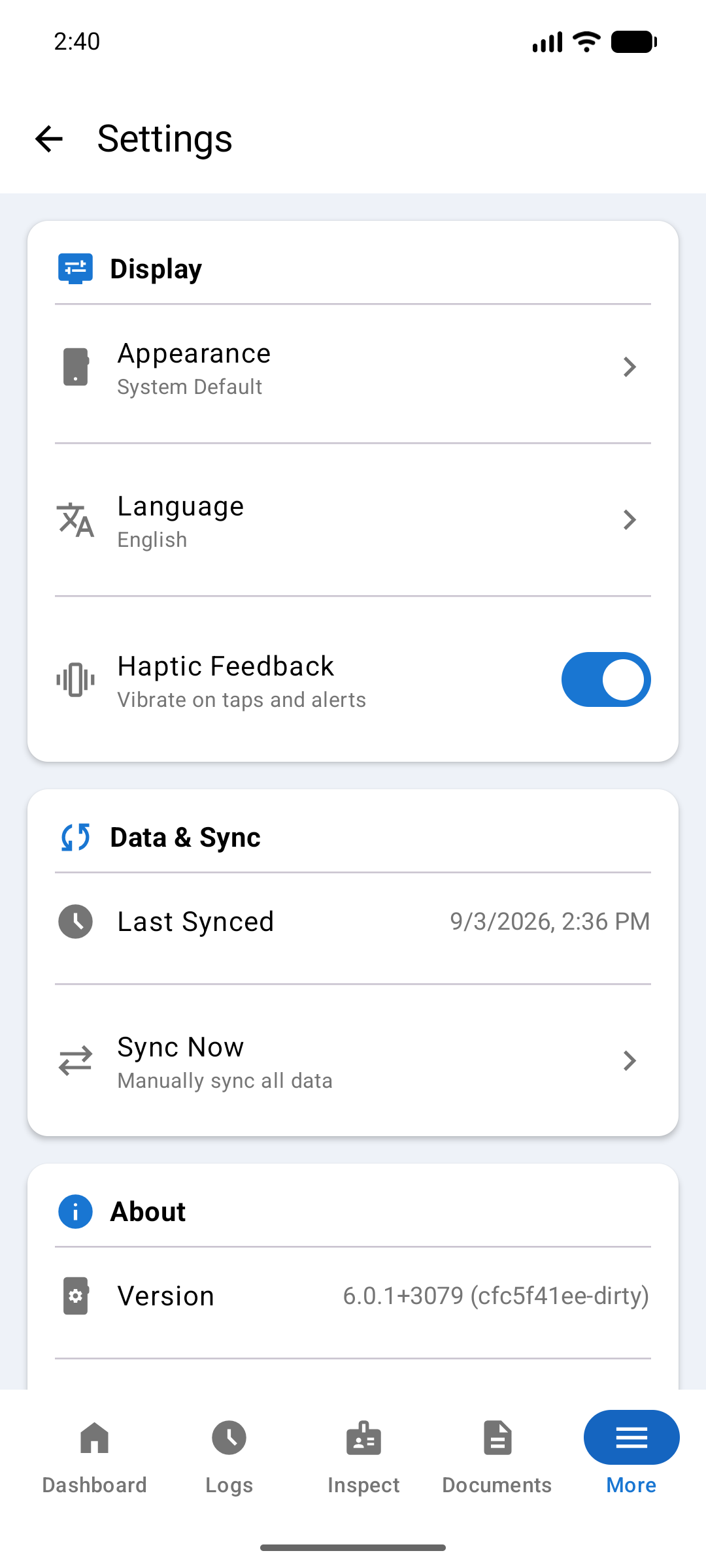
Tap More in the bottom tab bar to access app settings.
Change the app's Appearance between System Default, Light mode, or Dark mode.
Choose the language used for the app interface. English and Spanish are currently available.
The app syncs your log data automatically in the background. You can see when data was Last Synced and tap Sync Now to force an immediate sync if you suspect data is out of date.
The About section shows your app version number and device ID. Please have this information ready when contacting support.
A paper log is your backup when the app cannot record your hours. It is a Driver's Daily Log sheet with a 24-hour graph grid. You fill in one sheet for each day, by hand.
Use paper logs when the app shows a red ELD Malfunction alert. See Section 11, Malfunctions & Diagnostics. An amber Data Diagnostics alert does not need paper logs.
Keep enough blank log sheets in the cab for at least 8 days. You can buy a log book at most truck stops. A book with carbon copies makes the copy for your carrier for you.
You can also print the FMCSA Drivers Daily Log template: elogs-docs.equipmentshare.com/assets/drivers-daily-log-template.pdf
The grid has four rows: Off Duty, Sleeper Berth, Driving and On Duty (not driving). It runs from midnight to midnight. The small marks are 15 minutes apart.
When the ELD is repaired, sign in to the app and use it again. Keep your paper logs for the days of the malfunction, and give the originals to your carrier.
FMCSA publishes filled-in example logs for many types of work day: fmcsa.dot.gov — Hours of Service Logbook Examples