What happens during the move, and what works differently in the new app.
Your company is moving from Contractors E-Logs to ES E-Logs. Both are ELD apps. ELD means Electronic Logging Device: it records your Hours of Service (HOS).
ES E-Logs calls Contractors E-Logs the legacy E-Logs app. Legacy means the old app. This guide uses the same words.
ES E-Logs follows the federal FMCSA ELD rules exactly. Some things work differently from Contractors E-Logs. The biggest change: when the vehicle moves, the app records Driving for the driver assigned to it, even if that driver is off duty. See Section 5, What Works Differently.
You can get ready before your move. Install the new app and sign in. Signing in early does not start your move. Keep using Contractors E-Logs until your move is done.
Your company may use an MDM to manage the apps on your phone. MDM means Mobile Device Management. Iru (formerly Kandji) is one example. With an MDM, you install work apps from your company's own app catalog, for example Iru Self Service, not from the App Store.
EquipmentShare schedules your move. Before the move, EquipmentShare tells your company the approximate dates. Your move starts automatically only:
Signing in to ES E-Logs early does not start your move. You do not need to do anything.
If you sign in to ES E-Logs before your move is done, the app shows one of these screens. Each screen tells you what to do. Most of them tell you to keep using Contractors E-Logs for now.
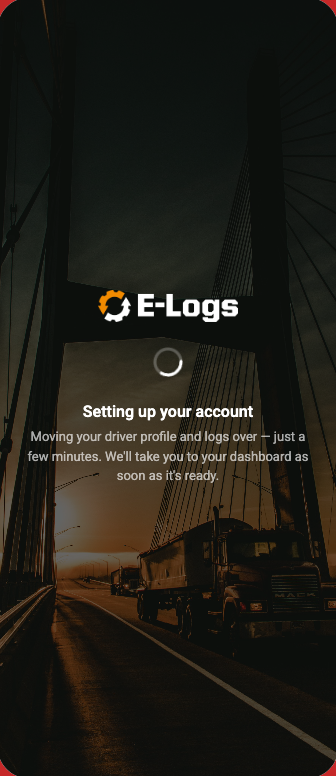
Your move has started. The app moves your driver profile and logs. This takes a few minutes. Wait on this screen. The app opens your Dashboard when it is ready.
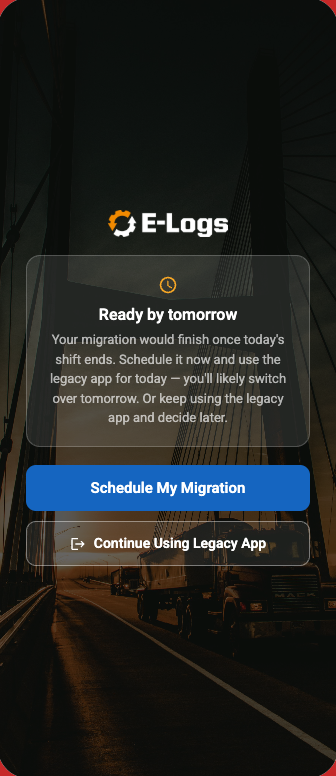
Your move can finish after today's shift ends. You can choose:
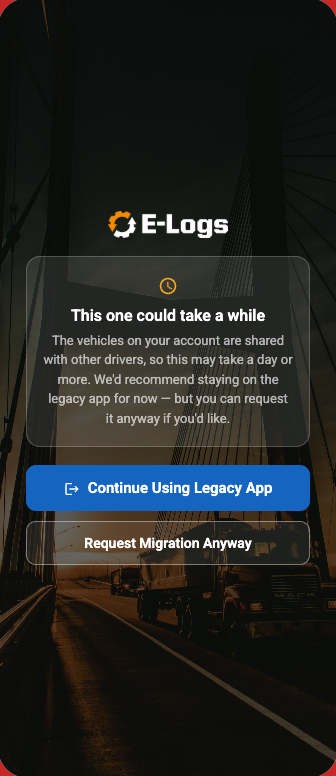
Other drivers share the vehicles on your account. Your move may take a day or more. We recommend Continue Using Legacy App.
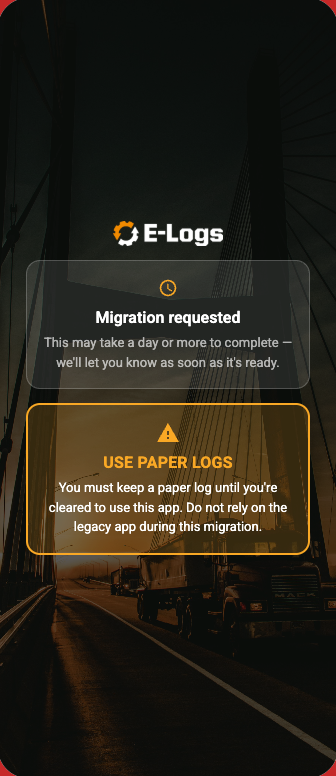
If you tap Request Migration Anyway, the app shows Migration requested. You must then keep paper logs until ES E-Logs lets you in. Do not use Contractors E-Logs during this time. See the User Manual, Section 17, Paper Logs.
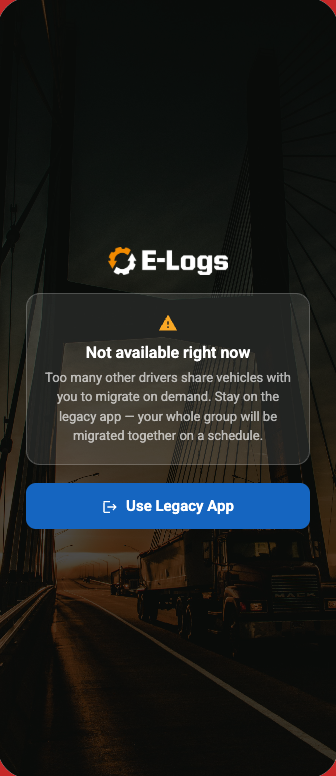
Many drivers share vehicles with you. Your whole group moves together, on a date that EquipmentShare sets. Tap Use Legacy App and keep using Contractors E-Logs.
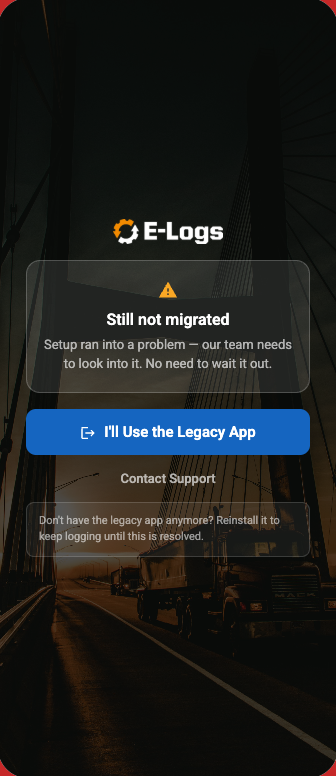
The move had a problem. Our team must fix it, so you do not need to wait. Tap I'll Use the Legacy App and keep using Contractors E-Logs. Tap Contact Support if you need help.
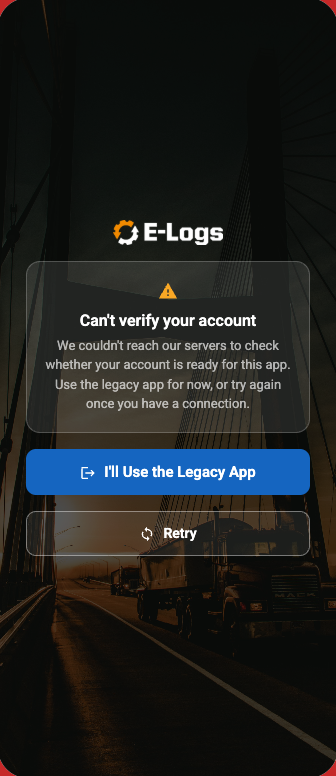
The app cannot connect to check your account. Use Contractors E-Logs for now. When you have a signal or Wi-Fi, tap Retry.
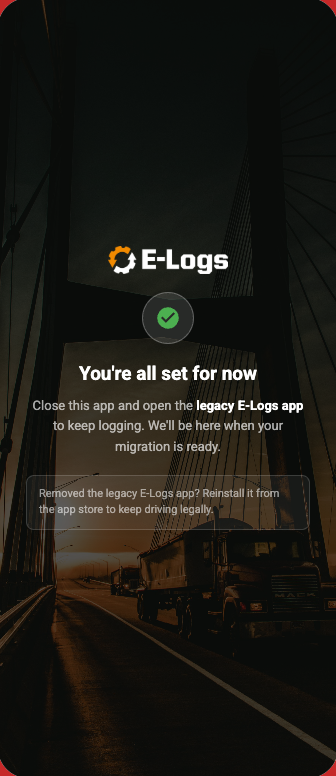
The app shows this screen after you tap a button that says to use the legacy app. Close ES E-Logs and open Contractors E-Logs to keep logging. The next time you open ES E-Logs, it checks your account again.
When your move is done, Contractors E-Logs stops recording your hours. It shows a full screen that tells you to use ES E-Logs.
There are three of these screens. Each one tells you something different.
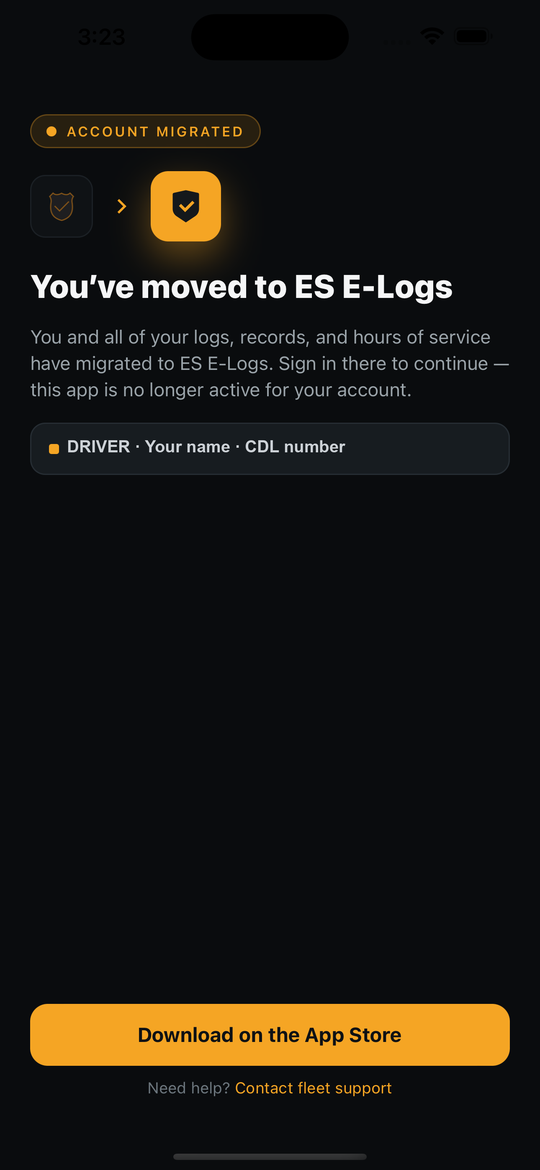
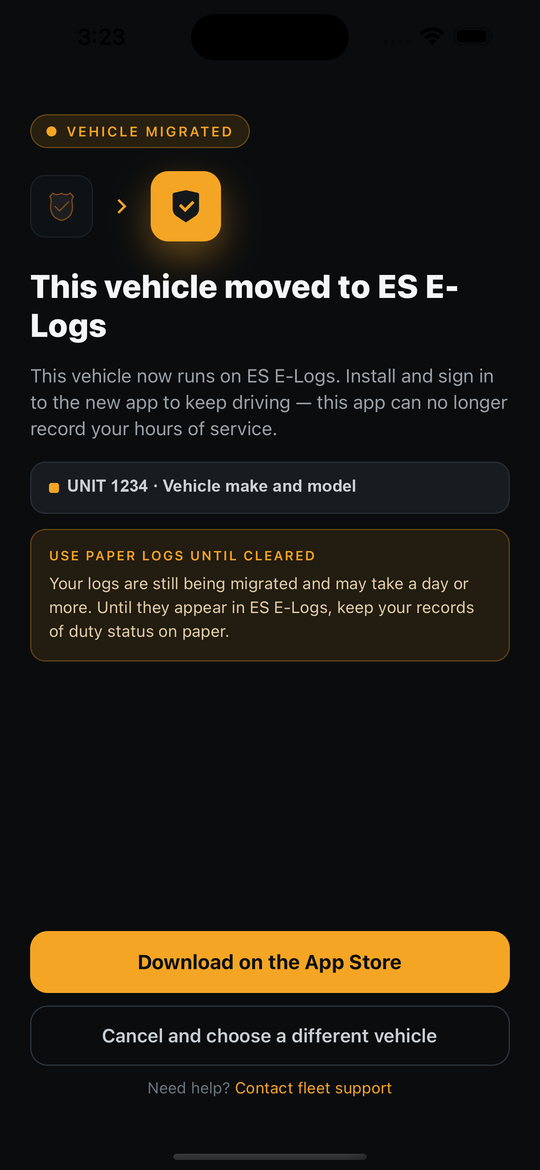
Your ELD records for the last 14 days move to ES E-Logs automatically. You can see them in your daily logs, and you can show them at a roadside inspection. See the User Manual, Section 10, Roadside Inspection.
For records older than 14 days, ask your carrier.
ES E-Logs follows the FMCSA ELD rules. FMCSA is the Federal Motor Carrier Safety Administration. These are federal rules. EquipmentShare and your company cannot change them or turn them off.
Think of the vehicle as having an ELD fixed in the cab. When you assign the vehicle in the app, you sign in to that ELD. When you unassign it, you sign out.
When the vehicle moves, the app records Driving for the driver assigned to it. This happens even if that driver set their status to Off Duty.
To stop this, unassign the vehicle at the end of your shift. If you need to move the vehicle for a personal reason, use Personal Use. If you only need to move it inside the yard, use Yard Move. Yard Move counts as On Duty.
Use Personal Use when you drive the vehicle for a reason that is not work, for example the drive home. The app records it as Off Duty, so it does not count toward your driving limits.
When you get home, you can stay in Personal Use. It counts as Off Duty. Each time you start the engine, the app asks if you are still on Personal Use. This helps when you drive the vehicle to work the next morning.
To move the vehicle only inside a yard or terminal, select Yard Move before you move it. Yard Move counts as On Duty (not driving). It is not for public roads. When you finish, unassign the vehicle.
If nobody is assigned and the vehicle moves, the ELD records it as Unassigned Driving. The next driver who assigns the vehicle may be asked to claim it. See the User Manual, Section 9, Unassigned Logs.
Too much unassigned driving turns on the Unidentified Driving Records diagnostic for the vehicle. See the User Manual, Section 11, Malfunctions & Diagnostics.
You can sign in to ES E-Logs on more than one phone or tablet. Only one device records your driving for a vehicle. It is the device where you assigned the vehicle last.
To change to a new device, unassign the vehicle on the old device. Then assign the vehicle on the new device. Do not use the forced switch unless the old device has no power or is not in the vehicle. See the User Manual, Section 5.6, Using More Than One Device.
| When you want to | Do this |
|---|---|
| Start your shift | Assign the vehicle. |
| End your shift | Unassign the vehicle. |
| Drive home or run a personal errand | Stay assigned. Stop, then select Personal Use. |
| Move the vehicle in the yard | Select Yard Move. Unassign when you finish. |
| Let another driver use the vehicle | Unassign it, so they can assign it. |
| Use a different phone or tablet | Unassign on the old device. Then assign on the new device. |